# Queue AVG Wait & Talk Time Report
The Queue AVG Wait & Talk Time report shows two averages side by side: how long callers sit in a queue (the virtual line that holds inbound callers until an agent is free) before the call ends, and how long your agents spend talking once connected. Both figures are broken out by hour, day, and month, so you can spot busy periods and staffing gaps at a glance. This page covers how to open the report and what each metric means.
## Open the report
1. Sign in to the PBX (Private Branch Exchange) web portal and go to **Reports and Recordings > Call Reports**.
2. Open the report:
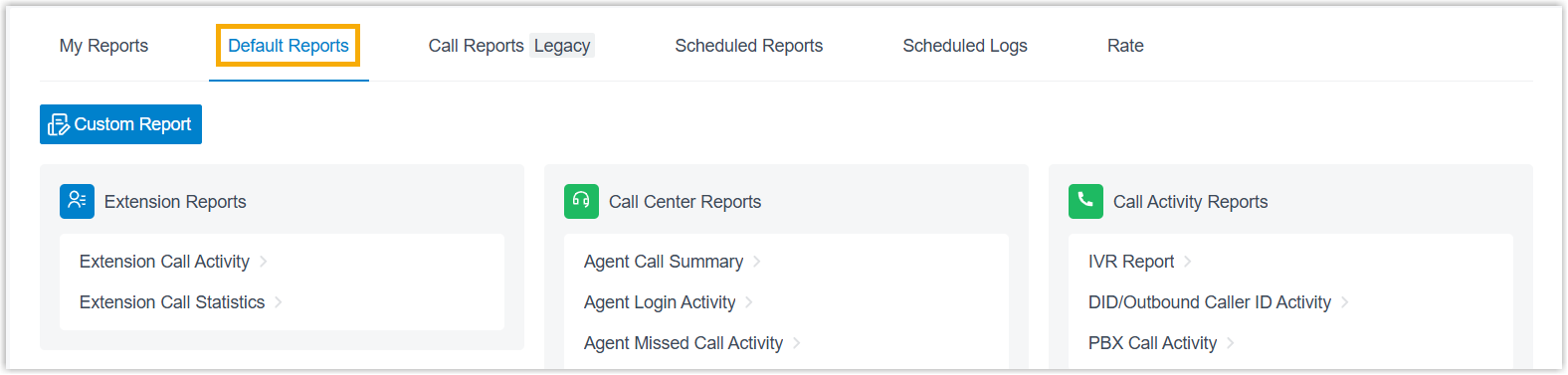
1. Select the **Default Reports** tab.
:::note
To improve performance, the CDR (Call Detail Record) module was rebuilt in version 84.21.0.117 with a new data structure that produces clearer displays and richer call detail. Older CDRs and their related report data are removed over time based on your **CDR Auto Cleanup** setting. Until that cleanup runs, new and historical data are kept separately: the **Default Reports** tab holds data generated on version 84.21.0.117 or later, while the **Call Reports (Legacy)** tab holds data recorded before the upgrade. This page describes the new report data; for earlier records, use the **Call Reports (Legacy)** tab instead.
:::
2. In the **Call Center Reports** pane, click **Queue AVG Wait & Talk Time**.
3. Set the filters that define which calls the report includes.

1. Use the **Time Range** and **Select Date** fields to set the period the report covers.
2. From the **Queue** drop-down list, choose one or more queues.
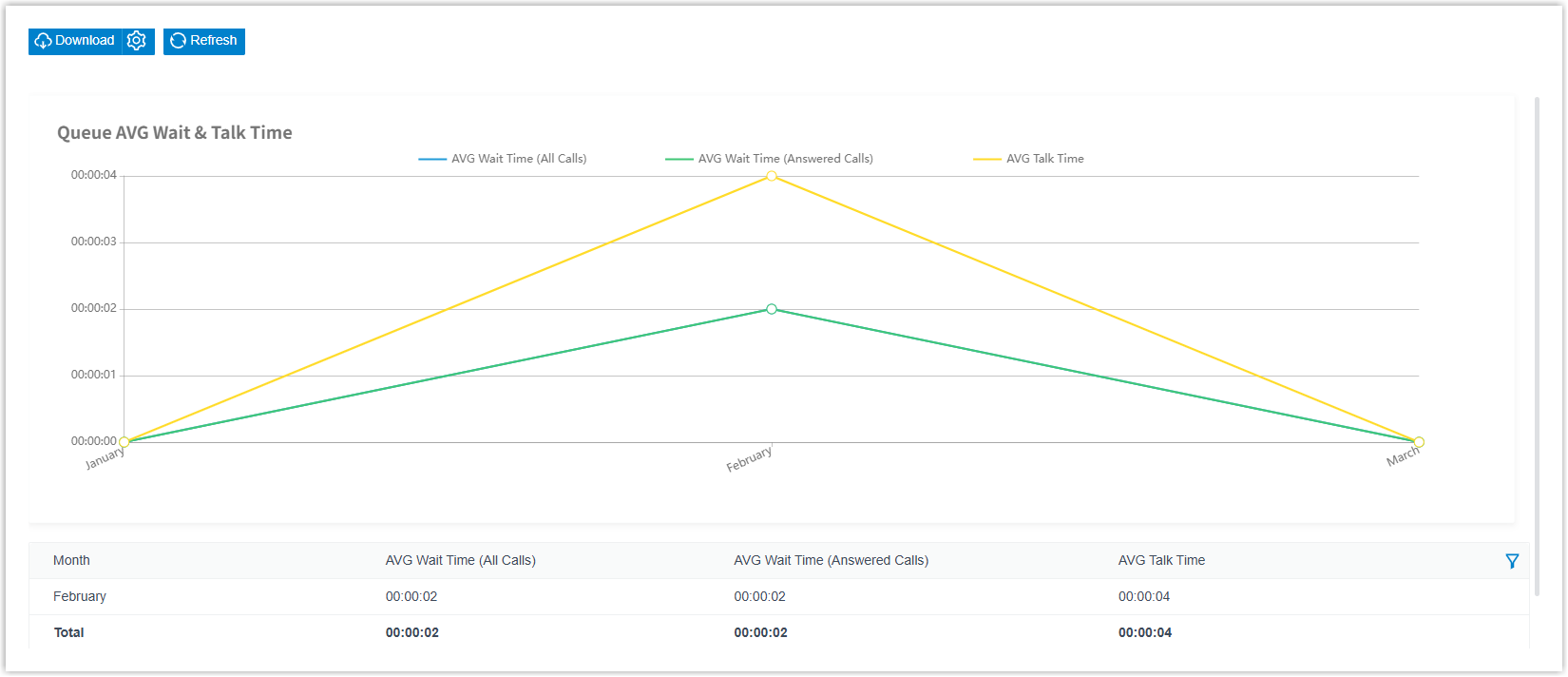
The report refreshes to match your filters, as shown below.
4. (Optional) Rearrange the columns to keep the metrics you care about (the key performance indicators, or KPIs, you want to track) in view.
| Action | How |
| --- | --- |
| Choose which columns appear | Click the column filter icon and select the columns you want to show.
 |
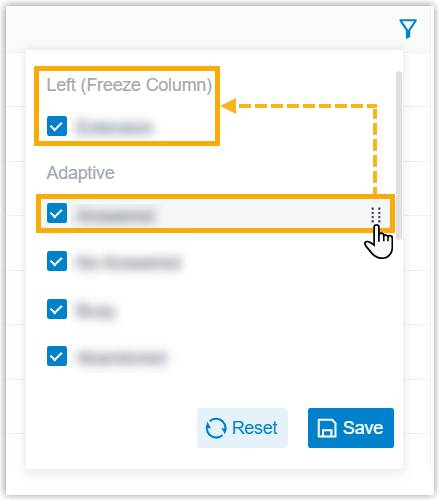
| Freeze a column | Click the drag handle next to a field and drop it into **Left (Freeze Column)** or **Right (Freeze Column)**.
 |
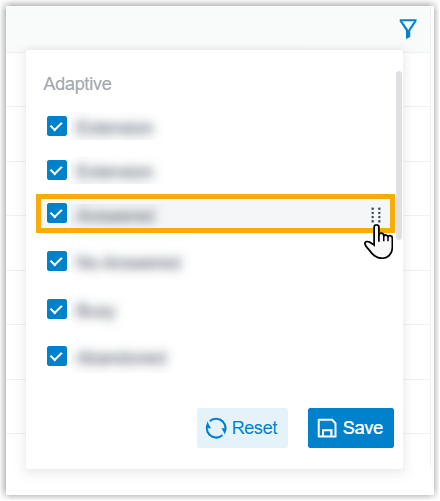
| Reorder columns | Click the drag handle next to a field and drop it in the position you want.
 |
5. (Optional) Save the report for later or have it emailed on a schedule.
| Action | How |
| --- | --- |
| Add to **My Reports** | Save the report to your **My Reports** list for quick access.
1. At the bottom of the page, click **Add to My Reports**.
2. Give the report a name you'll recognize, and fine-tune the filters or metrics if needed.
3. Click **Save**. |
| Add to **Scheduled Reports** | Set up a task that emails the report automatically.
1. At the bottom of the page, click **Add to Scheduled Reports**.
2. Fill in the scheduled task settings to control when and to whom the report is sent. |
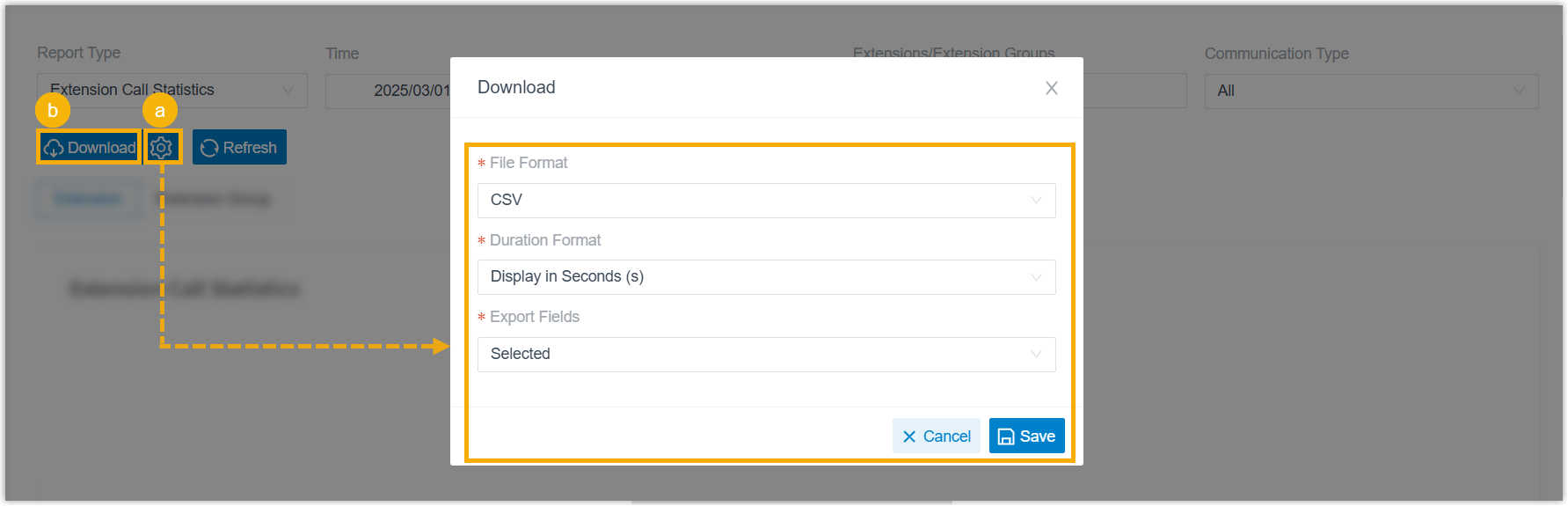
| Download the report | Export the report to your computer for offline review.
1. (Optional) Click the settings icon to adjust the download options, then save your changes:
• **File Format**: choose CSV, XLS, PDF, or HTML.
• **Duration Format**: show every duration field either in seconds (s) or as HH:MM:SS.
• **Export Fields**: export **All** fields or only the **Selected** ones.
2. Click **Download**. |
:::tip
Match the **Duration Format** to how you'll use the file. Pick **Display in Second (s)** if you plan to run your own calculations in a spreadsheet, or **Display as HH:MM:SS** for a report that people can read at a glance.
:::
## What the metrics mean
| Metric | Description |
| --- | --- |
| AVG Wait Time (All Calls) | The average time every inbound call spent waiting in the queue, whether or not it was eventually answered. |
| AVG Wait Time (Answered Calls) | The average time answered calls waited in the queue before an agent picked up. |
| AVG Talk Time | The average time agents spent talking with callers. |
:::tip
Compare the two wait-time figures to gauge how many callers give up before reaching an agent. AVG Wait Time (All Calls) includes calls that hung up while still waiting, so it reflects the full caller experience, while AVG Wait Time (Answered Calls) counts only calls an agent picked up. When the All Calls figure is noticeably higher than the Answered Calls figure, callers are likely abandoning the queue before anyone answers.
:::