# Schedule Automatic Call Report Delivery via Email
Cloud Voice can build a call report on a schedule you choose and email it to a set of recipients. Each message contains a download link, and recipients can save the report as a CSV, XLS, PDF, or HTML file. This saves anyone from logging in to pull the same report by hand: for example, you can send a weekly queue-performance summary to a manager every Monday morning automatically. This page walks through creating one of these scheduled delivery tasks.
## Before you begin
Your [system email server](/pbx/administrator-guide/email-server-overview/) must be configured and working, since Cloud Voice uses it to send the report emails.
## Limitations
You can create up to **2000** scheduled report-delivery tasks.
## Create a scheduled report
1. Sign in to the PBX (Private Branch Exchange, your phone system) web portal and go to **Reports and Recordings > Call Reports**.
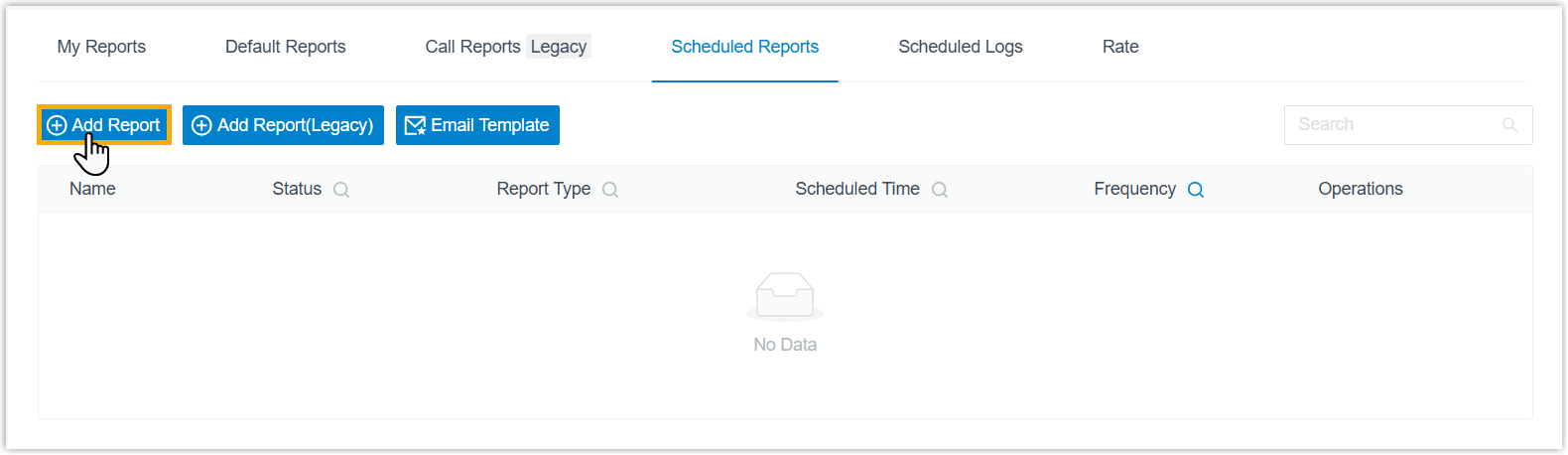
2. Open the **Scheduled Reports** tab and click **Add Report**.
:::note
Cloud Voice rebuilt its CDR (Call Detail Record, the per-call log the system keeps) module in version **84.21.0.117**, introducing a new data structure that displays call details more clearly and completely. After the upgrade, older CDRs and their associated report data are removed gradually according to your **CDR Auto Cleanup** setting. Until that cleanup finishes, new and historical data are kept apart and scheduled separately:
- Use **Add Report** for data generated on version 84.21.0.117 or later.
- Use **Add Report (Legacy)** for older, historical data.
The steps below cover the new data. To schedule a report from historical data instead, start with **Add Report (Legacy)** and follow the equivalent prompts.
:::
3. In the **Report Data** section, define what the report contains.
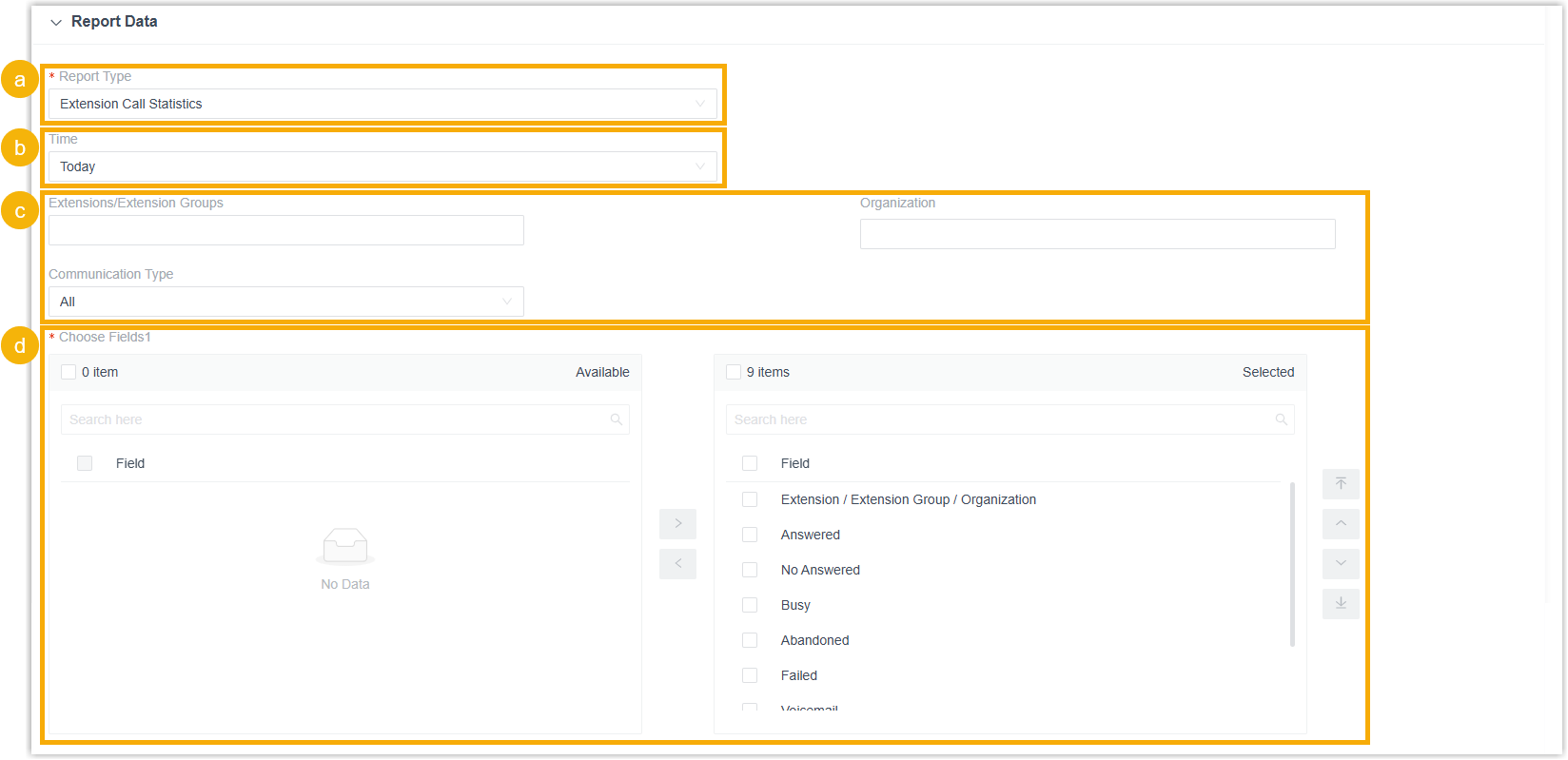
1. From the **Report Type** drop-down list, choose the report you want to send.
:::note
Some report names use standard telephony abbreviations:
- **IVR** (Interactive Voice Response): the automated phone menu that plays prompts and routes callers based on the keys they press.
- **DID** (Direct Inward Dialing): a phone number that sends an outside caller straight to a specific destination.
- **DOD** (Direct Outward Dialing): the caller ID number presented to the person being called on outbound calls.
- **DDI** (Direct Dial-In): the European term for a DID; the two mean the same thing.
:::
2. Set the time range the report should cover.
:::note
When you apply more than one time-based filter, the report includes only the data that falls within the overlapping period.
:::
3. Set the report-specific filters that narrow the data. The filters available depend on the report you selected:
| Category | Report | Available filters |
|----------|--------|-------------------|
| Extension | Extension Call Activity | Extensions/Extension Groups; Organization; Communication Type |
| Extension | Extension Call Statistics | Extensions/Extension Groups; Organization; Communication Type |
| Accounting | Extension Call Accounting | Extensions/Extension Groups; Trunk; Organization |
| Accounting | Extension Call Accounting Details | Extensions/Extension Groups; PIN Code; Organization; Trunk |
| Call Activity | IVR Report | Type; IVR |
| Call Activity | DID/Outbound Caller ID Activity | Trunk; DID; DOD; Communication Type |
| Call Activity | PBX Call Activity | Trunk; Include internal calls; Communication Type |
| Call Center | Agent Call Summary | Queue; Agent |
| Call Center | Agent Login Activity | Queue; Agent |
| Call Center | Agent Missed Call Activity | Queue; Agent |
| Call Center | Satisfaction Survey Detail | Queue; Agent |
| Call Center | Agent Pause Activity | Queue; Agent; Pause Reason |
| Call Center | Agent Performance | Queue; Agent; Exclude Calls Abandoned within Xs |
| Call Center | Queue AVG Wait & Talk Time | Queue |
| Call Center | Satisfaction Survey | Queue |
| Call Center | Queue Callback Summary | Queue |
| Call Center | Queue Callback Activity | Queue; Callback Result |
| Call Center | Queue Performance Activity | Queue; Exclude Calls Abandoned within Xs |
| Call Center | Queue Performance | Queue; Exclude Calls Abandoned within Xs; Exclude Calls within Xs |
| Call Center | Inbound Queue Activity Analysis | Queue; Wait Time Range; Time Range & Select Date; Exclude Calls Abandoned within Xs; Exclude Calls within Xs |
| Call Center | Unreturned Missed Call Report | Call From; Call To; Call Destination; Missed Call Type; Callback Status; Exclude Calls Abandoned within Xs |
| Call Center | Ring Group Statistics | Ring Group |
| Call Center | Inbound Queue Logs | Queue; Communication Type; Call From; Queue Status; Answered Agent; Wait Time; Agent Answer Time; Talk Time; Pure Talk Time; Hold Time; Source Trunk; DID/DDI; Exclude Calls Abandoned within Xs; Exclude Calls within Xs |
| Call Center | Agent Activity Analysis | Queue; Agent; Time Range & Select Date; Exclude Calls Abandoned within Xs; Exclude Calls within Xs |
| Call Center | Inbound Queue Logs for Agent | Queue; Agent; Communication Type; Call From; Agent Last Call Status; Queue Status; Process Result; Wait Time in Queue; Agent Wait Time; Talk Time; Pure Talk Time; Hold Time; Source Trunk; DID/DDI; Exclude Calls Abandoned within Xs; Exclude Calls within Xs |
| AI | AI Receptionist Call Activity | Receptionist |
| AI | Transcription Usage Details |- |
Several filters carry a specific meaning:
- **Include internal calls**: Choose whether internal call activity is counted (PBX Call Activity).
- **Time Range & Select Date**: The period the report covers. If you combine it with other time-based filters, only the overlapping period is reported.
- **Wait Time Range**: The interval used to group how long callers waited in the queue before reaching an agent.
- **Wait Time**, **Wait Time in Queue**, **Agent Answer Time**, **Agent Wait Time**, **Talk Time**, **Pure Talk Time**, **Hold Time**: Duration filters. You can enter a plain number, a numeric range, or an operator (`-`, `=`, `<`, `<=`, `>`, `>=`). **Talk Time** includes hold time, while **Pure Talk Time** excludes it.
- **Exclude Calls Abandoned within Xs**: A ring-duration threshold. Calls abandoned before this many seconds are left out of the report.
- **Exclude Calls within Xs**: A talk-duration threshold. Calls that end before this many seconds are left out of the report.
- **Call From** / **Call To**: The caller's or callee's number or name.
- **Call Destination**: The type of destination an inbound call was routed to.
- **Missed Call Type**: The category of missed call.
- **Callback Status**: Whether the missed call was returned.
- **Process Result**: The handling result for an abandoned or missed queue call.
4. In the **Choose Fields** pane, move any columns you do not want in the report from the **Selected** box to the **Available** box.
4. In the **Scheduled Info** section, configure how and when the report is delivered.

| Setting | Description |
|---------|-------------|
| Name | A name that helps you recognize the task. |
| Email Address | The recipients' email addresses. You can add up to **10** addresses, separated by semicolons (`;`). |
| Frequency | How often the report is sent:
- **Once**: sent immediately after you save the task.
- **Daily**: pick a time; the report goes out at that time every day.
- **Weekly**: pick a day of the week and a time; the report goes out then each week.
- **Monthly**: pick a day and a time; the report goes out on that day and time each month. |
| Validity Period of the Download Link | How long the download link stays active. Once it expires, recipients can no longer download the report through the link. |
| File Format | The download format: **CSV**, **XLS**, **PDF**, or **HTML**. For reports that have a **Details** view (such as IVR Report or Queue Performance), a PDF download omits the call details shown in that view. |
| Duration Format | How all duration fields are displayed: **Display in Second (s)** or **Display as HH:MM:SS**. |
| Include Details | Whether to download the list data only or include call details. If you include details, choose how they are delivered: **Download data as multiple files/sheets**, or **Details are displayed as indented, offset rows within the same list**. This option appears only for reports that contain call details, such as IVR Report or Queue Performance. |
| Send Attachment | Optional. When enabled, the report file is attached directly to the email. Attachments in CSV, XLS, or PDF format do not include chart data. |
:::caution
Setting **Frequency** to **Once** sends the report the moment you click **Save**, not at a future time. If you are only testing the setup, be aware that every recipient in **Email Address** gets the email straight away. Choose **Daily**, **Weekly**, or **Monthly** when you want delivery to wait until the scheduled time.
:::
5. Click **Save**.
## Result
- The task is created and appears in the **Scheduled Reports** list.

- At each scheduled time, Cloud Voice sends the report to the recipients' mailboxes automatically. You can also review what was sent from the **Scheduled Logs** tab.
