# Set up Enhanced Emergency Calling
Enhanced emergency calling lets your users reach emergency services and gives the Public Safety Answering Point (PSAP) a caller ID tied to a physical location, so responders know where to go. This page walks through configuring an emergency number, mapping it to trunks, and optionally giving individual users their own location identifier.
## Before you begin
Buy an enhanced emergency service from an Internet Telephony Service Provider (ITSP). The provider issues DID (Direct Inward Dialing) numbers that map to your physical locations. Each of these DIDs is an Emergency Location Identification Number (ELIN), and you will reference them throughout this setup.
:::danger
An ELIN tells the PSAP where to send responders, so it must match the real physical location it is assigned to. If an ELIN points to the wrong address, help is dispatched to the wrong place. Confirm every ELIN maps to the correct location before you rely on it for live emergency calls.
:::
## Create the emergency number
1. Sign in to the PBX (Private Branch Exchange, your phone system) web portal and go to **Call Control > Emergency Number**, then click **Add**.
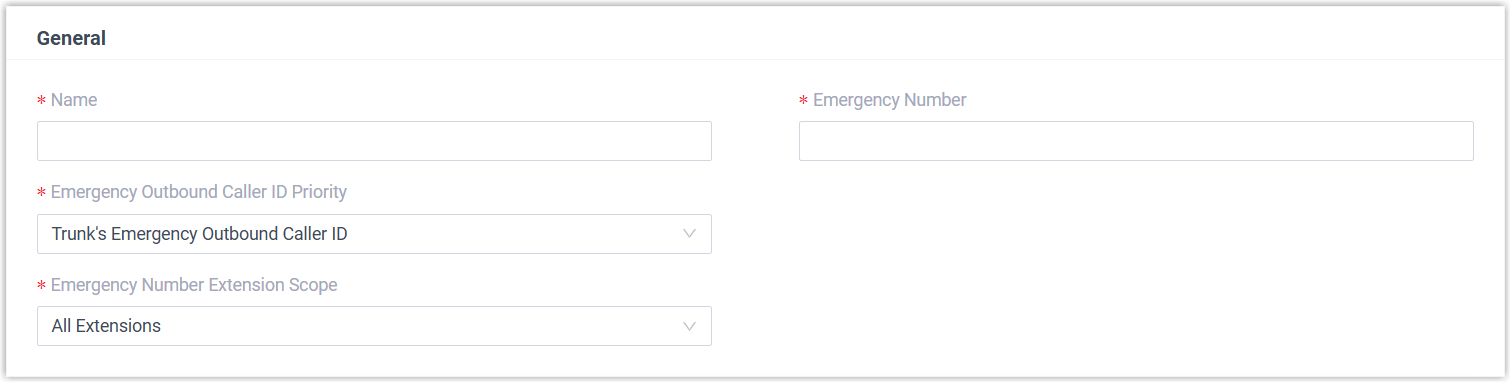
2. Fill in the **General** section.
| Setting | Description |
|---------|-------------|
| Name | A label that helps you recognize this emergency number. |
| Emergency Number | The number users dial to reach emergency services. |
| Emergency Outbound Caller ID Priority | Determines which outbound caller ID is preferred when the call reaches the PSAP:
**Trunk's Emergency Outbound Caller ID**: sends the trunk's emergency caller ID for every emergency call, so the PSAP always receives one shared location no matter who dials. Choose this when a single ELIN covers all users.
**Extension's Emergency Outbound Caller ID**: lets you assign ELINs per user (see [Give individual users their own ELIN](#give-individual-users-their-own-elin)). Users who have a specific ELIN are tied to their own location; users without one fall back to the trunk's emergency caller ID and share a common location. |
| Emergency Number Extension Scope | Controls which extensions may dial this number:
**All Extensions**: every extension can use this number over any of the emergency trunks defined in the Outbound Rules section.
**Specific Extensions**: only the extensions you select may use the number, and only through the matching emergency trunk in the Outbound Rules section. Selecting this reveals additional fields for choosing those extensions. |
:::note
On a hot desking phone, the virtual extension assigned to the phone is exempt from the extension scope. When someone signs in to that phone as a guest, though, their own extension is governed by the scope you set here.
:::
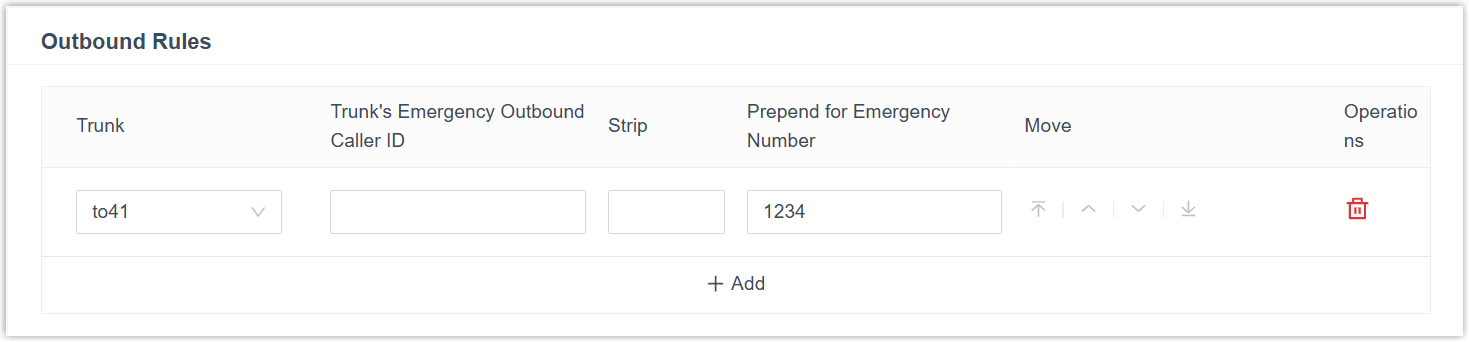
3. In the **Outbound Rules** section, define the trunks that carry emergency calls.
:::note
Emergency calls take precedence over everything else. If the trunk you select is already carrying a call, the PBX drops that call and places the emergency call instead.
:::
a. Click **Add** and complete the fields.
| Setting | Description |
|---------|-------------|
| Trunk | The trunk that carries emergency calls. |
| Trunk's Emergency Outbound Caller ID | The ELIN you purchased from this trunk's provider. |
| Strip | Optional. Removes a set number of leading digits from the dialed emergency number. For example, with a value of `1`, a user who dials 8911 has the leading 8 removed, and the PBX dials 911. |
| Prepend for Emergency Number | Optional. Adds a prefix required by the ITSP to the front of the dialed number. For example, with a value of `1234`, a user who dials 911 sends 1234911. |
| Extensions/Extension Groups | Optional. When only certain extensions may use this number, select the extensions authorized to use this emergency trunk. |
:::caution
Set the prepend value exactly as your ITSP specifies. An incorrect prefix can cause emergency calls to fail.
:::
b. Optional. Repeat step a to add a second trunk.
:::note
If the first trunk is unavailable, the PBX falls back to the second trunk to place the call.
:::
4. Click **Save** and **Apply**.
## Give individual users their own ELIN
To hand the PSAP a precise location for each caller, purchase multiple ELINs and assign one to each extension user.
1. Sign in to the PBX web portal and go to **Extension and Trunk > Extension**, then open the extension you want to edit.
2. On the extension's **User** page, scroll down and enter the ELIN in the **Emergency Outbound Caller ID** field.
3. Click **Save** and **Apply**.
When that user dials an emergency number, the PSAP uses the extension's ELIN to pinpoint their location.
## What to do next
Once emergency calling is in place, consider these related tasks:
- [Set up a Route for PSAP Callbacks](/pbx/administrator-guide/set-up-a-route-for-psap-callbacks/)
- [Add an Emergency Notification Contact](/pbx/administrator-guide/add-an-emergency-notification-contact/)