# Access the Transcription Usage Details Report
The Transcription Usage Details report totals the minutes consumed by the built-in AI engine across both Voicemail Transcription and Call Transcription. Use it to see how much transcription capacity you have drawn down over a chosen period. This page shows you where to find the report and what each metric means.
:::note
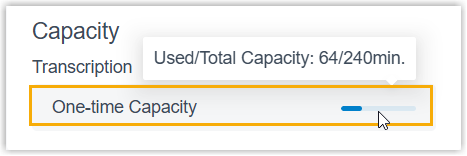
Beyond the call reports, an administrator can check transcription usage at a glance from the **Dashboard**.
:::
## Before you begin
The PBX must be running firmware version **84.22.0.138** or later.
:::note
If the Transcription Usage Details report or the **AI Reports** pane does not appear, confirm the PBX firmware meets this minimum version first.
:::
## Open the report
1. Sign in to the PBX web portal and go to **Reports and Recordings > Call Reports**.
2. Locate the Transcription Usage Details report:
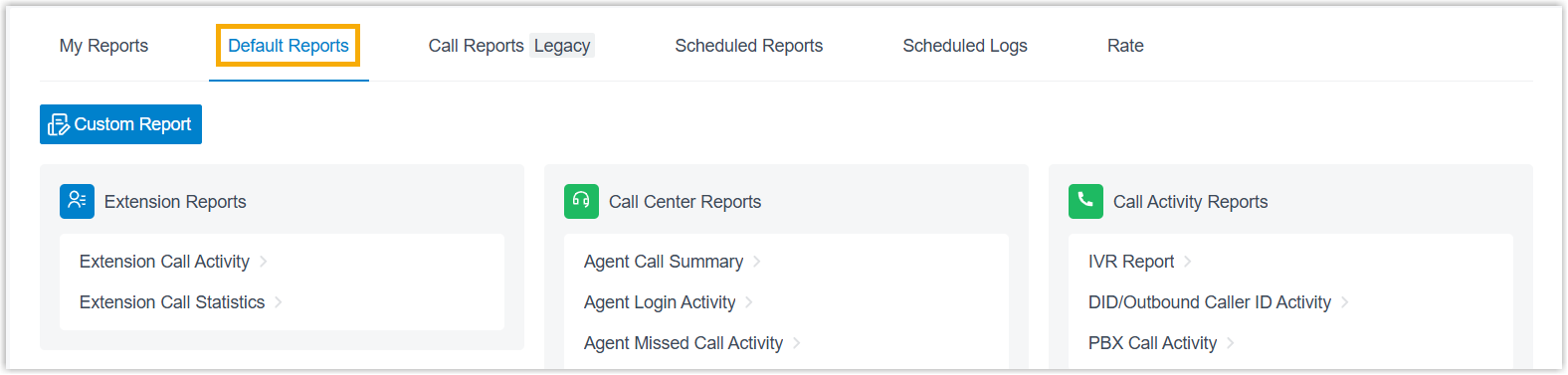
1. Open the **Default Reports** tab.
:::note
Version **84.21.0.117** introduced a rebuilt CDR (Call Detail Record, the log entry the system saves for each call) module with a new data structure that displays clearer, more detailed call information. Old CDRs and their associated report data are removed over time in line with your **CDR Auto Cleanup** setting. Until that cleanup runs, new and historical data live side by side in separate tabs: **Default Reports** holds data generated on version 84.21.0.117 or later, while **Call Reports (Legacy)** holds everything recorded before the upgrade. The steps here cover the new data; switch to the **Call Reports (Legacy)** tab to work with historical data.
:::
2. In the **AI Reports** pane, select **Transcription Usage Details**.
3. Use the **Time** field to choose the range the report should cover.

The report refreshes to show the results that match your filter.

4. Optional: Reshape the columns so the metrics you care about stay in view.
| Action | How to do it |
| --- | --- |
| Choose which columns appear | Click the column filter icon and tick the columns you want to display.
 |
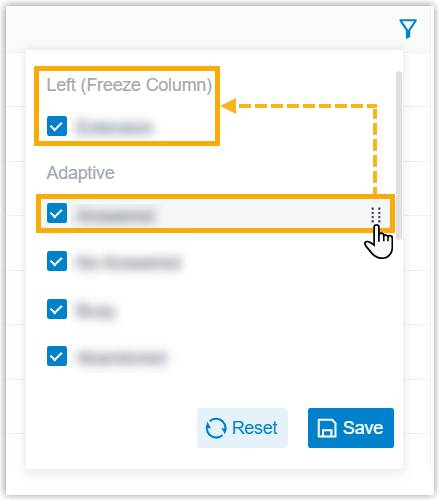
| Freeze a column | Click the drag handle next to a field and drag it into **Left (Freeze Column)** or **Right (Freeze Column)**.
 |
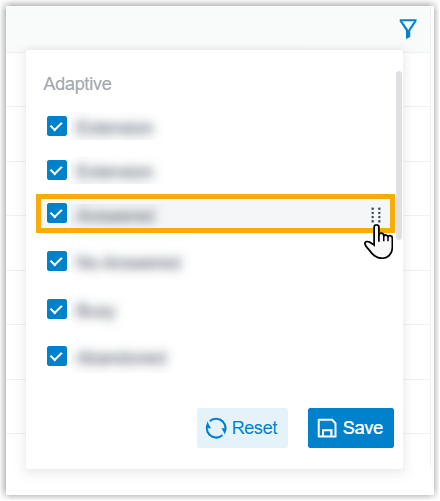
| Reorder columns | Click the drag handle next to a field and drop it where you want it.
 |
5. Optional: Keep the report for later or have it emailed on a schedule.
| Action | How to do it |
| --- | --- |
| Add to Scheduled Reports | Set up a task that emails the report automatically. At the bottom of the page, click **Add to Scheduled Reports**, then fill in the scheduling settings for the task. |
| Download the report | Save a copy to your computer for offline review or deeper analysis.
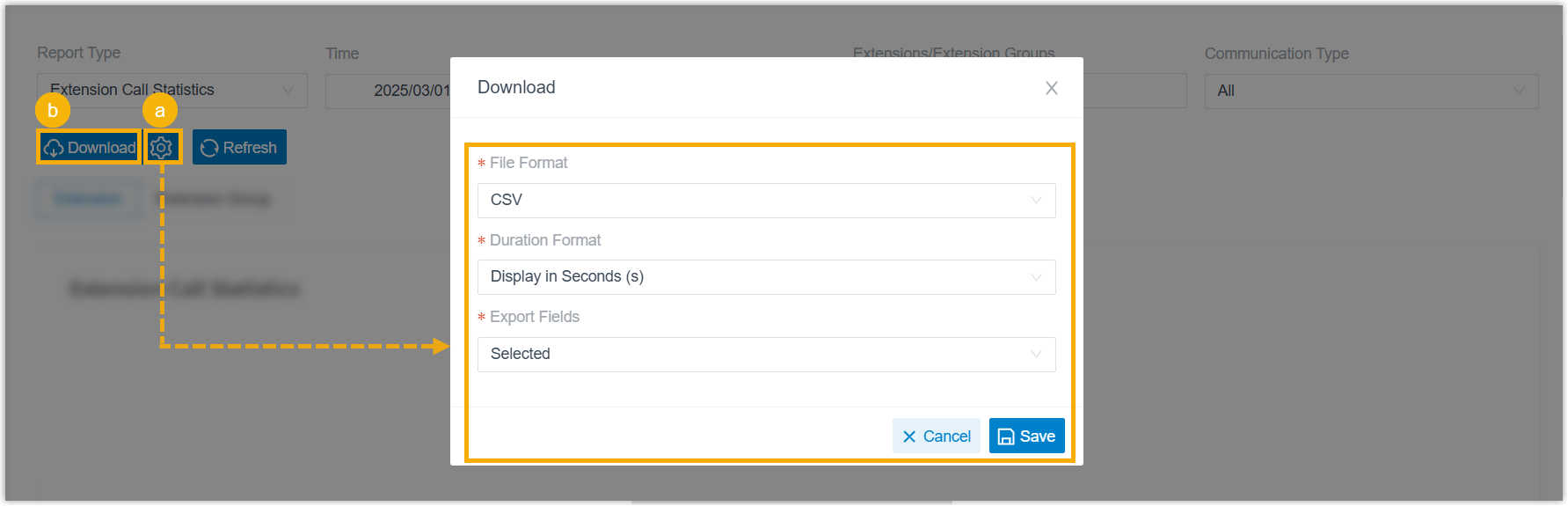- Optional: Click the settings icon to adjust the download options, then save your changes:
- File Format: choose the export format, CSV, XLS, HTML, or PDF.
- Duration Format: choose how every duration field is shown, Display in Second (s) or Display as HH:MM:SS.
- Export Fields: export All fields or only the Selected ones.
- Click Download.
|
## What the report shows
| Metric | Meaning |
| --- | --- |
| Transcription Event | The kind of transcription that ran: **Voicemail Transcription** or **Call Transcription**. |
| Usage (mins) | The transcription minutes consumed during the selected period. Any fraction of a minute rounds up to the next whole minute, for instance, 3 minutes 57 seconds is logged as 4 minutes. |