# Queue AVG Wait & Talk Time Report
The Queue AVG Wait & Talk Time report breaks down two averages over time: how long callers wait in a queue before the call is handled, and how long agents spend talking to those callers. You can view the figures by hour, by day, or by month to see how wait and talk times trend across a queue. This page shows how to open the report and explains what each metric measures.
## Open the Queue AVG Wait & Talk Time report
1. Sign in to the PBX (Private Branch Exchange, the phone system that runs your queues) web portal and go to **Reports and Recordings > Call Reports**.
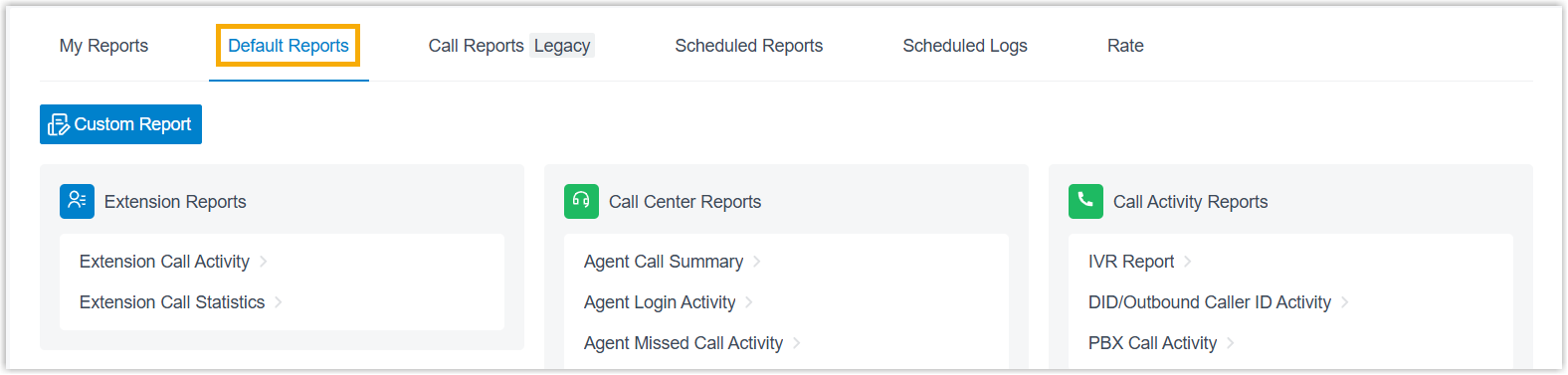
2. Open the **Default Reports** tab.
:::note
Cloud Voice rebuilt the CDR (Call Detail Record, the log of each call's details) module in version **84.21.0.117**, adding a new data structure that presents call details more clearly and in greater depth. Older CDRs and the report data tied to them are removed gradually according to your **CDR Auto Cleanup** setting. Until that cleanup runs, the old and new records are kept apart: the **Default Reports** tab holds records built on the new structure, and the **Call Reports (Legacy)** tab keeps the historical records. The steps below cover the new data on the **Default Reports** tab. To review data from before the upgrade, open the **Call Reports (Legacy)** tab instead.
:::
3. In the **Call Center Reports** pane, select **Queue AVG Wait & Talk Time**.
4. Set the report filters:

a. Use the **Time Range** and **Select Date** fields to set the period the report should cover.
b. In the **Queue** drop-down, choose one or more queues to include.
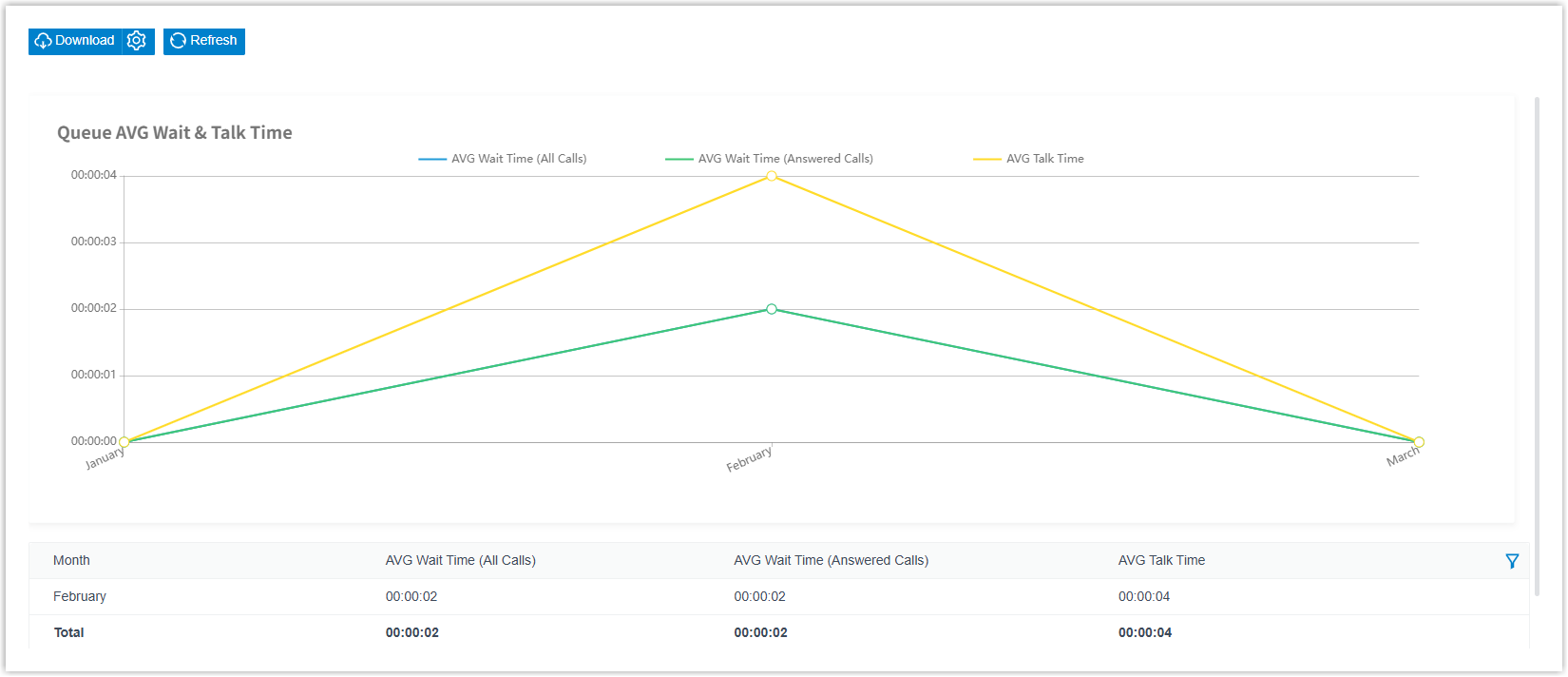
The report matching your filters appears on the page.
## Adjust the columns
Optionally, tailor the column layout so the indicators you care about stay in view.
| Action | How |
| --- | --- |
| Choose which columns appear | Click the column-selection icon, then tick the columns you want to show.
 |
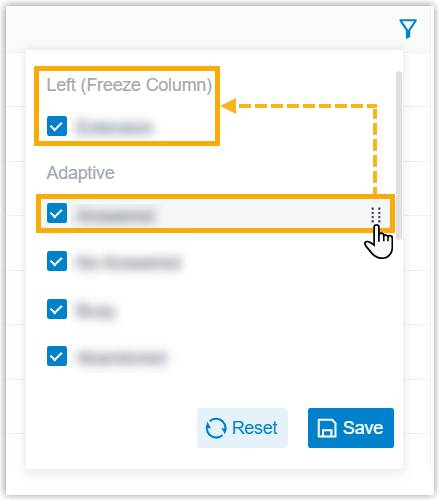
| Freeze a column | Click the drag handle next to a field and drop it onto **Left (Freeze Column)** or **Right (Freeze Column)** to pin it in place.
 |
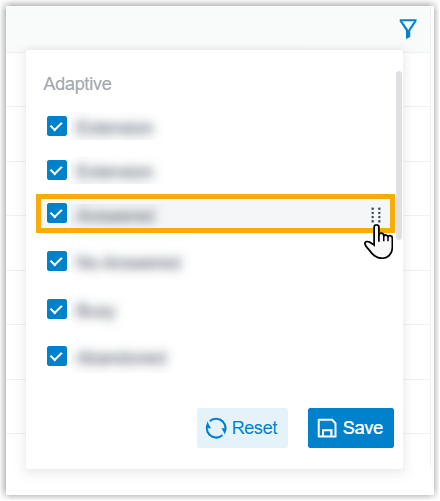
| Reorder columns | Click the drag handle next to a field and move it to the position you want.
 |
## Save, schedule, or download the report
Optionally, keep the report for later, have it emailed on a schedule, or export a copy.
:::tip
If you check this report on a regular cadence, save it to **My Reports** so you do not have to rebuild the filters each time, or add it to **Scheduled Reports** to have it emailed automatically (for example, a weekly summary sent to a supervisor).
:::
| Action | How |
| --- | --- |
| Add to **My Reports** | Save the report to your **My Reports** list for quick access. At the bottom of the page, click **Add to My Reports**, enter a name that identifies it, fine-tune the filters or metrics, then click **Save**. |
| Add to **Scheduled Reports** | Have the report emailed automatically on a recurring basis. At the bottom of the page, click **Add to Scheduled Reports**, then fill in the scheduling options for the task. |
| Download the report | Export the report to your computer for offline review or further analysis. |
To control the export, click the settings icon before downloading, adjust the options below, and save your changes.
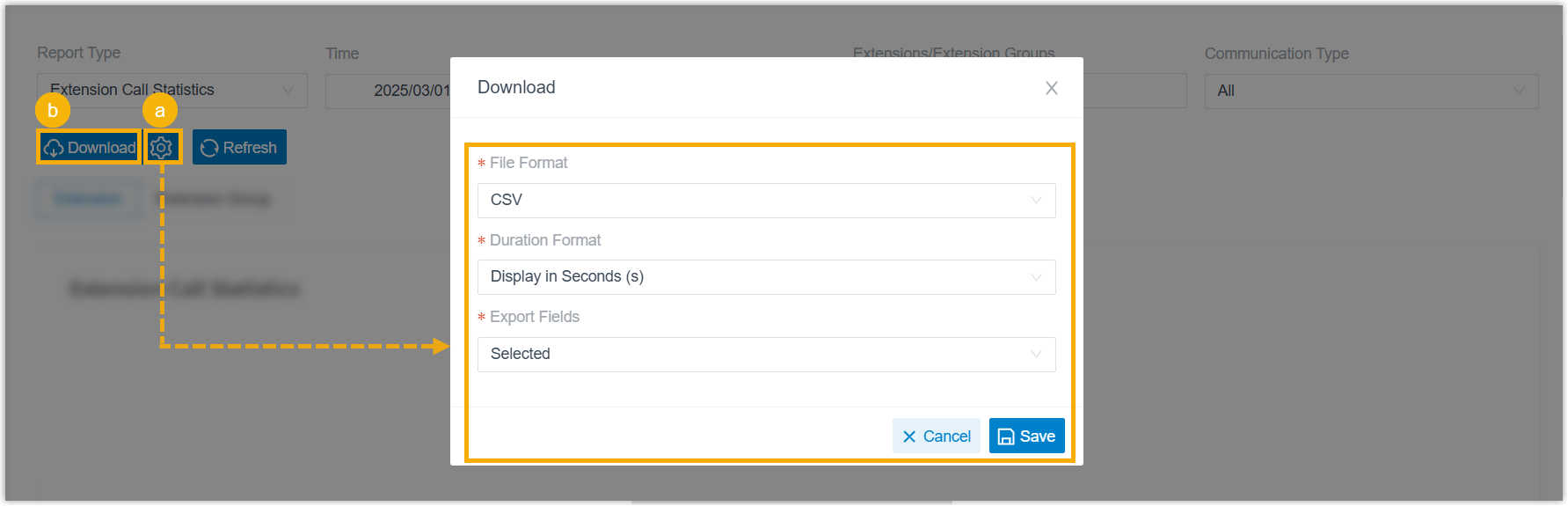
- **File Format**: the format of the exported file: **CSV**, **XLS**, **PDF**, or **HTML**.
- **Duration Format**: how every duration field is shown: **Display in Second (s)** or **Display as HH:MM:SS**.
- **Export Fields**: which fields to include: **All** or **Selected**.
When the settings are ready, click **Download**.
## Report metrics
| Metric | Description |
| --- | --- |
| AVG Wait Time (All Calls) | Average time all inbound calls spent waiting in the queue, whether or not they were answered. |
| AVG Wait Time (Answered Calls) | Average time answered calls spent waiting in the queue before an agent picked up. |
| AVG Talk Time | Average time agents spent talking to callers. |
:::note
The two wait-time metrics can differ: **AVG Wait Time (All Calls)** also counts callers who hung up before an agent answered, while **AVG Wait Time (Answered Calls)** counts only calls an agent picked up. Comparing them shows how abandoned calls affect the average wait a caller experiences.
:::