# Queue Callback Summary Report
The Queue Callback Summary report gives you a fast read on callback activity across your queues: how many callers requested a callback, how many of those callbacks connected, and how many failed. This page shows how to open the report and explains what each metric measures.
:::note
A queue callback lets a caller who is waiting in a queue hang up while keeping their place in line. When an agent becomes free, the system rings the caller back instead of making them wait on hold. This report tells you how well that feature is performing for each queue.
:::
## Open the Queue Callback Summary report
1. Sign in to the PBX web portal and go to **Reports and Recordings > Call Reports**.
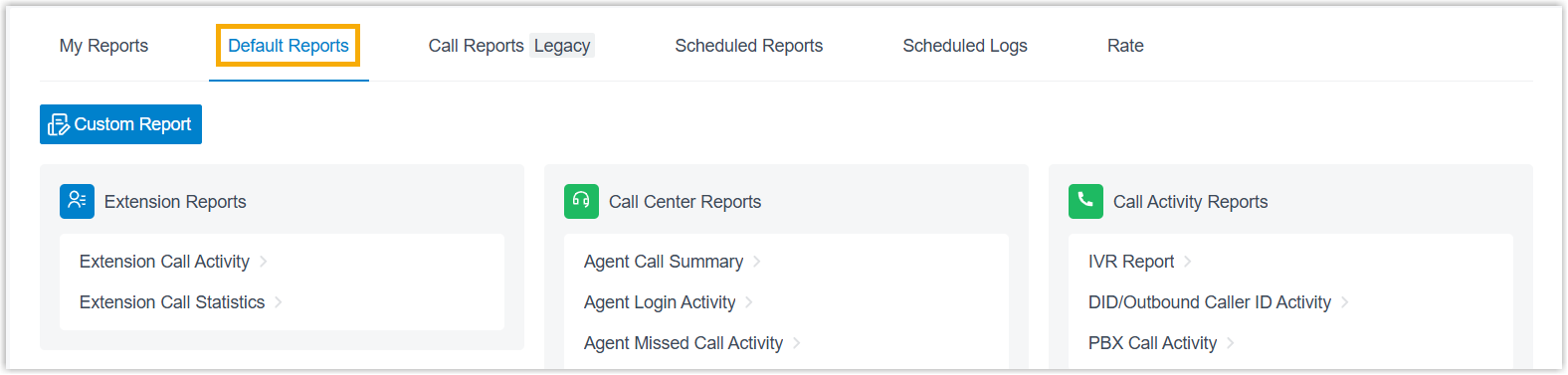
2. Open the **Default Reports** tab.
:::note
Cloud Voice rebuilt the CDR (Call Detail Record, the log the system keeps for every call) module in version **84.21.0.117**, introducing a new data structure that shows call details more clearly and in more depth. Older CDRs and the report data tied to them are removed over time according to your **CDR Auto Cleanup** setting. Until that cleanup finishes, the old and new records live under separate tabs: **Default Reports** holds records created on the new structure, while **Call Reports (Legacy)** keeps the historical records. The steps here cover the new data on the **Default Reports** tab. To review data generated before the upgrade, open the **Call Reports (Legacy)** tab instead.
:::
3. In the **Call Center Reports** pane, select **Queue Callback Summary**.
4. Set the report filters:

a. In the **Time** field, choose the date range the report should cover.
b. In the **Queue** drop-down, pick one or more queues to include.
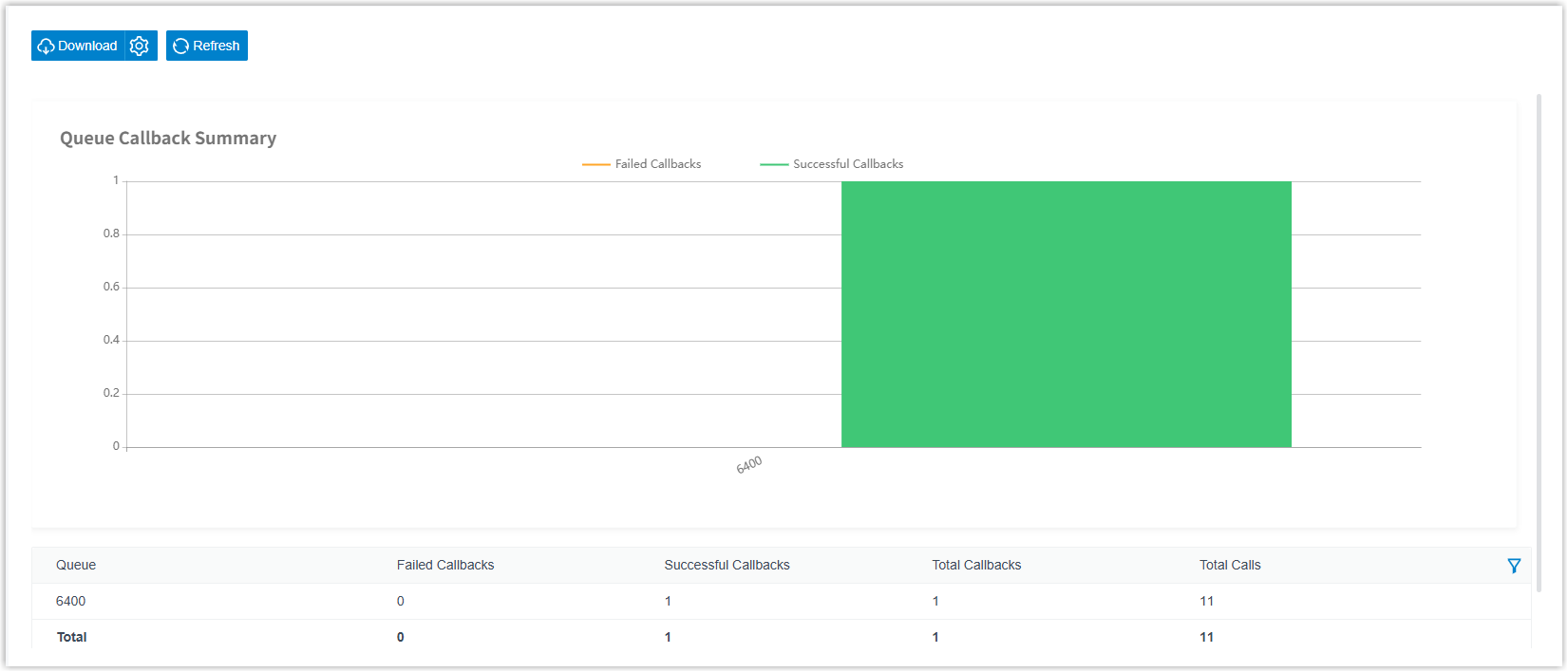
The report matching your filters appears on the page.
## Adjust the columns
Optionally, tailor the column layout so the indicators you care about stay in view.
| Action | How |
| --- | --- |
| Choose which columns appear | Click the column-selection icon, then tick the columns you want to show.
 |
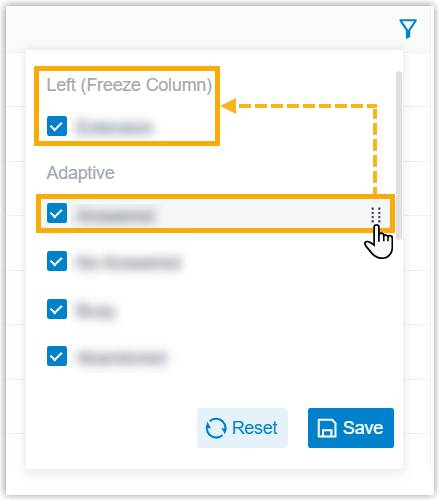
| Freeze a column | Click the drag handle next to a field and drop it onto **Left (Freeze Column)** or **Right (Freeze Column)** to pin it in place.
 |
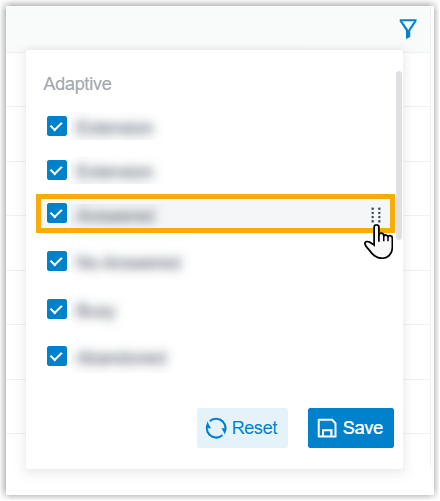
| Reorder columns | Click the drag handle next to a field and move it to the position you want.
 |
## Save, schedule, or download the report
Optionally, keep the report for later, have it emailed on a schedule, or export a copy.
:::tip
If you review this report on a regular cadence (for example, weekly), use **Add to Scheduled Reports** so it arrives in your inbox automatically instead of pulling it by hand each time.
:::
| Action | How |
| --- | --- |
| Add to **My Reports** | Save the report to your **My Reports** list for quick access. At the bottom of the page, click **Add to My Reports**, enter a name that identifies it, fine-tune the filters or metrics, then click **Save**. |
| Add to **Scheduled Reports** | Have the report emailed automatically on a recurring basis. At the bottom of the page, click **Add to Scheduled Reports**, then fill in the scheduling options for the task. |
| Download the report | Export the report to your computer for offline review or further analysis. |
To control the export, click the settings icon before downloading, adjust the options below, and save your changes.
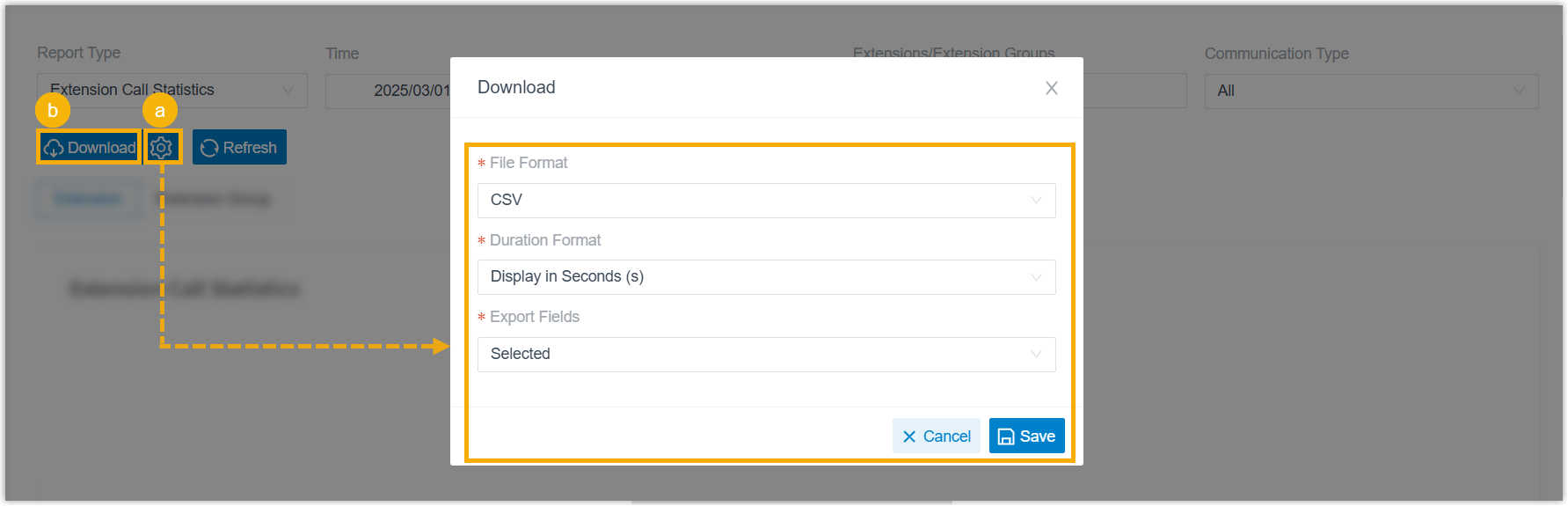
- **File Format**: the format of the exported file: **CSV**, **XLS**, **PDF**, or **HTML**.
- **Duration Format**: how every duration field is shown: **Display in Second (s)** or **Display as HH:MM:SS**.
- **Export Fields**: which fields to include: **All** or **Selected**.
When the settings are ready, click **Download**.
## Report metrics
| Metric | Description |
| --- | --- |
| Total Calls | Total number of calls the queue received. |
| Total Callbacks | Total number of callbacks that callers successfully requested. |
| Successful Callbacks | Number of callbacks that connected. |
| Failed Callbacks | Number of callbacks that did not connect. |