# Queue Performance Activity Report
The Queue Performance Activity report breaks down how your call queues perform over time, with hourly, daily, and monthly views of queue calls. Use it to track answer and abandon rates, wait and handle times, and service level, then drill into the individual calls behind the numbers. This page explains how to open the report and what each metric measures.
## Open the Queue Performance Activity report
1. Sign in to the PBX (Private Branch Exchange, your phone system's web management console) and go to **Reports and Recordings > Call Reports**.
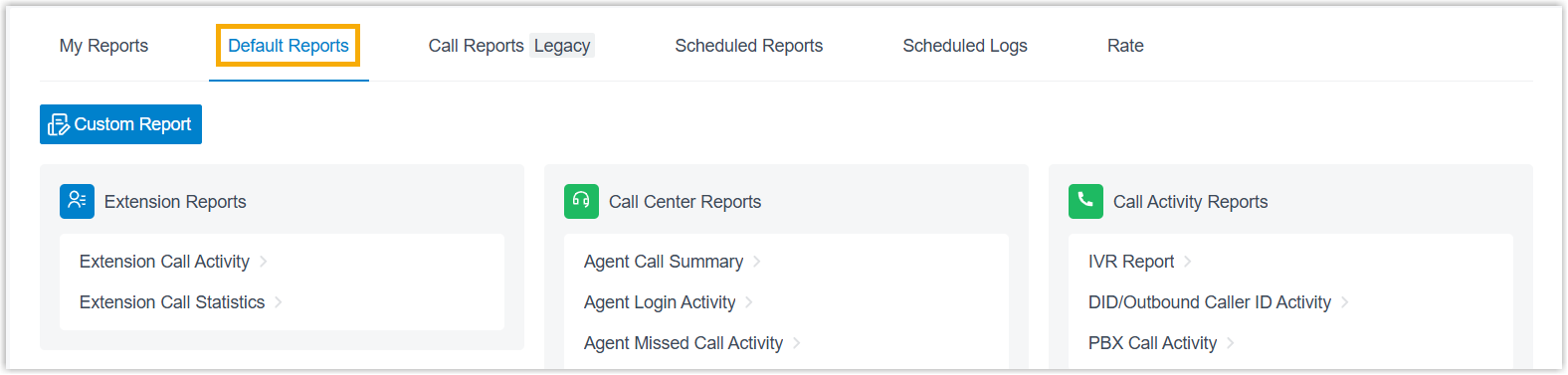
2. Open the **Default Reports** tab.
:::note
Cloud Voice rebuilt the CDR (Call Detail Record) module in version **84.21.0.117**, adding a new data structure that presents call details more clearly and in greater depth. Older CDRs and the report data tied to them are removed gradually according to your **CDR Auto Cleanup** setting. Until that cleanup runs, the old and new records are kept apart: the **Default Reports** tab holds records built on the new structure, and the **Call Reports (Legacy)** tab keeps the historical records. The steps below cover the new data on the **Default Reports** tab. To review data from before the upgrade, open the **Call Reports (Legacy)** tab instead.
:::
:::caution
Historical call report data is not kept forever: CDR Auto Cleanup deletes it on a rolling schedule. If you need older data for a review or audit, download it (see below) before cleanup removes it, because it cannot be recovered afterward.
:::
3. In the **Call Center Reports** pane, select **Queue Performance Activity**.
4. Set the report filters:

a. In the **Time Range** and **Select Date** fields, choose the period the report should cover.
b. Narrow the results using the filters below.
| Filter | What it does |
| --- | --- |
| Queue | Select one or more queues to include. |
| Exclude Calls Abandoned within Xs | Set a ring-time threshold in seconds. Calls that callers abandon within that window are left out of the report, so brief hang-ups don't skew the numbers. |
:::tip
The **Exclude Calls Abandoned within Xs** filter is useful for keeping accidental misdials and instant hang-ups out of your abandon rate, so the figure reflects callers who genuinely gave up waiting.
:::
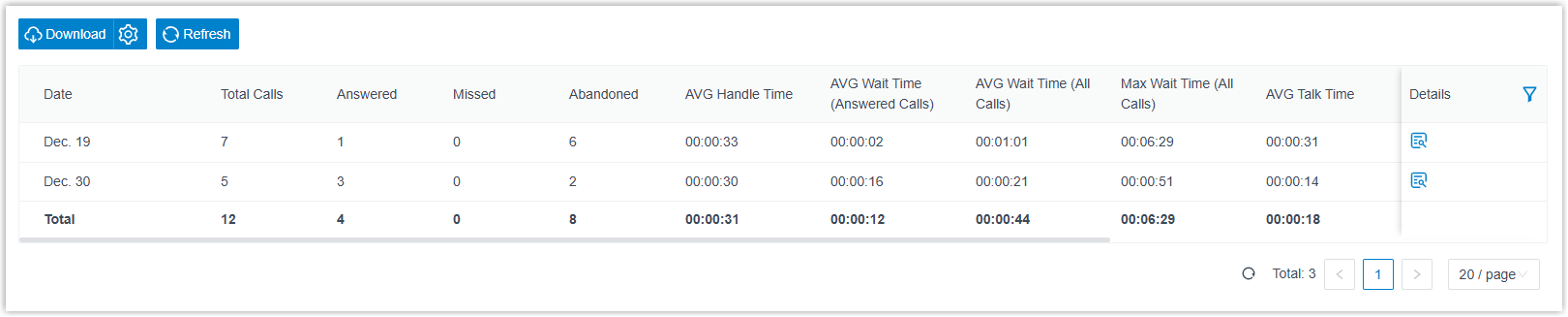
The report matching your filters appears on the page.
## Adjust the columns
Optionally, tailor the column layout so the indicators you care about stay in view.
:::tip
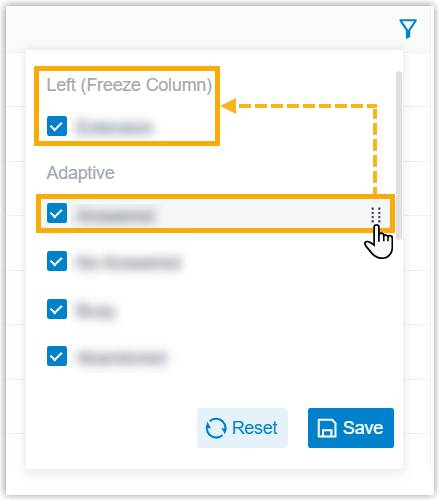
Pin the **Queue** and **Time** columns to the left so you can always tell which row you are reading as you scroll right through the wider metric columns.
:::
| Action | How |
| --- | --- |
| Choose which columns appear | Click the column-selection icon, then tick the columns you want to show.
 |
| Freeze a column | Click the drag handle next to a field and drop it onto **Left (Freeze Column)** or **Right (Freeze Column)** to pin it in place.
 |
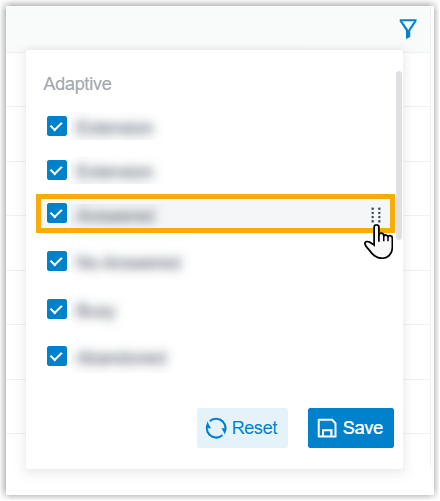
| Reorder columns | Click the drag handle next to a field and move it to the position you want.
 |
## Save, schedule, or download the report
Optionally, keep the report for later, have it emailed on a schedule, or export a copy.
:::tip
Save a report to **My Reports** when you expect to run the same view often, and add it to **Scheduled Reports** when someone needs it on a regular cadence (for example, a weekly queue review) without anyone logging in to pull it by hand.
:::
| Action | How |
| --- | --- |
| Add to **My Reports** | Save the report to your **My Reports** list for quick access. At the bottom of the page, click **Add to My Reports**, enter a name that identifies it, fine-tune the filters or metrics, then click **Save**. |
| Add to **Scheduled Reports** | Have the report emailed automatically on a recurring basis. At the bottom of the page, click **Add to Scheduled Reports**, then fill in the scheduling options for the task. |
| Download the report | Export the report to your computer for offline review or further analysis. |
To control the export, click the settings icon before downloading, adjust the options below, then save your changes.
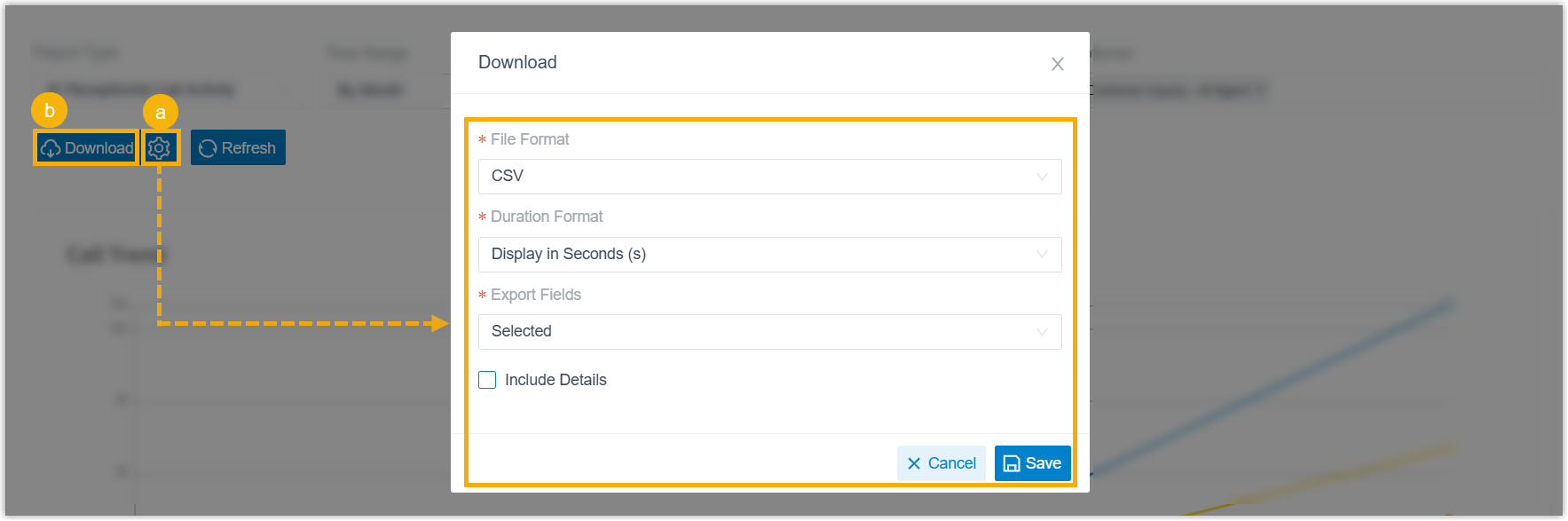
- **File Format**: the format of the exported file: **CSV**, **XLS**, **PDF**, or **HTML**.
- **Duration Format**: how every duration field is shown: **Display in Second (s)** or **Display as HH:MM:SS**.
- **Export Fields**: which fields to include: **All** or **Selected**.
- **Include Details**: whether to export the summary list only or add the underlying call records. If you include the details, choose how they appear: **Download data as multiple files/sheets**, or **Details are displayed as indented, offset rows within the same list**.
When the settings are ready, click **Download**.
## Report metrics
The report has two parts: performance totals for each queue, and the individual call log behind them.
### Queue metrics

| Metric | Description |
| --- | --- |
| Total Calls | Total number of calls the queue received. |
| Answered | Number of calls the queue answered. |
| Missed | Number of calls the queue missed. A call counts as missed in scenarios such as: the queue reaches its **Maximum Callers** limit and the call leaves the queue; the call leaves after hitting the **Maximum Waiting Time**; a queue manager reassigns the call to another queue or extension; or the caller presses a key to exit the queue for another destination. This list is not exhaustive. |
| Abandoned | Number of calls that callers hung up on before being answered. |
| AVG Handle Time | Average time the queue spent serving callers. |
| AVG Wait Time (Answered Calls) | Average time answered calls spent waiting in the queue before an agent picked up. |
| AVG Wait Time (All Calls) | Average time all inbound calls spent waiting in the queue, whether or not they were answered. |
| Max Wait Time (All Calls) | Longest time any caller waited in the queue, whether or not the call was answered. |
| AVG Talk Time | Average time agents spent talking to callers. |
| AVG Hold Time | Average time calls were kept on hold. |
| Answered Rate | Answered calls as a percentage of all calls received. |
| Missed Rejection Rate | Missed calls as a percentage of all calls received. |
| Abandon Rate | Abandoned calls as a percentage of all calls received. |
| SLA | The queue's Service Level Agreement (SLA): the percentage of conversations answered within a defined target time. |
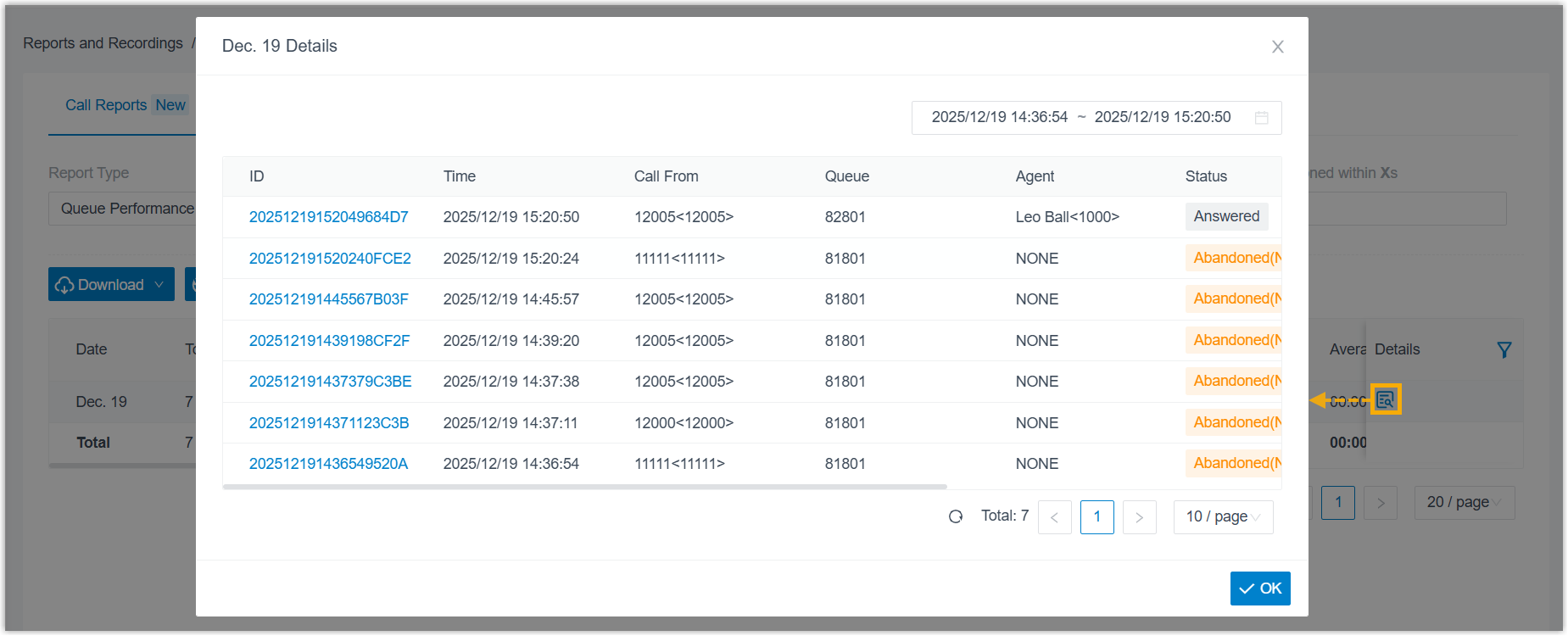
### Queue call metrics
| Metric | Description |
| --- | --- |
| ID | A unique identifier for the call. |
| Time | When the call came in. |
| Call From | The caller's number and name. |
| Queue | The queue that received the call. |
| Agent | The agent who answered the call. If the call went unanswered, **NONE** appears. |
| Status | The call outcome: **Answered**, **Abandoned**, or **Missed**. |
| Ring Duration | For answered calls, the time from when the call started to when it was answered. For abandoned or missed calls, the time from when the call started to when it disconnected. |
| Talk Duration | The time from when the call was answered to when it ended. |
| Hold Duration | The total time the call was on hold. |