# Set up Contact Synchronization from an LDAP Server
LDAP (Lightweight Directory Access Protocol) is a standard way to read entries, such as people and contacts, from a central company directory. Once you copy your LDAP contacts into Cloud Voice, extension users can find and dial those people straight from the Cloud Voice App. Storing the contacts in phonebooks also lets the system steer inbound calls from known callers to the right destination, based on which phonebook a caller matches.
## Capacity limits
How many contacts and phonebooks Cloud Voice can hold depends on how many extensions your system has.
| Number of extensions (N) | N ≤ 50 | 50 < N ≤ 200 | N > 200 |
| --- | --- | --- | --- |
| Company contacts (total) | 50,000 | 200,000 | 500,000 |
| Company phonebooks | 100 | 200 | 500 |
## Before you begin
Make sure you have already [mapped the contact fields](/pbx/integrations/ldap/integrate-cloud-voice-cloud-voice-with-ldap-server/#step-2-map-contact-fields) between Cloud Voice and your LDAP server.
## Turn on and configure synchronization
1. Open the LDAP configuration page and scroll down to the **Contacts Synchronization** section.
2. Switch on **Contacts Synchronization**, then fill in the settings described below.
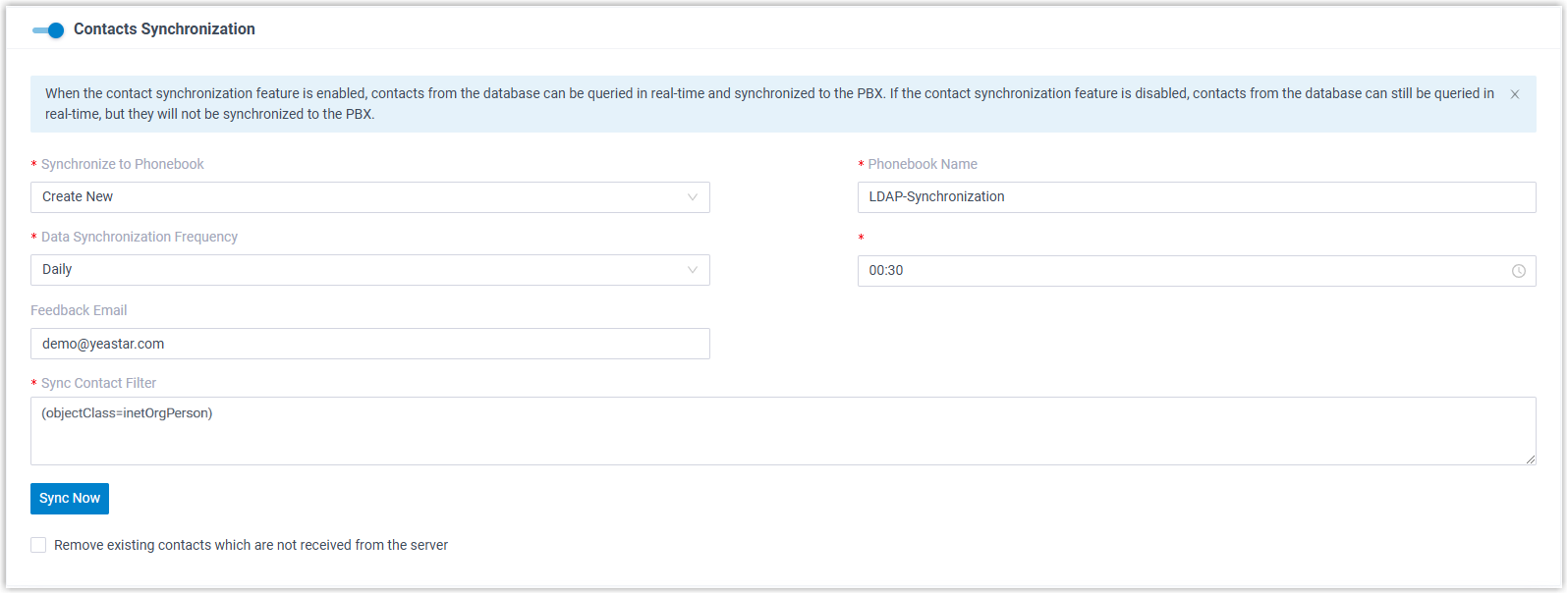
| Setting | Description |
| --- | --- |
| Synchronize to Phonebook | Choose where the contacts pulled from the LDAP server are stored:
**Create New**: Build a brand-new phonebook for the synced contacts. Type its name in the **Phonebook Name** field.
**Read Specific Property Value and Create New**: Generate phonebooks from the value of an LDAP attribute. Type the attribute name in the **Property Name** field.
**\{existing_phonebook\}**: Send the contacts to an existing empty phonebook. |
| Data Synchronization Frequency | Pick how often contacts are synced, then set the time in the field that appears. |
| Feedback Email | Optional. Enter an email address to receive a report on each synchronization. |
| Sync Contact Filter | A filter statement that decides which LDAP entries are synced. |
| Remove existing contacts which are not received from the server | When enabled, any contact brought over in a previous sync that is missing from the current sync is deleted. |
:::note
**Read Specific Property Value and Create New** is useful when you want inbound calls routed by phonebook match. For example, if your directory has a `department` attribute with values such as **Sales** and **Support**, entering `department` in **Property Name** creates a **Sales** phonebook and a **Support** phonebook on save. After you set up the matching inbound routes, calls from each contact reach the team that owns them.
:::
:::note
The existing empty phonebooks you can select are the ones created under **Contacts > Phonebooks**.
:::
:::caution
Syncing a large number of contacts puts load on the system. Schedule synchronization for off-peak hours where possible.
:::
:::note
You can enter up to 5 feedback email addresses. Separate them with a semicolon (`;`).
:::
:::caution
**Remove existing contacts which are not received from the server** deletes data. When it is on, any contact a previous sync added but that the LDAP server no longer returns is removed from Cloud Voice on the next sync. It does not touch contacts you added by hand. If you are unsure, leave it off so a temporary directory outage or a changed filter does not wipe good contacts.
:::
The sync filter is applied relative to your [Base DN](/pbx/integrations/ldap/integrate-cloud-voice-cloud-voice-with-ldap-server/#step-1-turn-on-ldap-integration), the search starts there, and only entries that match the filter are synced. For example, `(objectClass=inetOrgPerson)` brings across every LDAP contact.
3. Click **Save**.
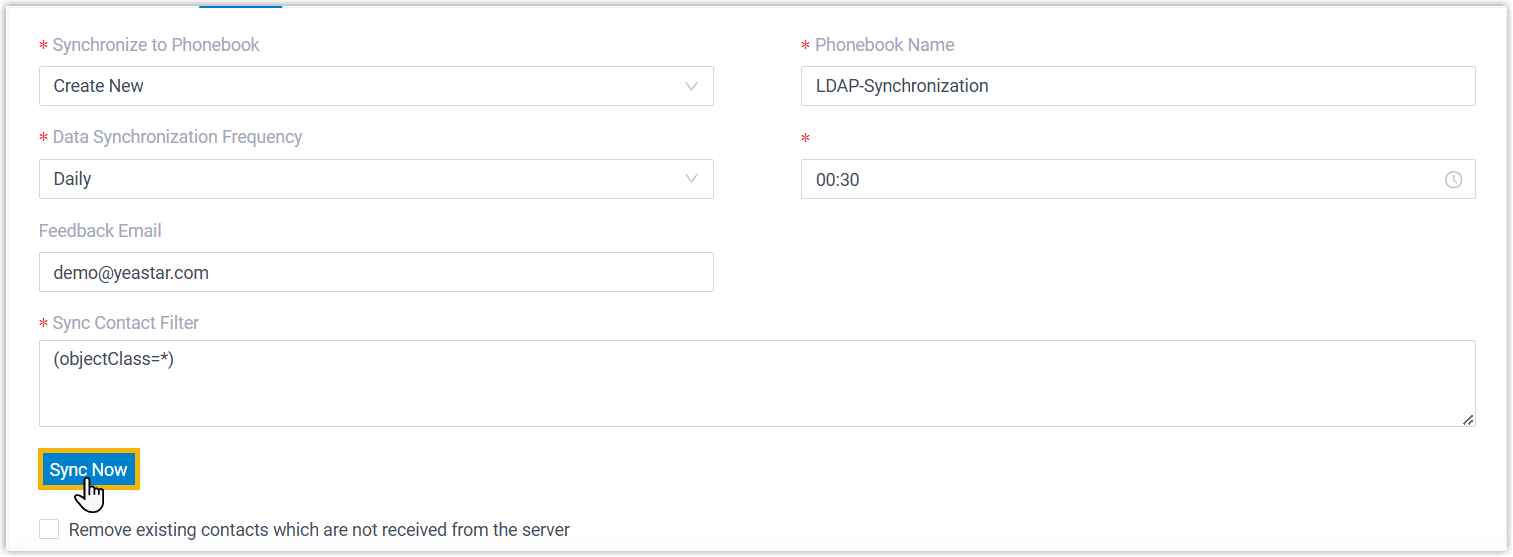
4. Click **Sync Now** to run the synchronization right away.
## Confirm the result
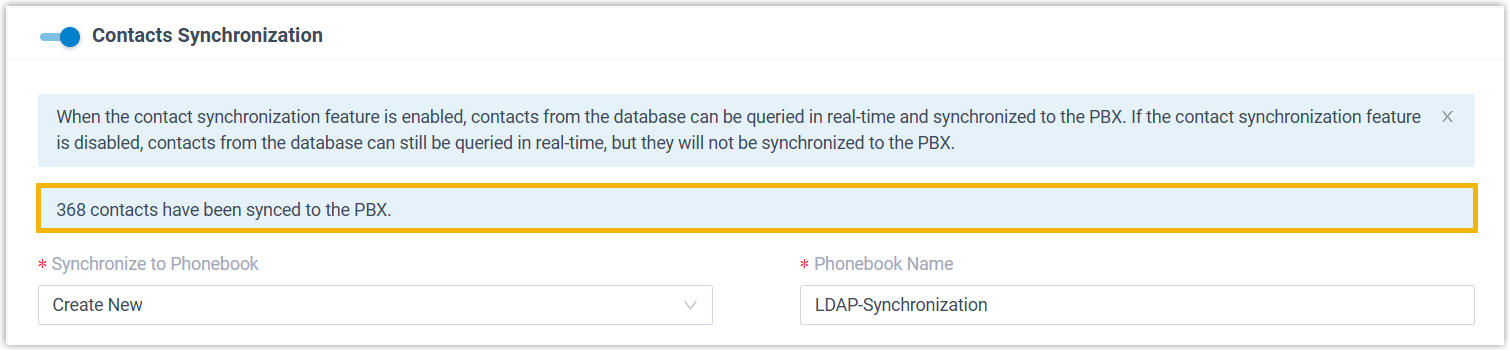
- A banner appears with the number of contacts that were synchronized.
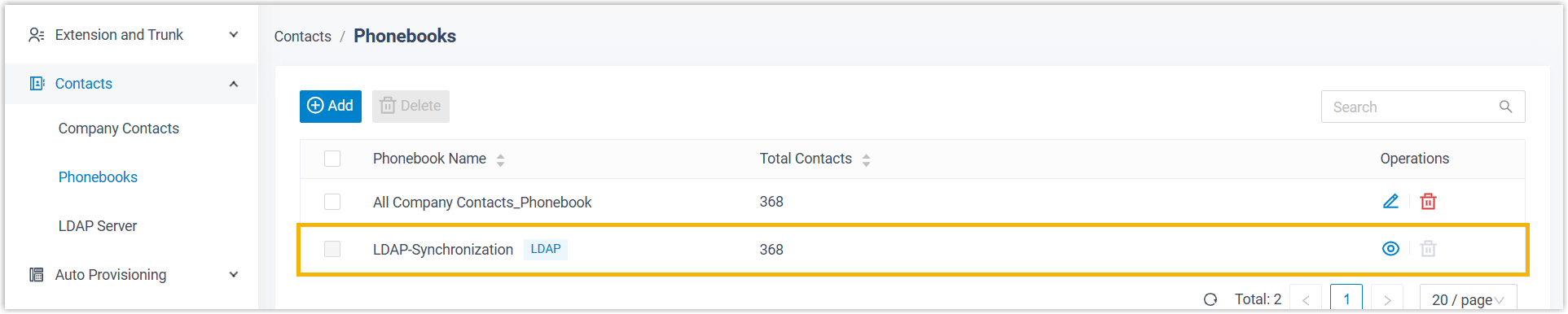
- The synced contacts and their phonebooks show up under **Contacts > Company Contacts / Phonebooks**, each marked with the LDAP tag .
- Extension users with permission can view and dial the contacts from the Cloud Voice App.
:::note
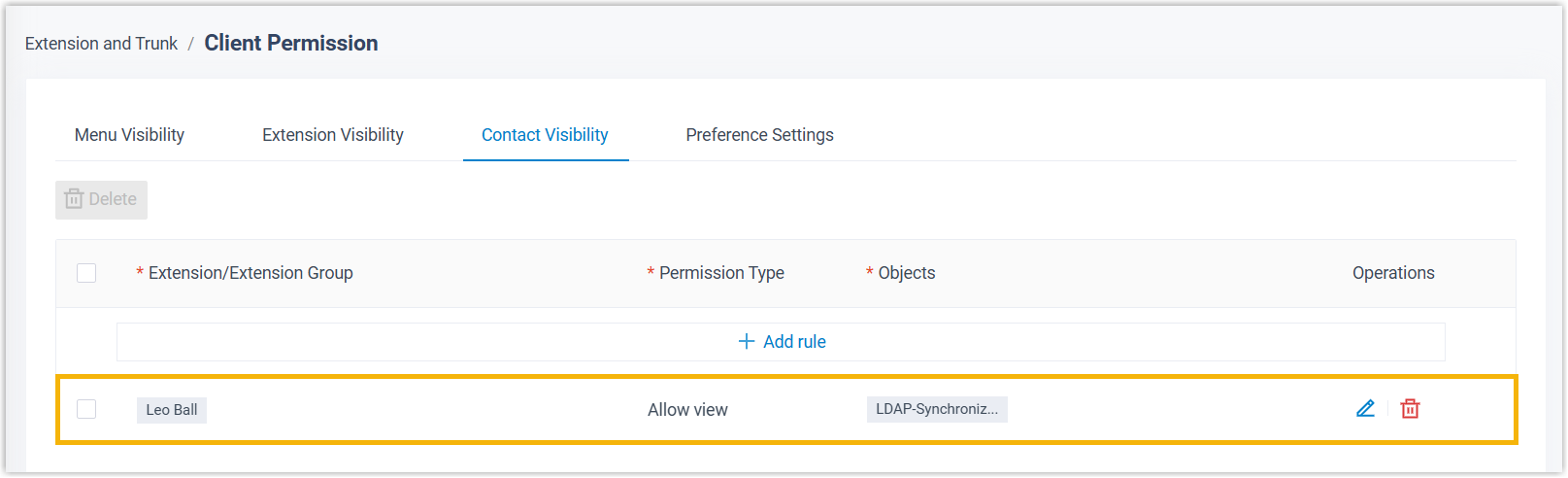
For users to see these contacts, grant them viewing access to the phonebook under **Extension and Trunk > Client Permission > Contact Visibility**, and have them update the Cloud Voice App to at least:
- Cloud Voice App for iOS: version 5.13.6 or later
- Cloud Voice App for Android: version 5.13.8 or later
:::
## What to do next
To have inbound calls from these contacts sent to specific destinations, set up inbound routes that match callers against the phonebooks you created, then route each phonebook to the destination you want.