# Set up Automatic Ticket Creation for Zendesk
Once Cloud Voice is connected to Zendesk, you can have the system raise a support ticket on its own whenever a call takes place. This removes the manual step of logging each interaction, so every inbound or outbound call tied to a Zendesk contact is recorded as a ticket for your agents to follow up on.
## Before you begin
Make sure you have [connected Cloud Voice to Zendesk](/pbx/integrations/zendesk/integrate-cloud-voice-with-zendesk/).
## Turn on automatic ticket creation
1. Sign in to the PBX (Private Branch Exchange, your phone system) web portal and open **Integrations > Helpdesk**.
2. On the Zendesk integration page, enable **Create New Ticket Automatically**.
3. Choose when a ticket should be generated and which call types it applies to.
| When to Create New Ticket | What it does |
| --- | --- |
| **Before the Call** | A ticket is opened as soon as a Zendesk user answers a call from, or dials out to, a Zendesk contact. Use **The Type of Call to Create Ticket** drop-down list to pick the qualifying calls:
- **Inbound**: incoming calls.
- **Outbound**: outgoing calls. |
| **After the Call** | A ticket is opened once the user finishes a call with a Zendesk contact. Use **The Type of Call to Create Ticket** drop-down list to pick the qualifying calls:
- **Inbound Answered**: incoming calls that were picked up.
- **Inbound No Answer**: incoming calls that were missed.
- **Outbound Answered**: outgoing calls that were picked up.
- **Outbound No Answer**: outgoing calls that went unanswered. |
:::tip
**Before the Call** opens a ticket the moment the call starts, so it cannot tell an answered call from a missed one. If you only want tickets for real conversations, choose **After the Call** and select the Answered call types. This also keeps ticket volume down.
:::
4. Fill in the ticket details to suit your workflow.
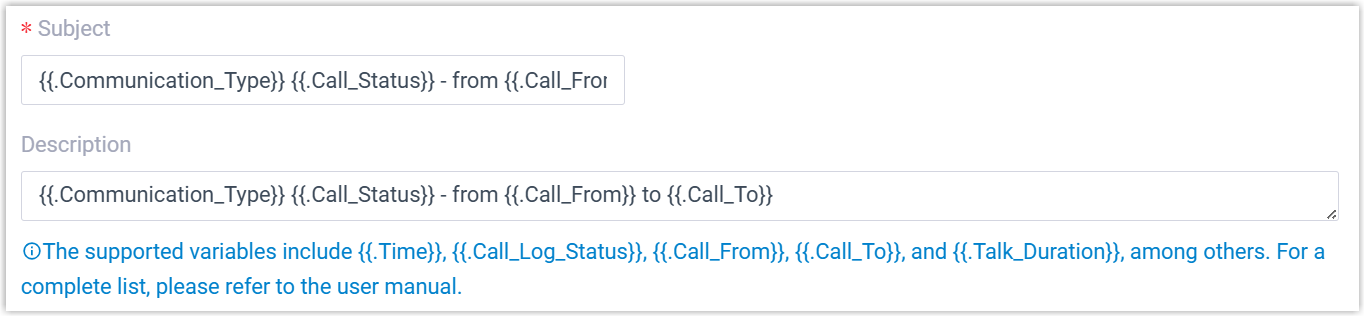
- **Subject**: the ticket title.
- **Description**: the body text of the ticket.
:::note
Both fields accept template variables, so you can pull call details such as the caller number or agent name into each ticket. Refer to the ticket-creation variables in the integration template reference for the full list of supported placeholders.
:::
5. Click **Save**.
## Result
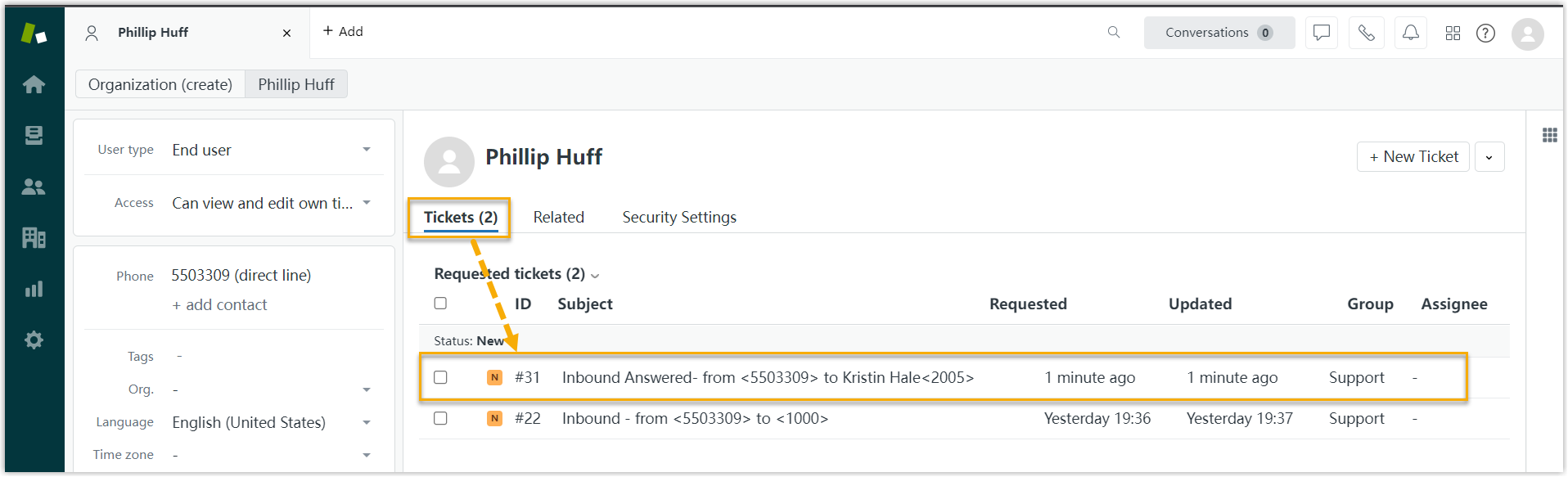
Cloud Voice now opens a ticket for existing Zendesk contacts automatically according to the call types you selected. Your agents can review these tickets from the contact's detail page in Zendesk.
:::note
If you have also [set up automatic contact creation for Zendesk](/pbx/integrations/zendesk/set-up-automatic-contact-creation-for-zendesk/), the system opens tickets for unknown inbound and outbound callers as well.
:::