# Set up Automatic Ticket Creation for Zoho Desk
Once Cloud Voice is connected to Zoho Desk, you can have the system open a support ticket on its own whenever a call takes place with a Zoho Desk contact. This page walks you through enabling that behavior and choosing which calls should generate tickets.
:::note
Zoho Desk only supports automatic ticket creation for **Contacts**. Tickets cannot be generated for **Accounts**.
:::
## Before you start
Make sure you have already [integrated Cloud Voice with Zoho Desk](/pbx/integrations/zoho-desk/integrate-cloud-voice-with-zoho-desk/).
## Enable and configure automatic tickets
1. Sign in to the PBX (Private Branch Exchange, your Cloud Voice phone system) web portal and open **Integrations > Helpdesk**.
2. On the Zoho Desk integration page, switch on **Create New Ticket Automatically**.
3. Decide when tickets should be raised and for which call types.
| When to Create New Ticket | Description |
| --- | --- |
| **Before the Call** | A ticket is opened in Zoho Desk as soon as a Zoho Desk user receives an inbound call from a Zoho Desk contact, or places an outbound call to one. The ticket is raised at the start of the call, so it is created even if the call is never answered. In **The Type of Call to Create Ticket** drop-down list, choose the call types that should trigger a ticket:
- **Inbound**: Inbound calls.
- **Outbound**: Outbound calls. |
| **After the Call** | A ticket is opened in Zoho Desk once the user hangs up on a call with a Zoho Desk contact. In **The Type of Call to Create Ticket** drop-down list, choose the call types that should trigger a ticket:
- **Inbound Answered**: Answered inbound calls.
- **Inbound No Answer**: Missed inbound calls.
- **Outbound Answered**: Answered outbound calls.
- **Outbound No Answer**: Unanswered outbound calls. |
:::note
When you use **Before the Call**, Zoho Desk may not surface the brand-new ticket in the call pop-up right away. If it is missing, pause for a moment and reload the page.
:::
:::tip
Pick **After the Call** when you only want tickets for calls that actually connect, and use its answered/no-answer options to keep out unwanted records. Pick **Before the Call** when an agent needs the ticket open while they are still talking.
:::
4. Fill in the ticket fields to match your workflow.
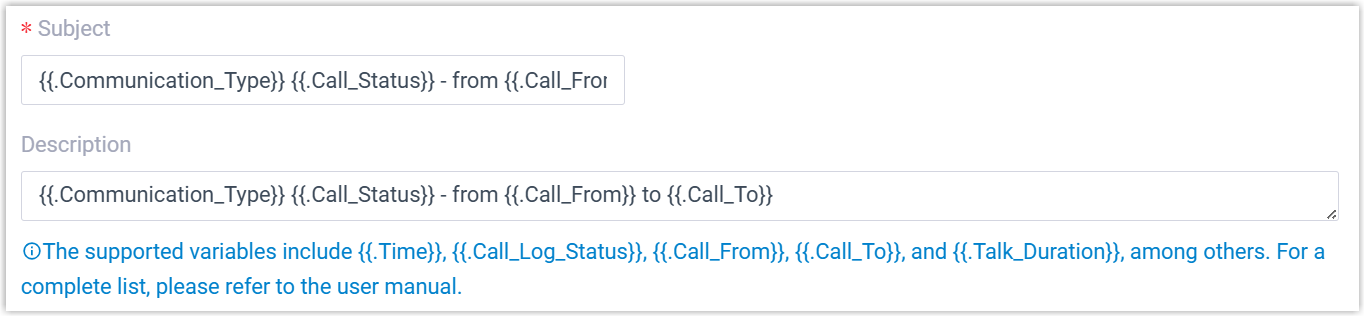
- **Subject**: The ticket's subject line.
- **Description**: The body text of the ticket.
:::tip
Both fields accept variables, so each ticket can be populated with details from the call. Refer to the New Ticket Creation scenario variables in the integration template's XML descriptions for the full list of supported placeholders.
:::
5. Click **Save**.
## Result
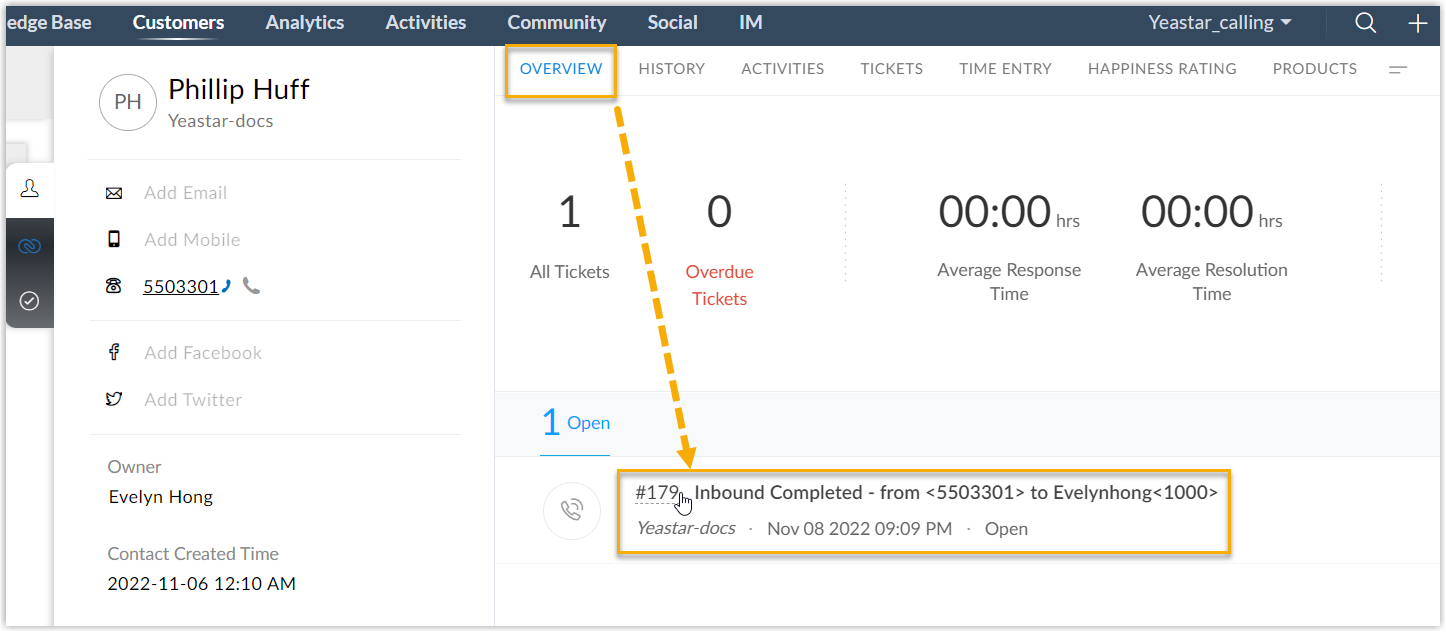
From now on, Cloud Voice raises tickets for existing Zoho Desk **contacts** automatically, according to the call types you selected. Anyone on your team can find these tickets on the corresponding contact's detail page in Zoho Desk.
:::note
If you have also enabled [automatic contact or account creation for Zoho Desk](/pbx/integrations/zoho-desk/set-up-automatic-contact-or-account-creation-for-zoho-desk/), the system opens tickets for unknown inbound and outbound calls as well.
:::