# Make a Multi-party Call
A multi-party call lets you pull additional people into a conversation that is already underway, turning a one-to-one call into a small, on-the-fly conference where everyone hears everyone else. If you are working through a mortgage closing on a call, for example, you can bring in the broker and a supervisor so questions get answered on the spot.
## How many people can join
You can invite up to **3** more people to a call in progress. Counting yourself and the person you were already speaking with, that makes **5** participants in total.
:::caution
Five participants is a hard limit. Once the call is full, you will not be able to invite anyone else, so plan who needs to be on the call before you start adding people.
:::
## Add participants during a call
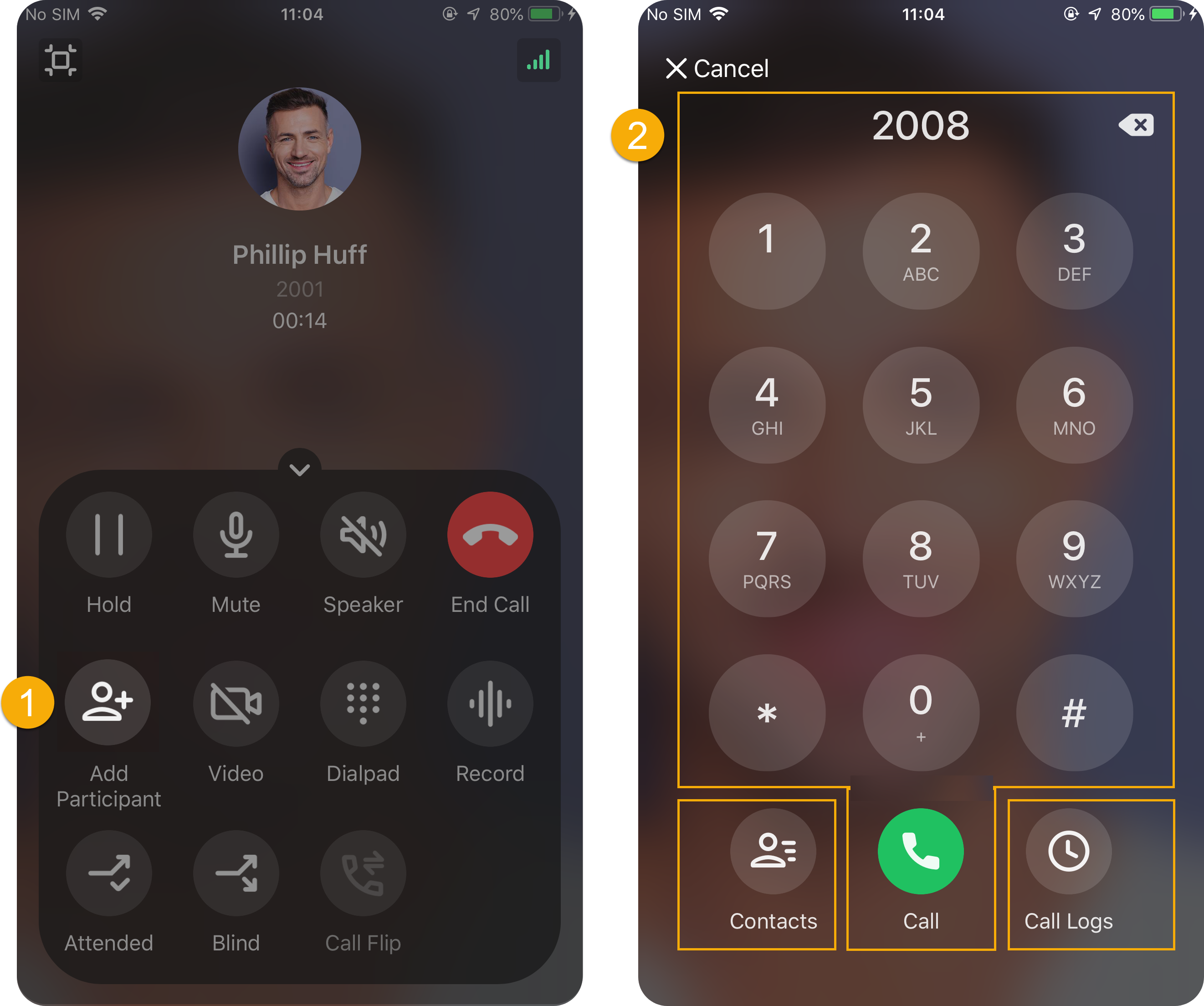
1. While the call is active, tap  (**Add Participant**) on the call screen.
2. Bring people in using any of these methods:
- **Contacts**: Choose someone from your Cloud Voice App directory. Tap the person you want, and the invitation call goes out right away.
- **Dialpad**: Reach someone by number. Type the number on the dialpad, tap , and the invitation call goes out right away.
- **Call Logs**: Pick someone from your recent calls. Tap the entry you want, and the invitation call goes out right away.
:::note
The call you are on is placed on hold while you invite someone. It picks back up only once the invitation call is either answered or cancelled, so the original party will hear hold music until then.
:::
## What you see on the call
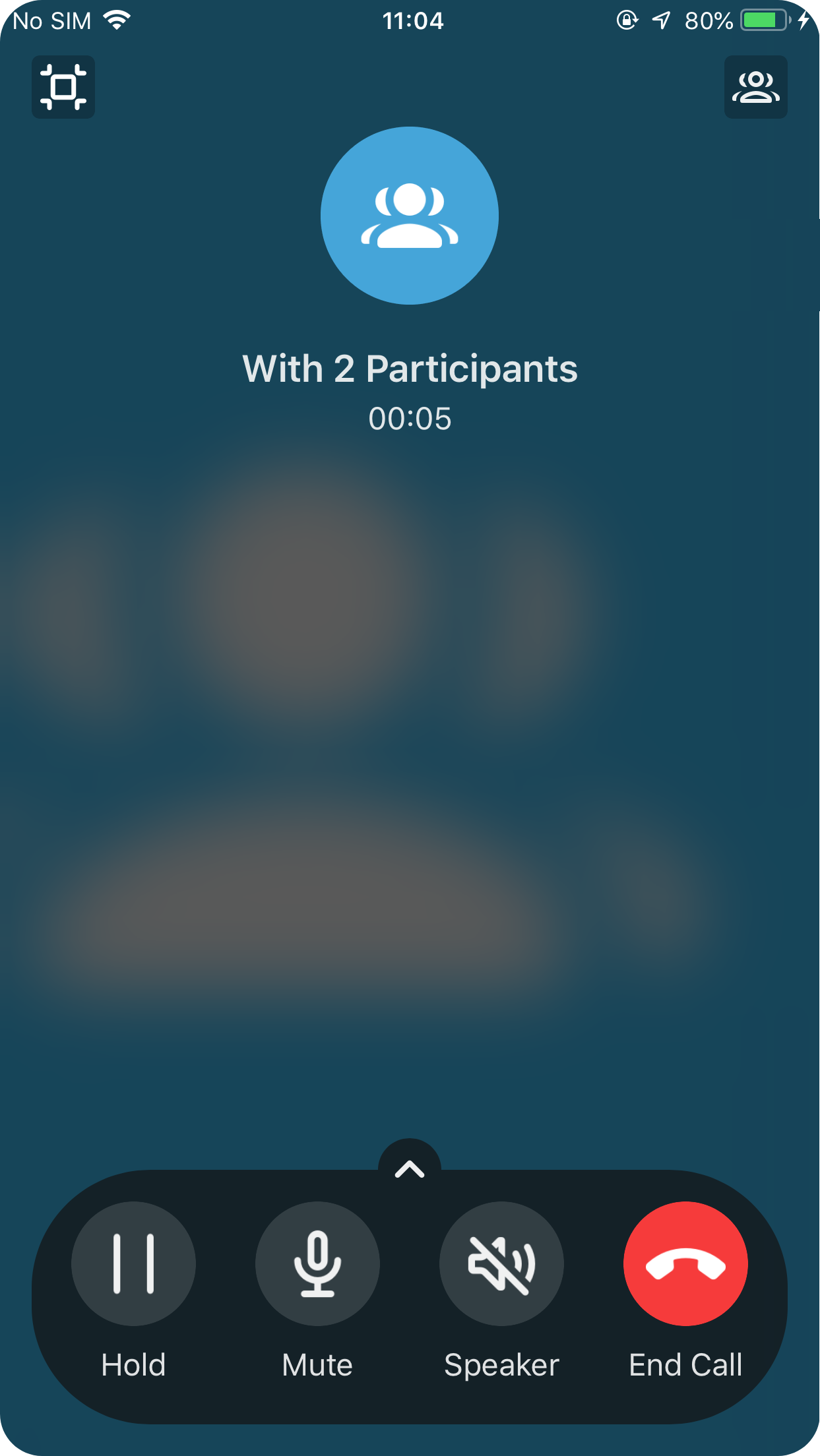
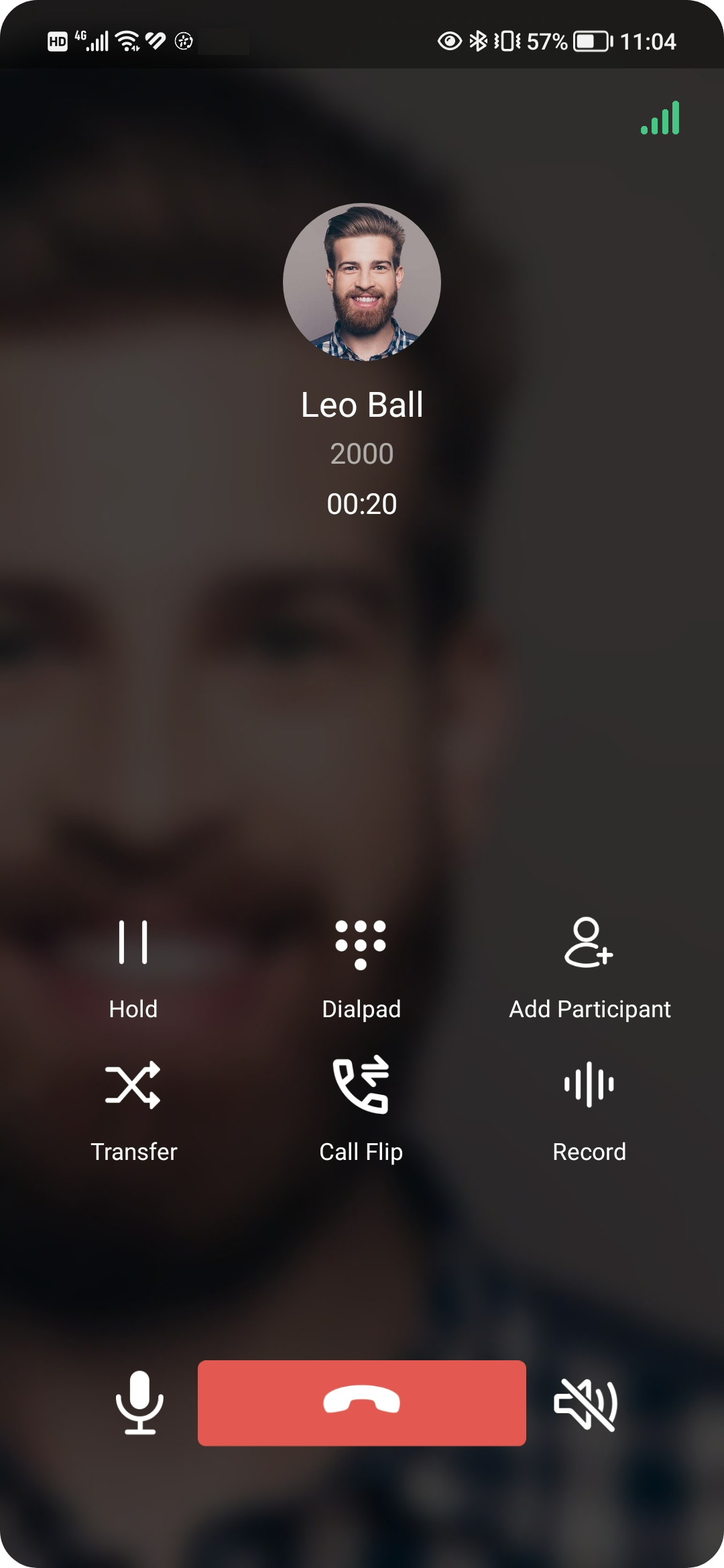
- Your call screen lists everyone on the call. Each of the other participants, however, sees only your details as the person who set up the call.
**Your call screen**
**What other participants see**
- Tap  in the top-right corner to open the participant controls. From there you can:
- Tap  to mute or unmute a participant.
- Tap  to drop a participant from the call.
:::tip
Muting is the quick way to cut a noisy line (background noise, a barking dog) without removing that person. Tap the mute control again when they need to speak.
:::
:::caution
Removing a participant disconnects them from the call immediately, with no warning to them. They are not placed on hold, so you would have to invite them again to bring them back in.
:::