# Configure Function Keys
Function keys give you one-click shortcuts to everyday call tasks and let you keep an eye on the live status of extensions, queues, parking slots, voicemail, and more. This page walks you through creating your own function keys in the Cloud Voice App and lists every key type you can assign.
## Where function keys apply
You can assign function keys to any of the endpoints below. Each endpoint has its own maximum.
| Endpoint | Maximum number of function keys |
| --- | --- |
| Cloud Voice App (Web, Desktop, and Mobile) | 120 |
| Cloud Voice App for Google | 120 |
| IP (Internet Protocol) phones that support Auto Provisioning | Varies, limited by the number of line keys on your phone |
:::note
Auto Provisioning is the phone system automatically pushing settings, including your function keys, to a registered IP desk phone. When it is turned on, your keys show up on the physical handset without you having to program the phone by hand.
:::
## Add function keys
1. In the Cloud Voice App, open **Preferences** > **Function Keys**.
Any function keys your system administrator has already set up for your extension appear in the list.
2. Set up each key to suit how you work.
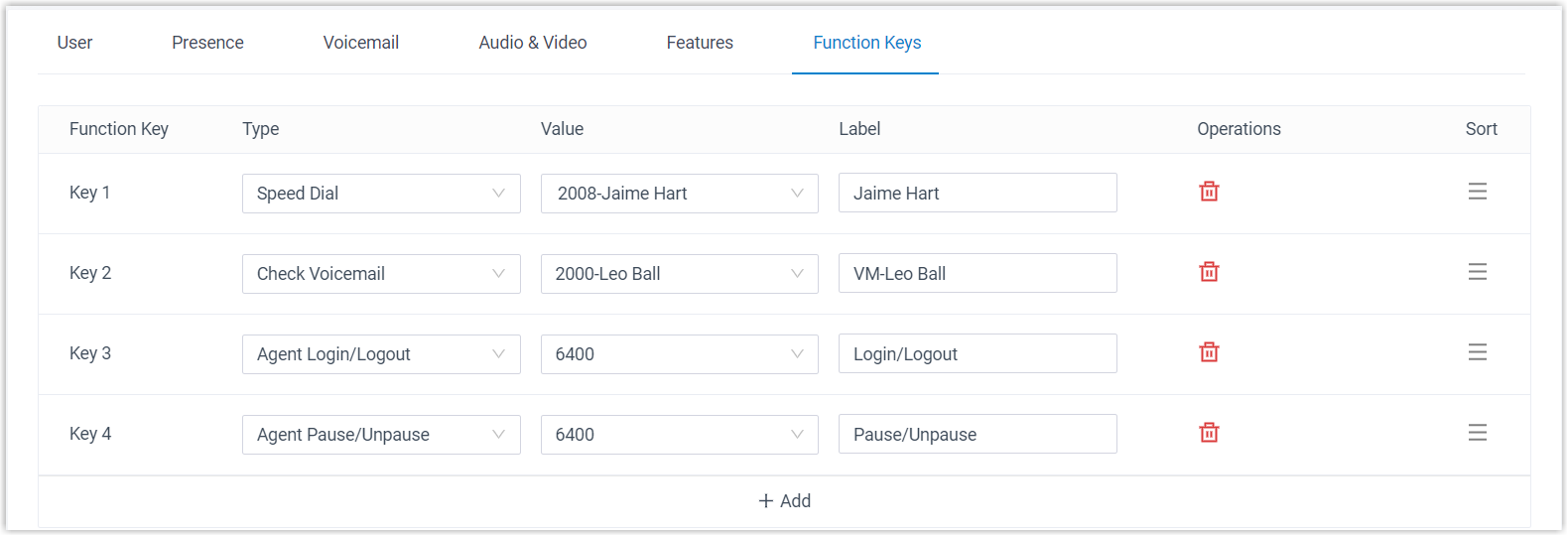
- **Type**: Choose a key type. See [Function key types](#function-key-types) for the full list.
- **Value**: Enter the target that matches the type you picked, such as an extension, a queue, or a parking number.
- **Label**: Optional. Give the key a name that helps you recognize it at a glance.
:::tip
The label is optional, but adding one is good practice. For BLF, Speed Dial, or Park keys, a short label (a coworker's name or "Park 1") makes the mini panel far easier to read at a glance.
:::
3. Click **Save**.
## What happens after you save
- Your keys sync to every Cloud Voice App client and to Cloud Voice App for Google. Click  in the top toolbar to open a mini panel where you can watch status and trigger actions.
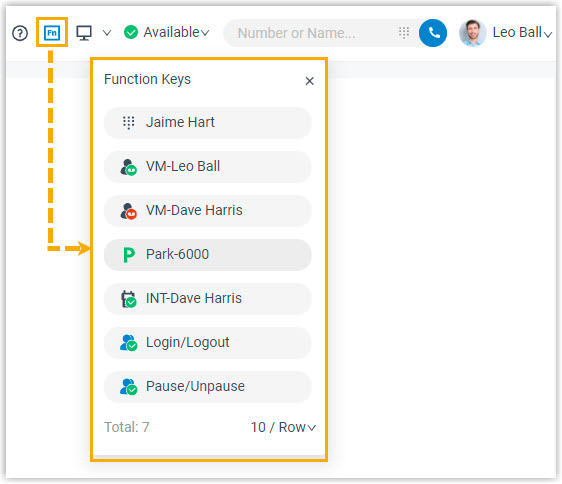
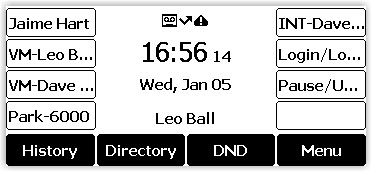
- If your extension is also registered on an IP phone through Auto Provisioning, the phone picks up your changes automatically.
:::caution
An IP phone has a fixed number of programmable line keys. If you assign more function keys than the phone has line keys, the extra keys are ignored and will not work. Keep the keys you use most within your phone's line-key count.
:::
## Function key types
Pick a type for each key. A few types work only on IP phones, as noted below. Several types rely on BLF (Busy Lamp Field), a lamp that changes to show whether a monitored line is free, ringing, or busy.
| Type | What it does | Status indicators |
| --- | --- | --- |
| None | The key has no function until you configure it. |  No function assigned yet. |
| Line | Sets up a line key on an IP phone. Available on IP phones only. |  Line key. |
| BLF (Busy Lamp Field) | Monitors a specific extension or a specific extension group so you can see at a glance whether it is free, ringing, or busy. Not available during an audio conference call. | **Extension:**
 Unregistered
 Online and ready, click to call the extension
 Away from desk
 Do Not Disturb, won't receive calls
 On lunch break
 On a business trip
 Off work
 Receiving a call, click to pick it up (on Mobile, tap the key, then tap the incoming call)
 On a call
 Call is on hold
**Extension group:**
 No ringing calls (calls already in progress don't change this)
 One member has a ringing call
 Two ringing calls
 Three or more ringing calls, hover for details, then click a call to pick it up
 The group doesn't exist |
| Speed Dial | Speed-dials a number you call often. |  Click to call the saved number or extension. |
| Set Presence | Switches your own extension presence. |  Set presence to **Available**
 Set presence to **Away**
 Set presence to **Business Trip**
 Set presence to **Do Not Disturb**
 Set presence to **Lunch Break**
 Set presence to **Off Work** |
| Check Voicemail | Monitors and opens the voicemail of a monitored extension. |  The monitored extension has been deleted
 All voicemails read
 Unread voicemails waiting, in the Cloud Voice App, click the key and enter the voicemail PIN when prompted |
| Check Group Voicemail | Monitors and opens a shared-mode group voicemail. |  The group voicemail has been deleted
 All voicemails read
 Unread voicemails waiting, in the Cloud Voice App, click the key and enter the group voicemail PIN when prompted |
| Park & Retrieve | Monitors a parking number and lets you park or retrieve a call on it. Not available during an audio conference call. |  Parking number is invalid
 Parking number is free, click to park the current call
 Parking number is in use, click to retrieve the call |
| Intercom | Monitors an extension and places an intercom call to it for announcements. |  Unregistered
 Available
 Receiving a call
 On a call |
| DTMF (Dual-Tone Multi-Frequency) | Sends preset DTMF tones (the tones a phone keypad makes) during a call so you don't have to key them in each time. Not available during an audio conference call. |  During a call, click to send the DTMF tones. |
| Agent Login/Logout | Shows your login status in a queue and lets you log in or out. |  Not a member of the queue
 Logged in
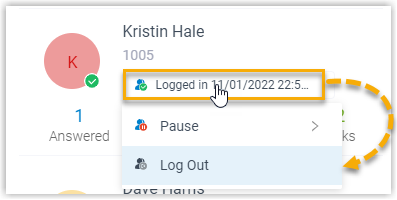 Logged out |
| Agent Pause/Unpause | Shows your service status in a queue and lets you pause or resume taking calls. |  Resume taking calls
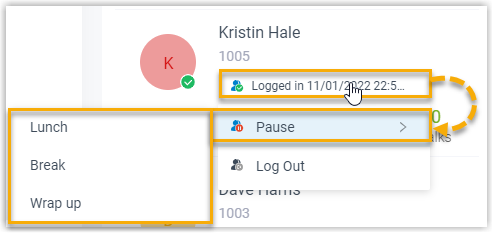 Pause taking calls
 Not a member of the queue
 Not logged in to the queue |
| LDAP Directory | Opens the LDAP (Lightweight Directory Access Protocol) phonebook to look up contact details on an IP phone. Available on IP phones only. |  LDAP directory key. |
| Boss-Secretary Feature | Lets a boss and a secretary watch each other's call status. | **As a boss, watching your secretary:**
 Not handling any calls for you
 Answering calls for you
 Holding a call, waiting for you to answer
**As a secretary, watching your boss:**
 Not holding any calls for you to resume
 Holding a call, waiting for you to resume |
| Call Forward | Turns call forwarding on or off. Available on IP phones only. |  Call forward key. |
| Action URL | Sends an HTTP (web) GET request to a URL you specify to report an event. Available on IP phones only. |  Action URL key. |