
Import and Export - FAQ
Import and export let you move data in and out of Cloud Voice in bulk using CSV (Comma-Separated Values) files. Instead of creating records one at a time, you can add many extensions, trunks, routes, or contacts from a single file. Use this page to troubleshoot the most common issues that come up when you import or export data.
Why won’t my data import?
Section titled “Why won’t my data import?”If an import is rejected outright, one of the following is usually to blame. Check your file against each item below.
The file isn’t in the right format
Section titled “The file isn’t in the right format”Import files must be UTF-8 encoded .CSV files. If yours was saved in a different encoding or file type, the import will fail.
The parameters don’t meet requirements
Section titled “The parameters don’t meet requirements”Each type of import expects specific column names and a specific number of columns. If a parameter name is wrong or the column count doesn’t match what Cloud Voice expects, the file is rejected. Confirm your headers and columns against the parameter requirements for the data type you’re importing (extensions, trunks, routes, or contacts).
The file is too large
Section titled “The file is too large”Import files must stay under a maximum size, which varies by data type:
| Data type | Maximum file size |
|---|---|
| Contacts | Less than 300 MB |
| Extensions, trunks, inbound routes, outbound routes | Less than 50 MB |
The file name is too long
Section titled “The file name is too long”Keep the file name under 127 characters.
The file no longer exists
Section titled “The file no longer exists”If the source file was moved or deleted after you selected it, Cloud Voice can’t read it. Verify the file is still in its original location and try again.
Why did only some of my data import?
Section titled “Why did only some of my data import?”When Cloud Voice reports Failed to import part of data, the records that couldn’t be added are flagged for you. Download the results file and review the first column, ErrorCause, to see why each row was skipped.

Common reasons rows are skipped include:
- The import limit was reached. Any records beyond the maximum allowed count are dropped.
- The record is a duplicate. A row that matches data already on the PBX (Private Branch Exchange, your phone system), or that is repeated elsewhere in the same file, won’t be imported twice.
- A value doesn’t meet the parameter requirements. For example, an email address in an invalid format.
- A required value is missing. Rows that leave a mandatory field blank are skipped.
Fix the flagged rows in your CSV, then re-import.
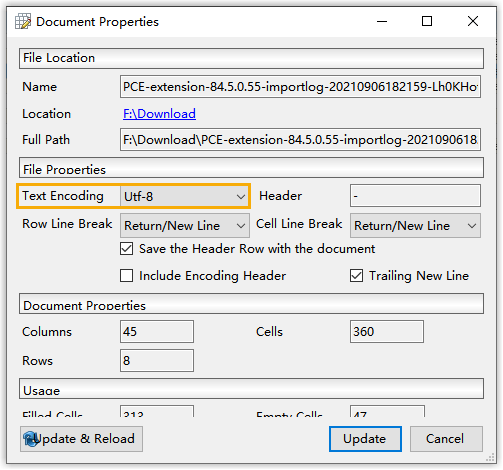
How do I check or change the text encoding in Ron’s Editor?
Section titled “How do I check or change the text encoding in Ron’s Editor?”If you’re editing an import file in Ron’s Editor on Windows, confirm the encoding before you save:
- Open the file in Ron’s Editor.
- From the File menu, select Properties.
- Review or change the value in the Text Encoding field, and set it to UTF-8.
Question about this page?
Ask the AI assistant. It starts from this page, then searches the rest of the docs.
Ask Cloud Voice AI
Answers are AI-generated from the docs and may contain mistakes. Verify with the linked pages.