
Omnichannel Messaging - FAQ
Use this page to resolve the questions that come up most often when you connect messaging channels to Cloud Voice, including custom SMS providers and WhatsApp channel setup. Omnichannel Messaging lets agents handle text conversations from several channels (such as SMS and WhatsApp) inside one interface.
What if my SMS provider isn’t on the supported list?
Section titled “What if my SMS provider isn’t on the supported list?”You aren’t limited to the SMS (Short Message Service) providers that Cloud Voice supports out of the box. If your provider isn’t on that list, connect it through a custom SMS trunk instead. Cloud Voice exposes an open SMS API (application programming interface), along with full documentation, so you can build the integration against your own provider’s service.
For step-by-step instructions, see Integrate an SMS Service Using the SMS API.
How many Meta apps or WhatsApp channels can I create from one Meta Developer account?
Section titled “How many Meta apps or WhatsApp channels can I create from one Meta Developer account?”A single Meta Developer account is all you need. From that one account you can create as many Meta apps as you want for WhatsApp channel integration, and Cloud Voice places no limit on the number of WhatsApp channels you configure.
What should I do if my WhatsApp phone number shows a “Pending” status?
Section titled “What should I do if my WhatsApp phone number shows a “Pending” status?”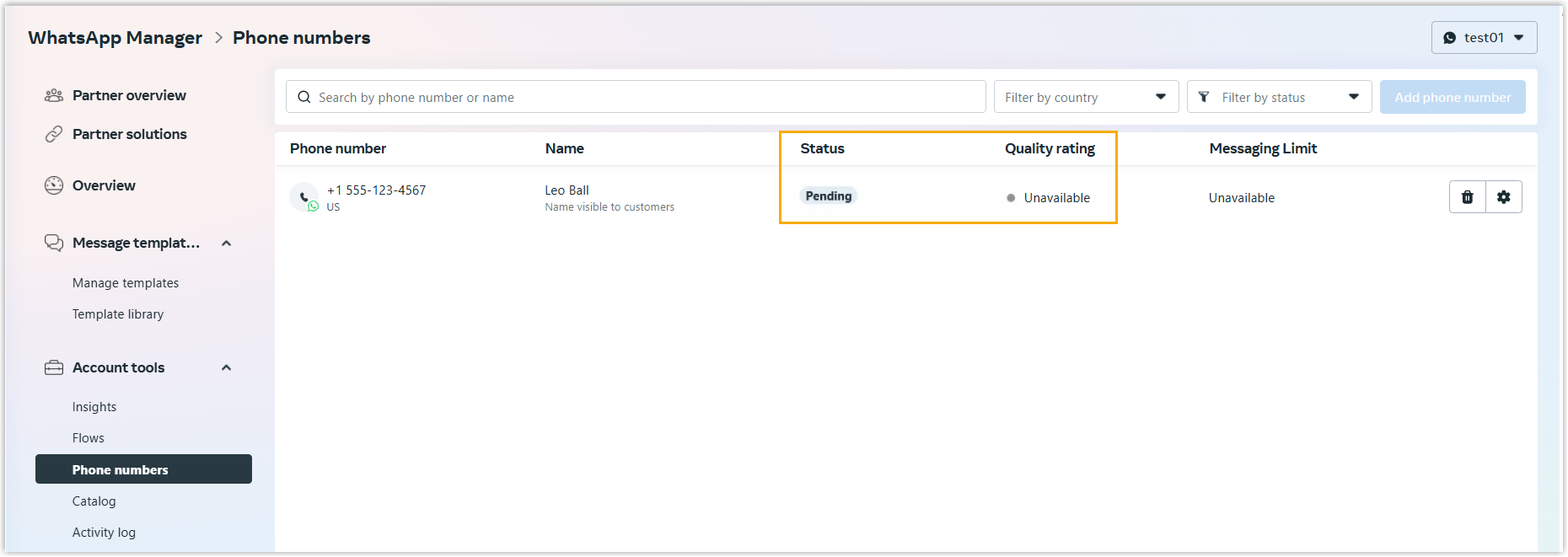
A Pending status means the number isn’t live yet: it can’t send or receive WhatsApp messages until the status becomes Connected. A Pending status on a WhatsApp Business number usually points to one of the following:
- The verification steps haven’t been fully completed.
- The access token has expired or is no longer valid.
- The account or the phone number is misconfigured.
Generating a fresh access token and reconnecting the account to your Meta app clears the status in most cases. Follow the procedure below.
Prerequisites
You have already created a Meta app for WhatsApp on the Meta for Developers portal.
Procedure
-
Sign in to the Meta for Developers portal and open the app you created.
-
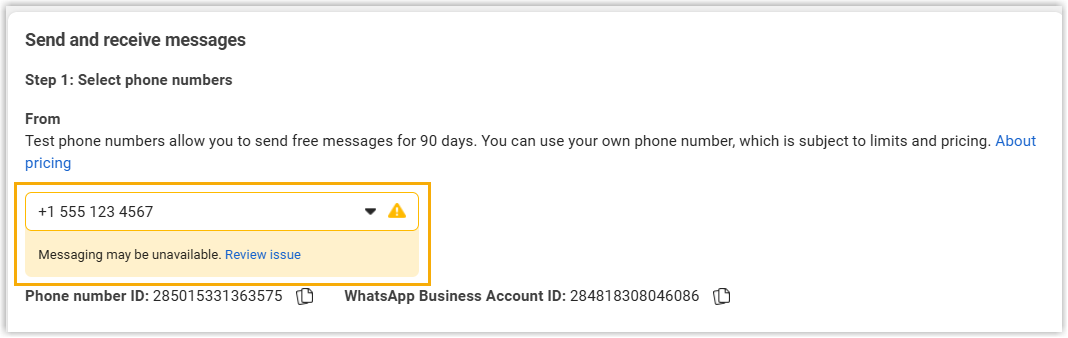
Go to WhatsApp > API Setup > Send and receive messages, then choose the pending phone number from the From drop-down list.
-
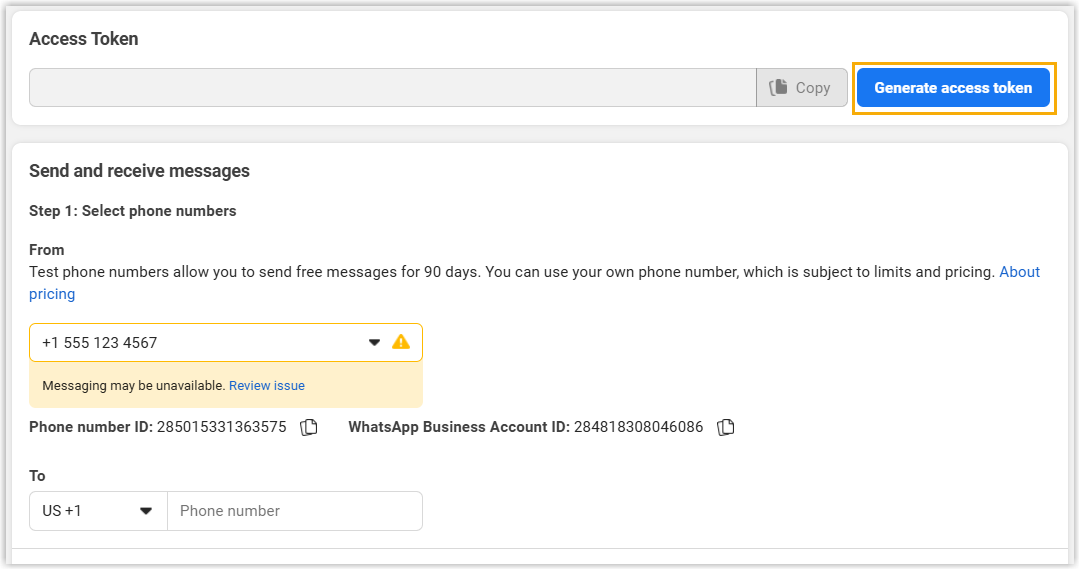
In the Access Token section, click Generate access token.
-
In the pop-up window, complete these steps:
a. Click Continue to proceed with your WhatsApp account.
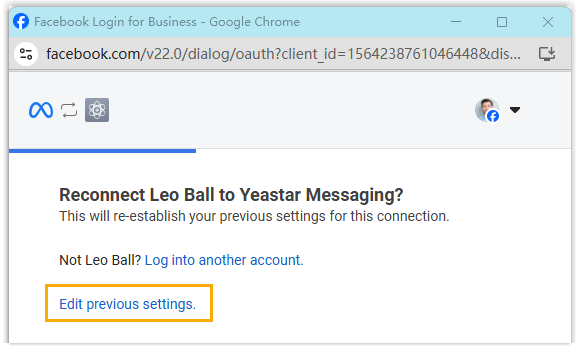
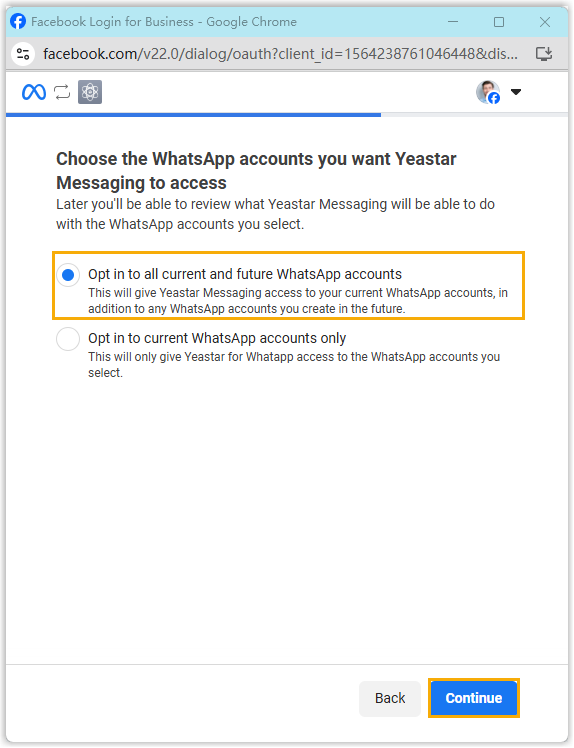
b. Select Opt in to all current and future WhatsApp accounts, then click Continue.
c. Review the request, then click Save. The window confirms that your account is now connected to the Meta app.
d. Click Got it to close the pop-up window.
Result
-
The new access token is generated successfully.

-
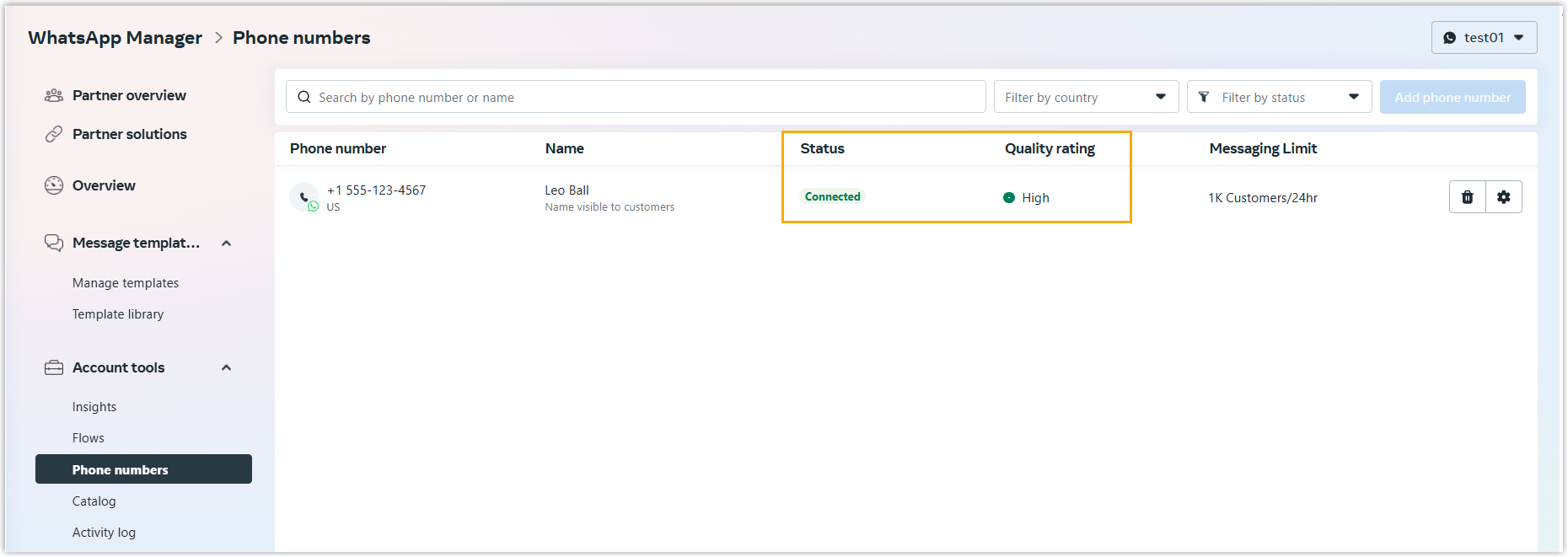
Return to the Phone Numbers dashboard on the Meta Business Suite portal (Account > WhatsApp accounts > WhatsApp Manager > Account tools > Phone numbers). Your number’s status now reads Connected.
Question about this page?
Ask the AI assistant. It starts from this page, then searches the rest of the docs.
Ask Cloud Voice AI
Answers are AI-generated from the docs and may contain mistakes. Verify with the linked pages.