
Cloud Voice App Web Client Quick Start Guide
The Cloud Voice App Web Client runs in your browser and pulls calling, messaging, contacts, and meetings into a single window. There is nothing to install: everything happens on a web page. This guide gets you productive quickly, from your first sign-in through the everyday tasks you’ll reach for most.
Sign in
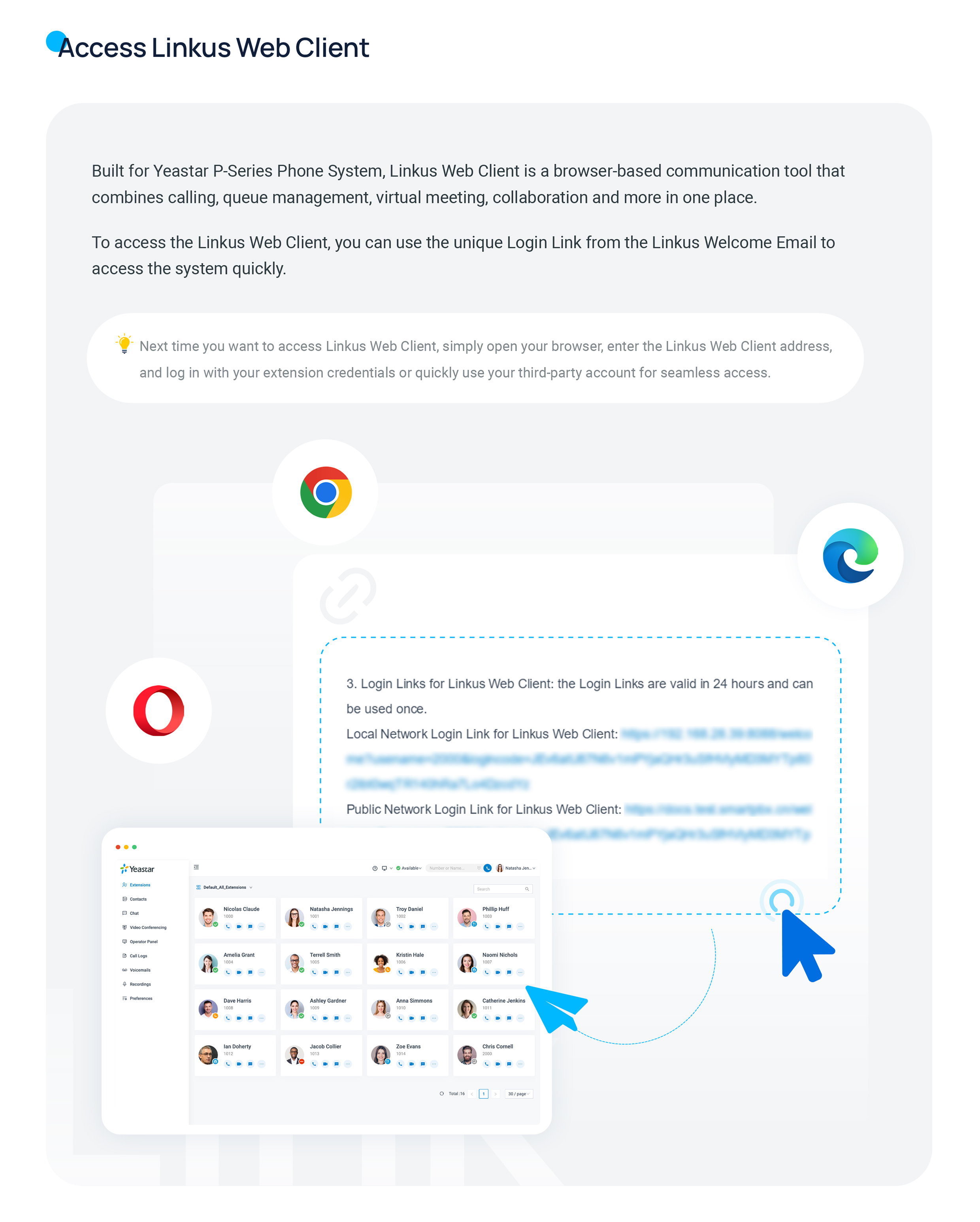
Section titled “Sign in”Signing in loads your personal workspace, with every feature a click away.
- Open a supported desktop web browser (a current version of Chrome, Edge, Firefox, or Safari).
- Go to the web client address your administrator gave you.
- Enter your extension credentials (usually your email or extension number plus a password) and sign in.
Find colleagues and contacts
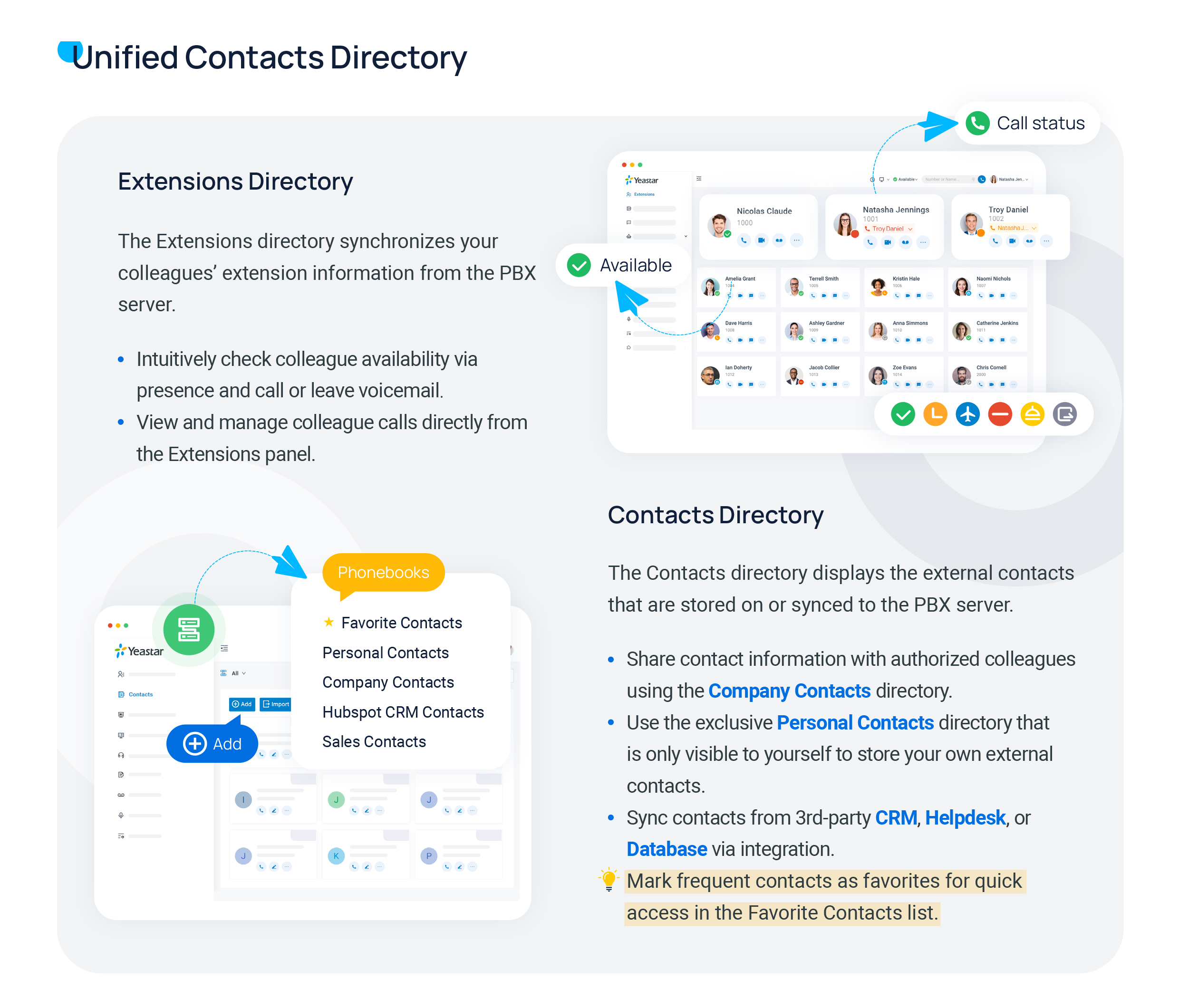
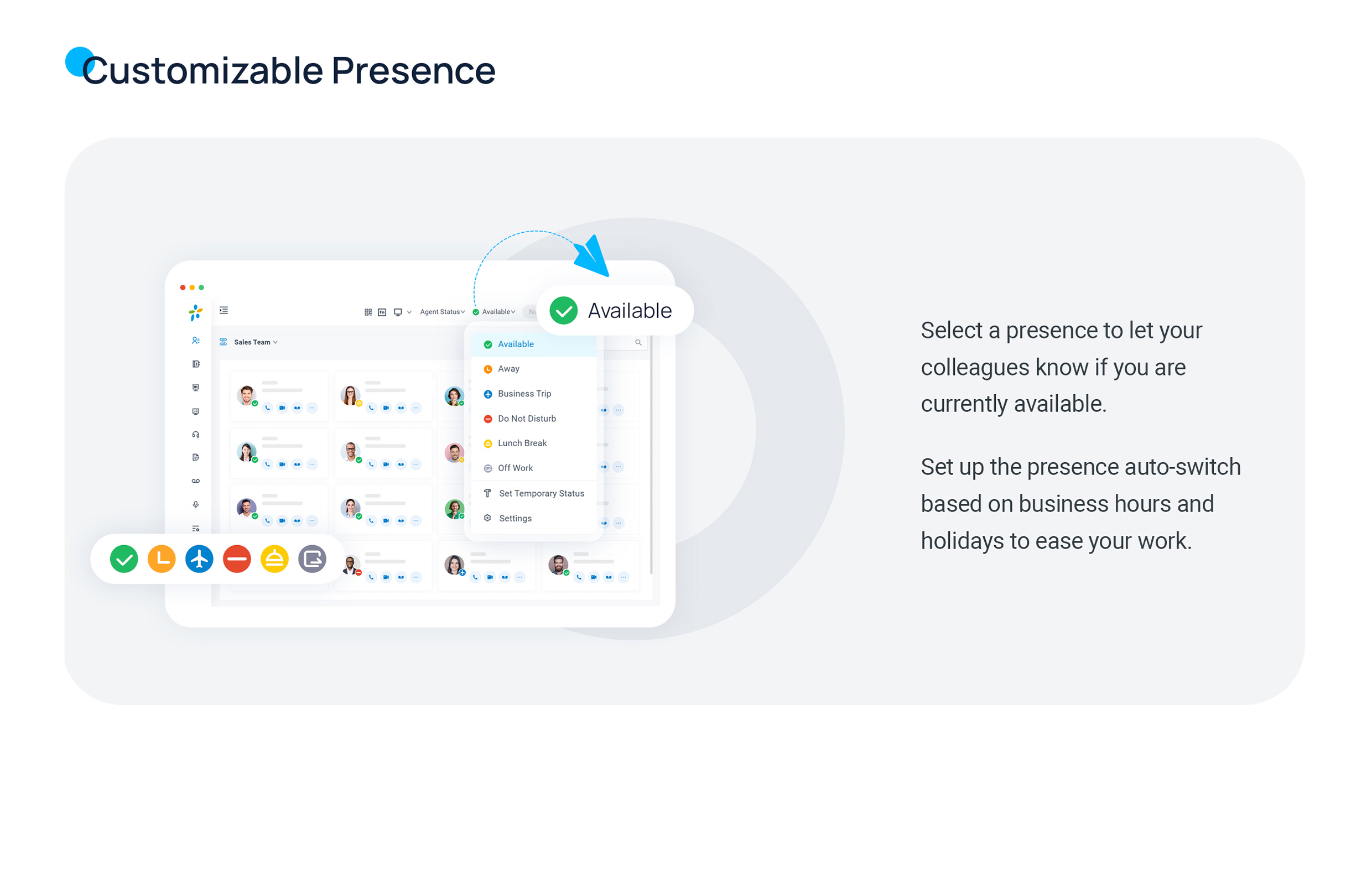
Section titled “Find colleagues and contacts”The directory keeps your teammates and saved external contacts together in one list. From here you can see who is available and reach anyone in a single click.
Make and manage calls
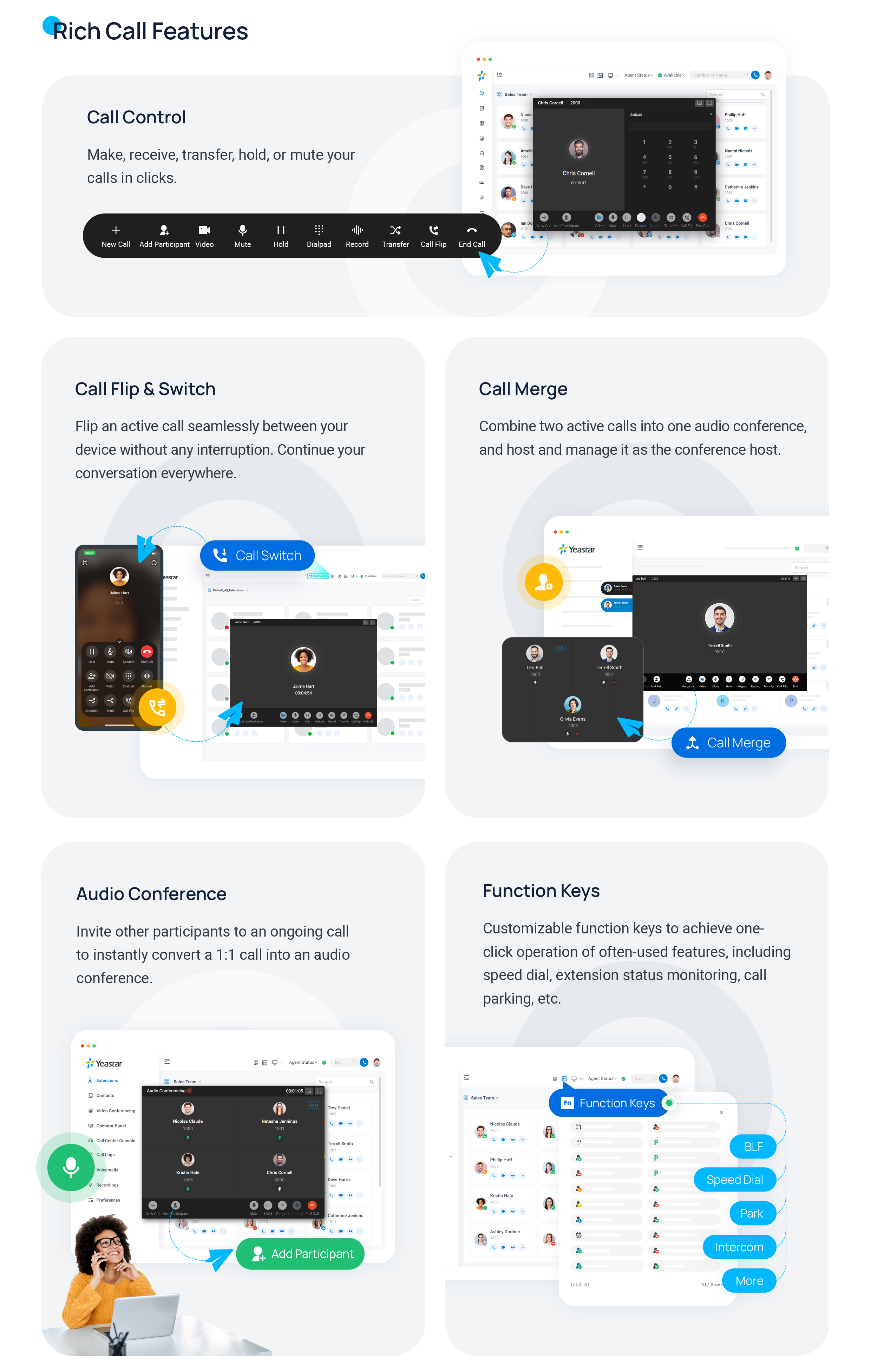
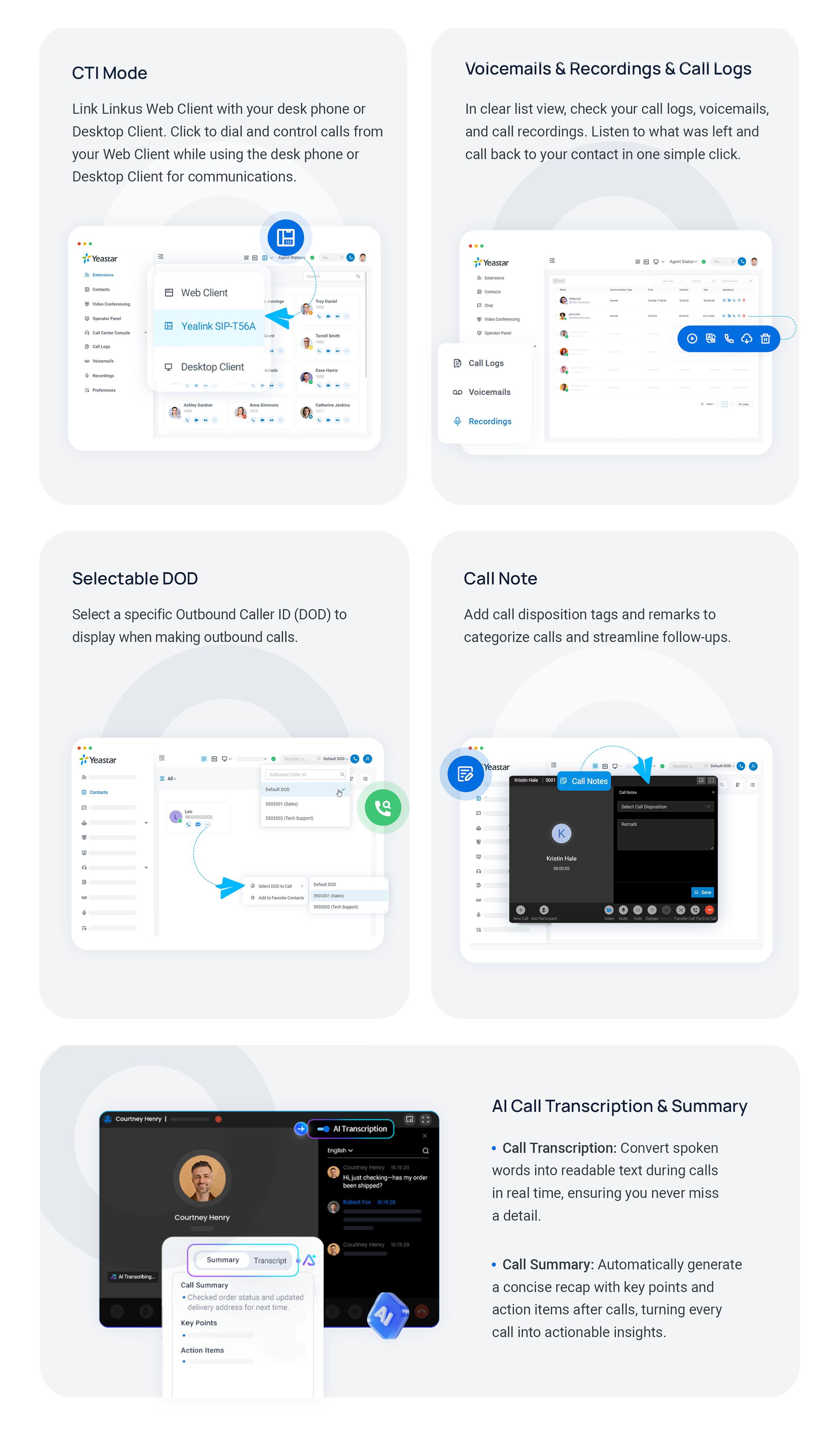
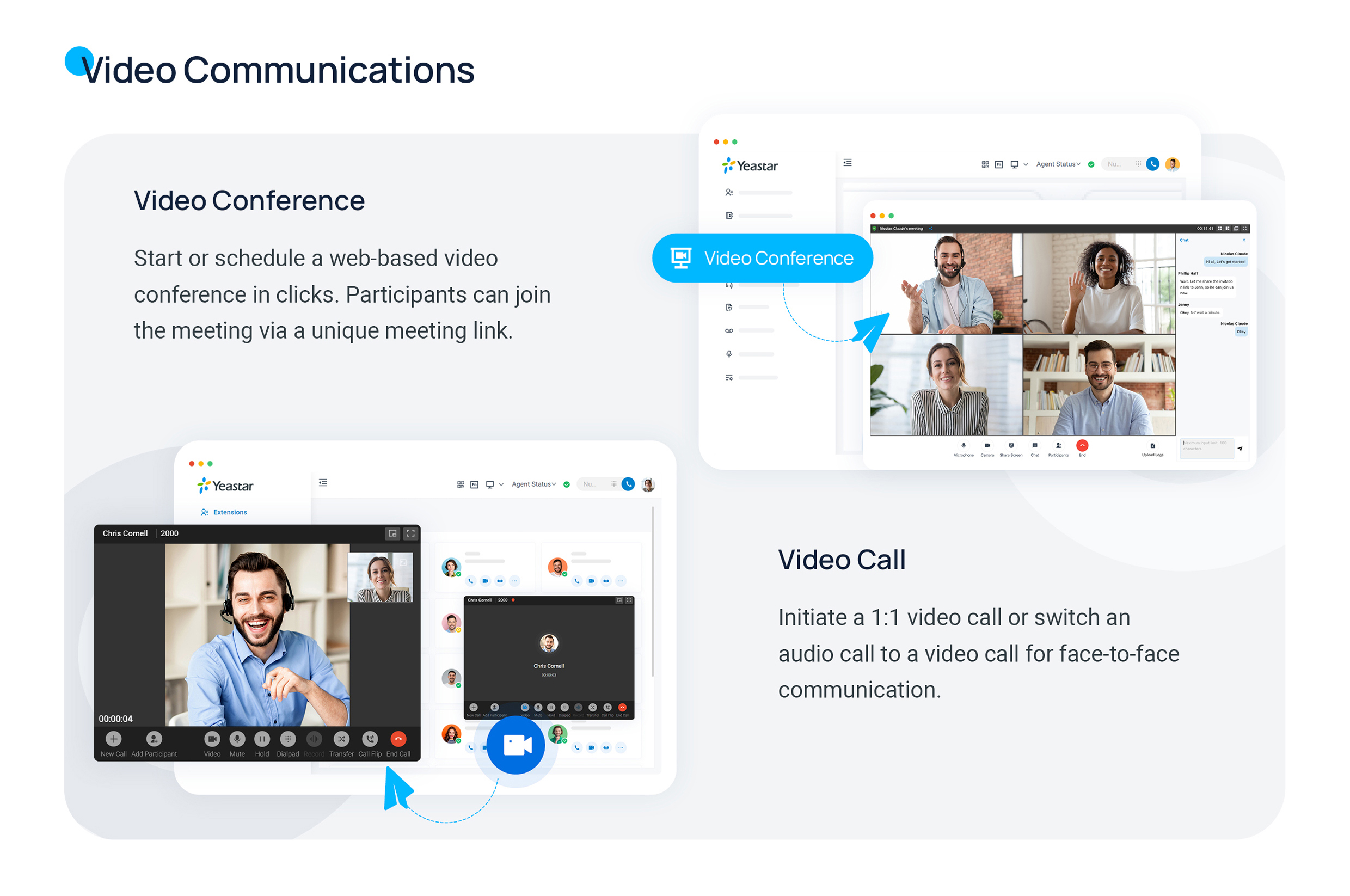
Section titled “Make and manage calls”Place audio or video calls straight from the app, then handle each live call with the on-screen controls: hold, mute, transfer, recording, and the in-call keypad.
The in-call keypad sends DTMF (Dual-Tone Multi-Frequency) tones, the beeps a physical phone keypad makes. You use it to work through automated phone menus, also called an IVR (Interactive Voice Response) system, for example pressing 1 for sales.
Chat and collaborate
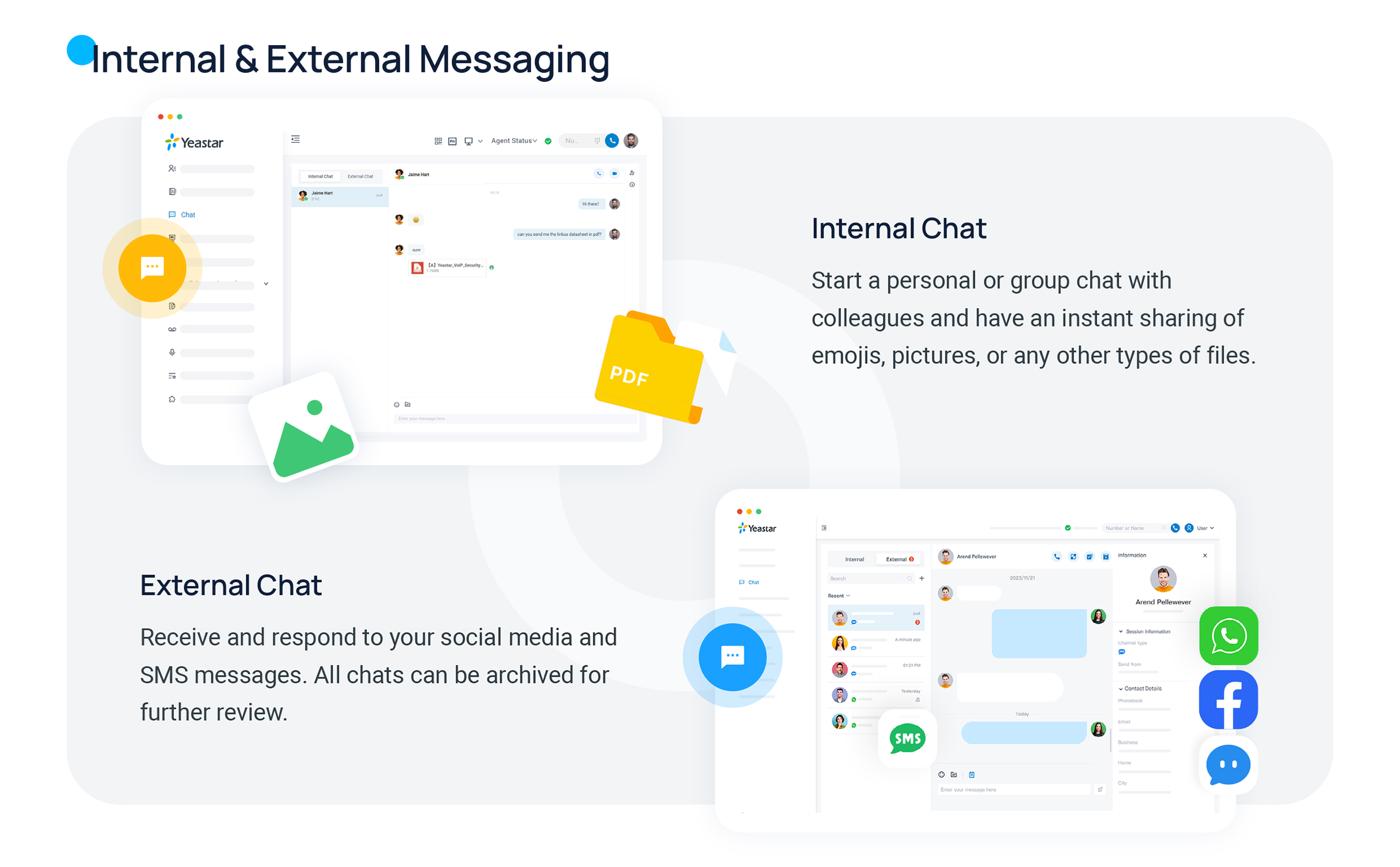
Section titled “Chat and collaborate”Send instant messages to individuals or groups, and share files inside the conversation to keep everyone on the same page.
Work the call center
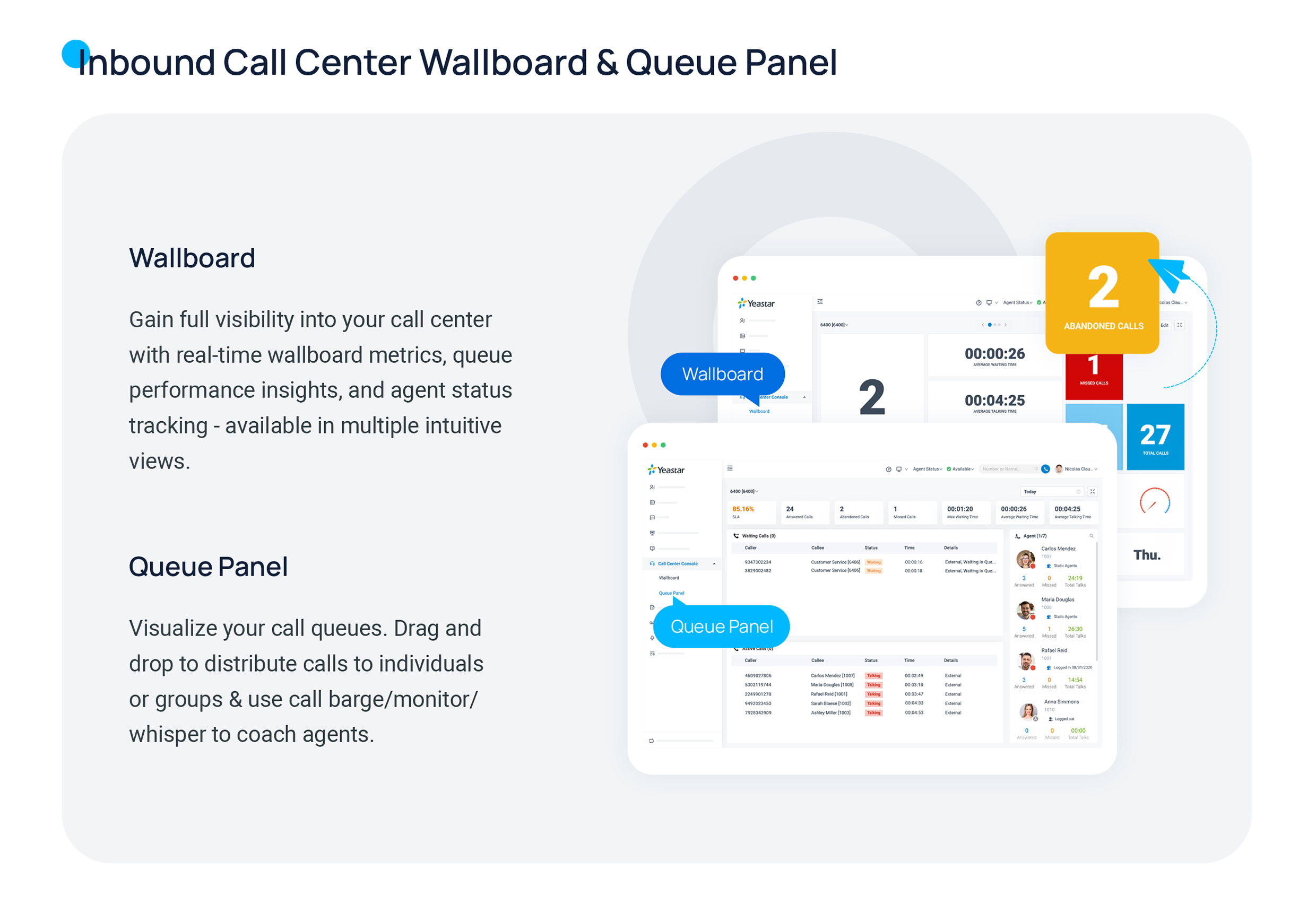
Section titled “Work the call center”If your role includes call center duties, the console hands you queue calls (calls waiting in a shared line for the next available agent) together with live monitoring, reporting, and call-handling tools.
Personalize the appearance
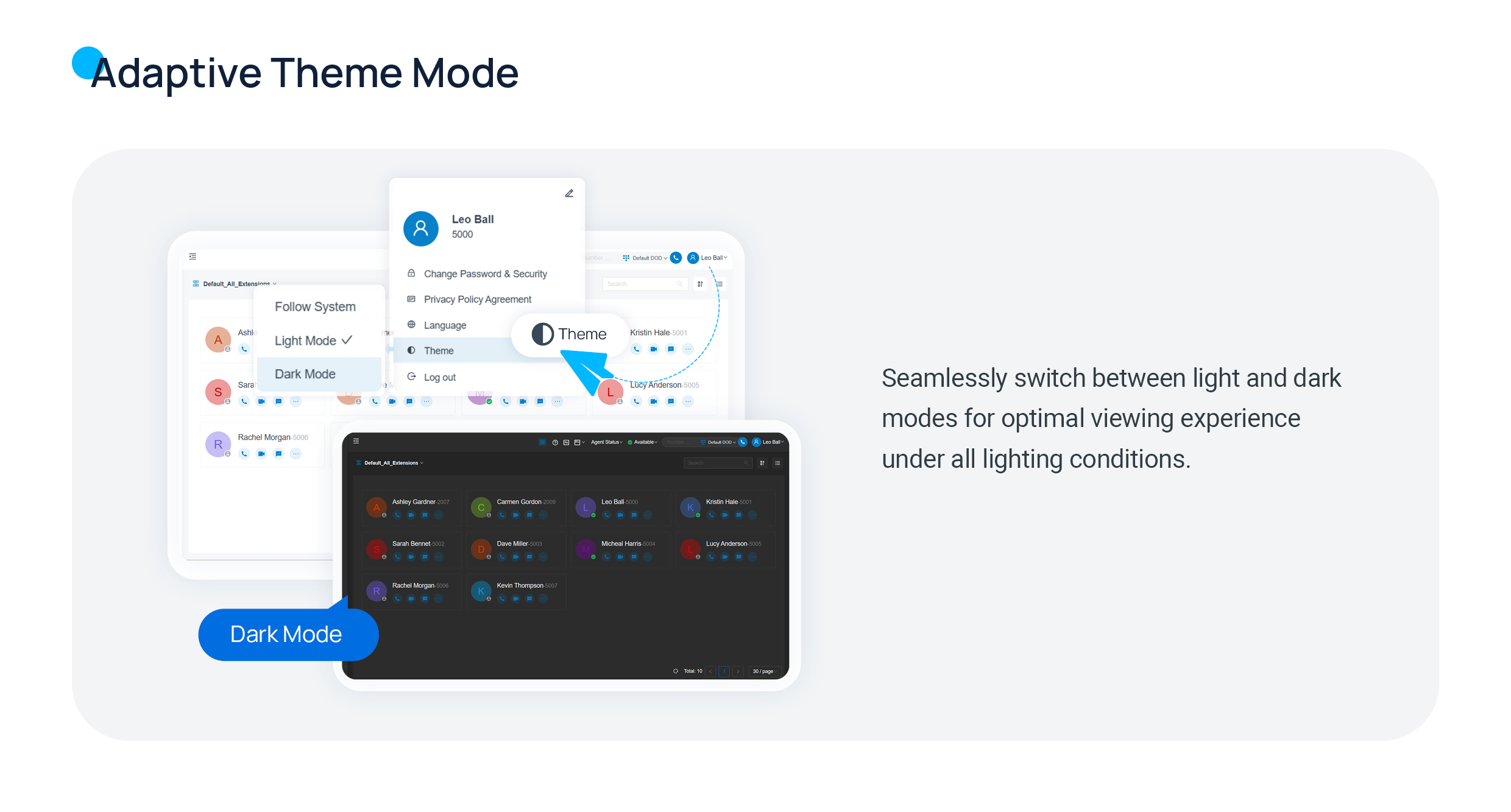
Section titled “Personalize the appearance”Tailor the workspace to your taste, including switching between light and dark display modes to suit your surroundings.
Connect Microsoft Teams
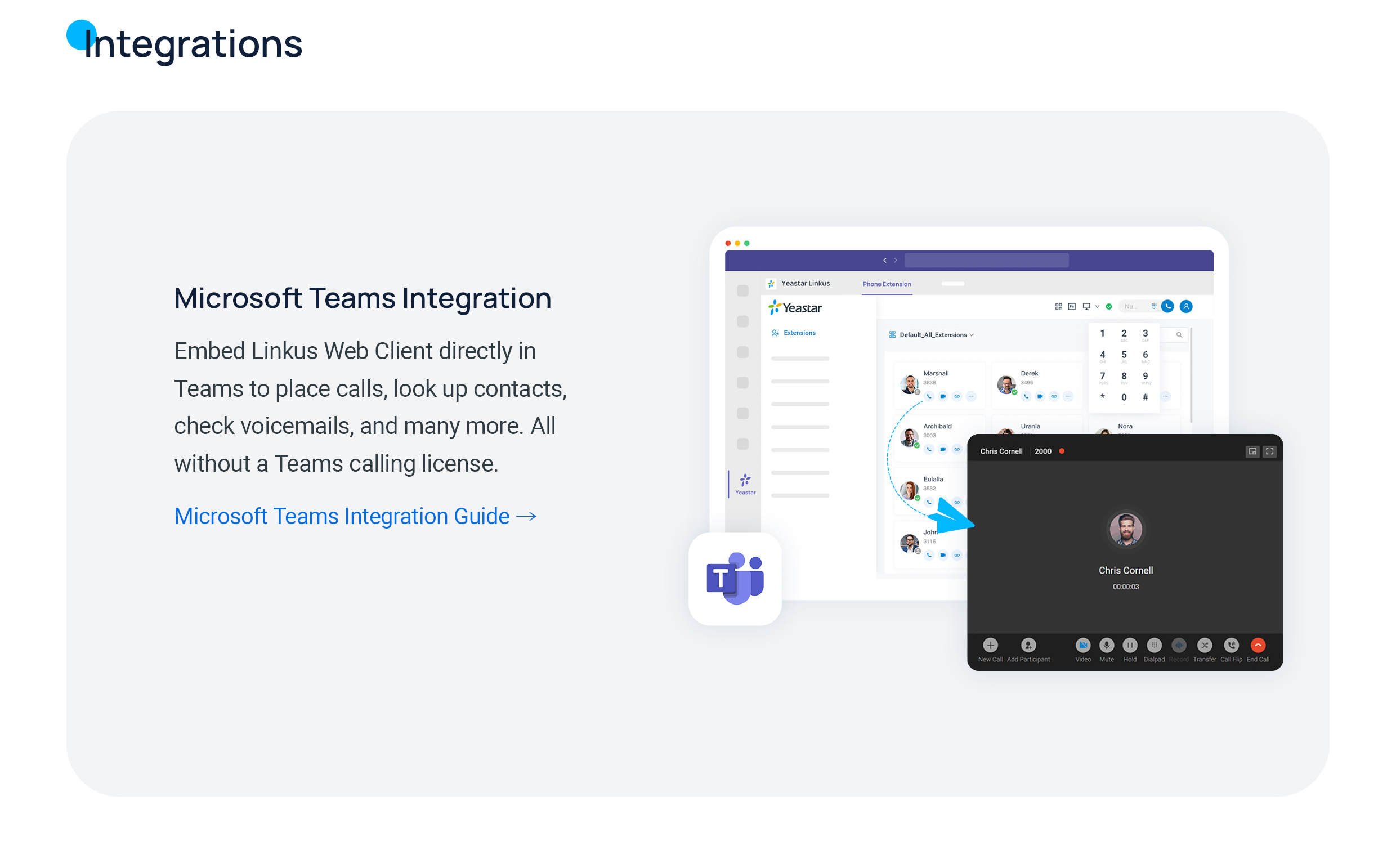
Section titled “Connect Microsoft Teams”The web client can integrate with Microsoft Teams, letting you use your Cloud Voice calling features without leaving Teams. Check with your system administrator to find out whether this integration is available for your organization.
Question about this page?
Ask the AI assistant. It starts from this page, then searches the rest of the docs.
Ask Cloud Voice AI
Answers are AI-generated from the docs and may contain mistakes. Verify with the linked pages.