
Log in to the Cloud Voice App with an Extension Account Using Manual Credentials
You can sign in to the Cloud Voice App on your phone by entering your extension credentials and server details directly. Use this method when you don’t have a QR code or email link to scan.
Before you begin
Section titled “Before you begin”Ask your system administrator for the following:
- The username and password for your extension account.
- The network details for your Cloud Voice server (the domain name).
Log in
Section titled “Log in”-
On the sign-in screen of the Cloud Voice App, fill in your account details:
-
In the Username field, type your extension account username.
-
In the Password field, type the matching password.
-
In the SN/Domain field, type the domain name of your Cloud Voice server. SN stands for Serial Number; for this login method you enter the domain name instead.
-
-
Tap Login.
-
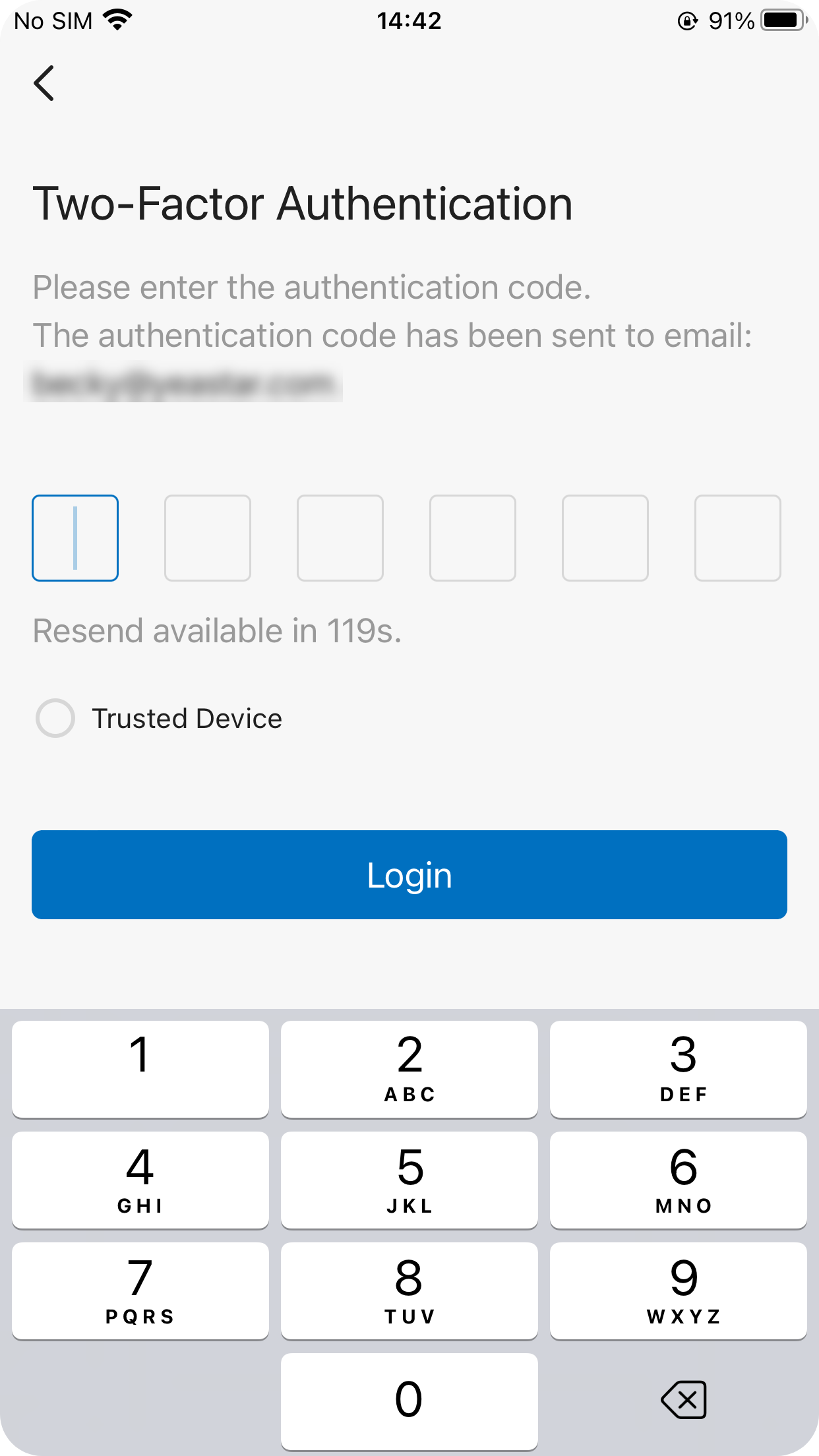
If two-factor authentication is turned on for your account, enter your authentication code when prompted.
-
Type the code from your authenticator app or from the email you received.
-
Optionally, select the Trusted Device checkbox.
-
Tap LOG IN.
-
Question about this page?
Ask the AI assistant. It starts from this page, then searches the rest of the docs.
Ask Cloud Voice AI
Answers are AI-generated from the docs and may contain mistakes. Verify with the linked pages.