
Reset Your User Password
Locked out because you can’t recall your User Password? As long as you know your extension number and the email address tied to it, you can set a new password yourself from the sign-in screen. The same password works for both the Cloud Voice App and the PBX (Private Branch Exchange, your phone system) web portal.
Before you begin
Section titled “Before you begin”You’ll need the email address linked to your extension to complete the reset.
Reset the password
Section titled “Reset the password”-
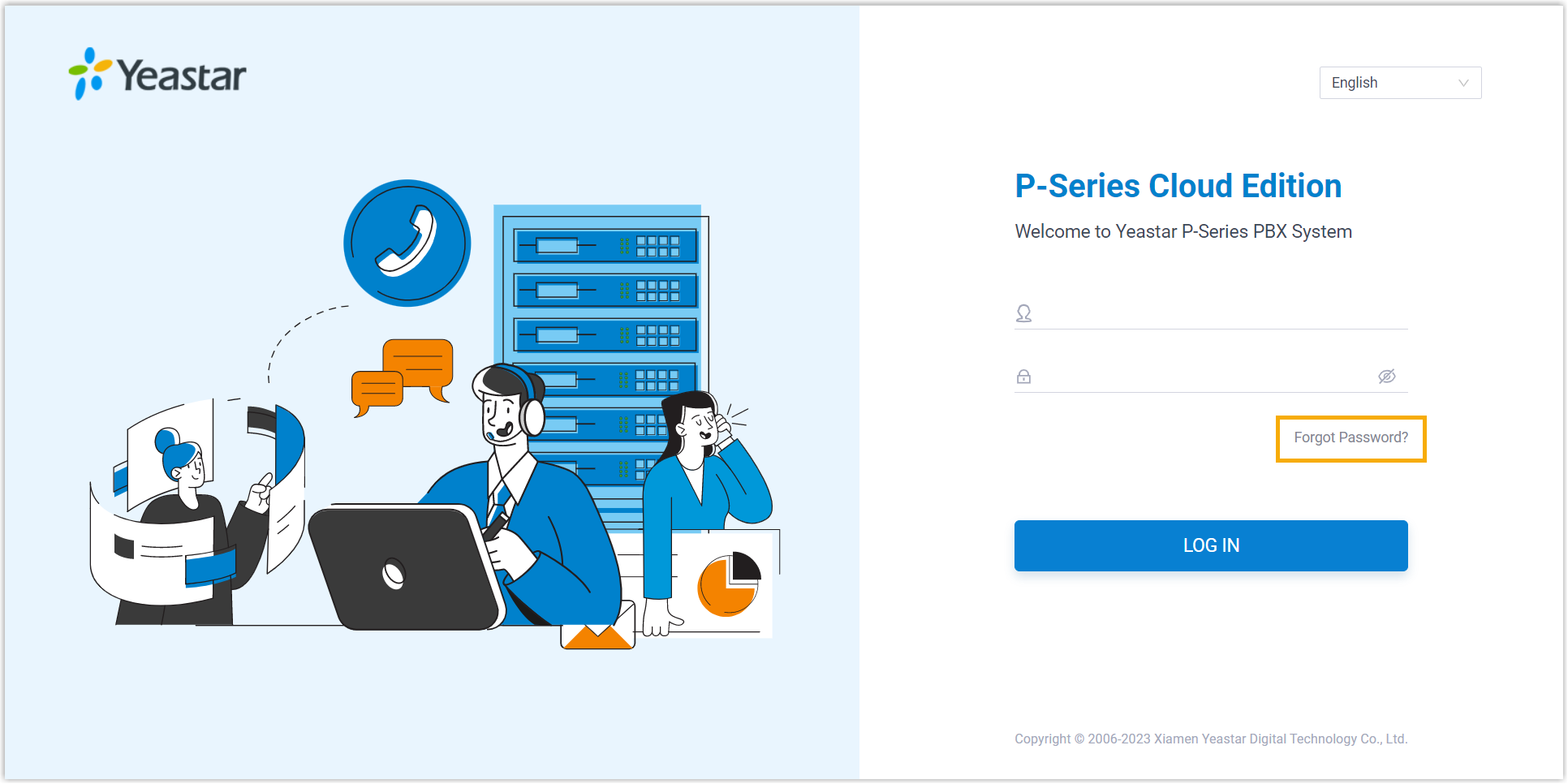
Open the Cloud Voice App Web Client sign-in page and select Forgot Password?.
The Forget Password page opens.
-
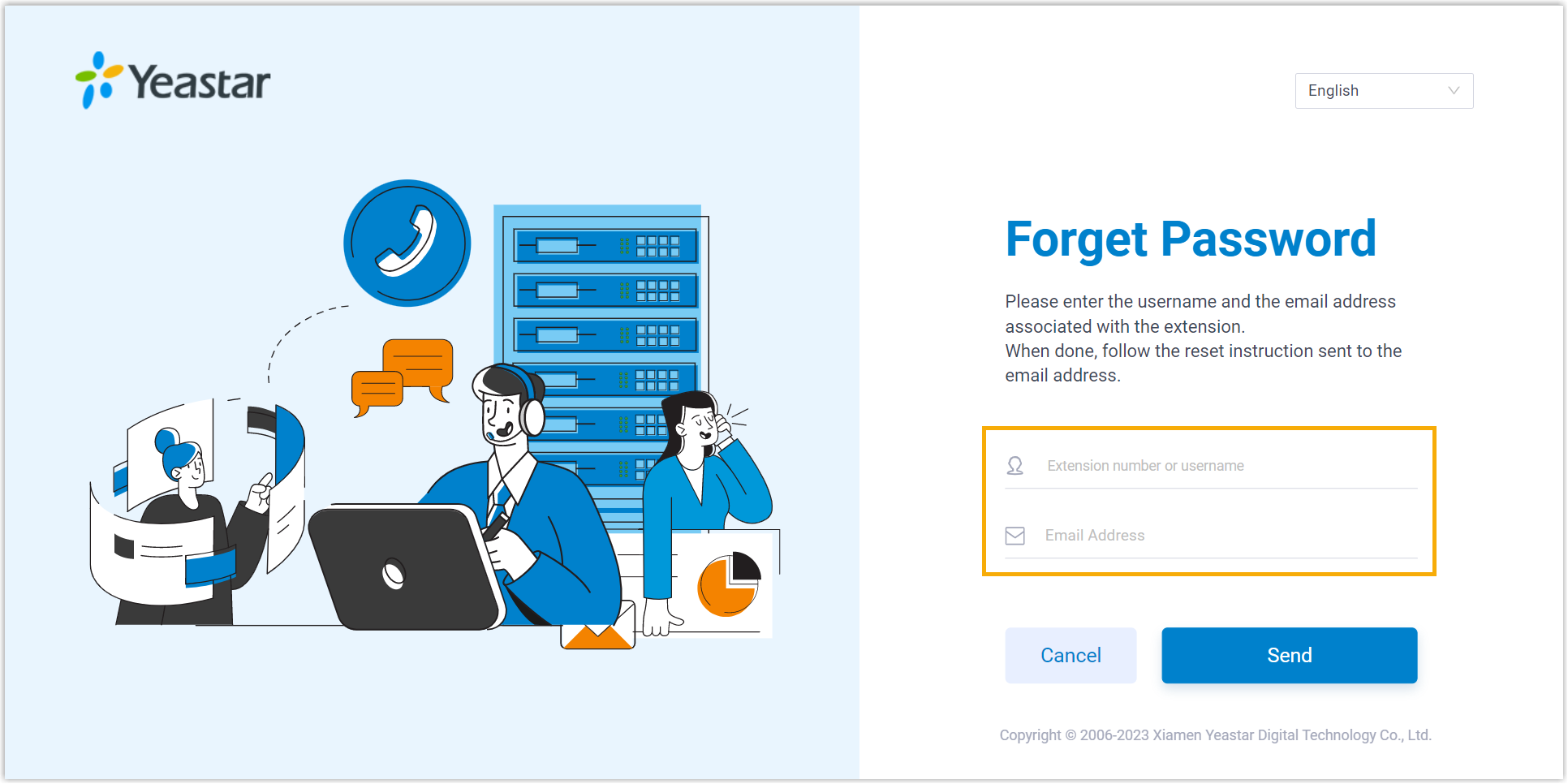
Provide the following details:
- Extension number or username: Your extension number.
- Email Address: The email address registered to your extension.
-
Select Send.
A reset email goes out to the address you entered.
-
Open that email and follow the link inside. It takes you to the Reset Password page.
-
On the Reset Password page, type your new password in both fields, then select Save.
Result
Section titled “Result”Your User Password is updated. From now on, use the new password to sign in to both the PBX web portal and the Cloud Voice App.
Question about this page?
Ask the AI assistant. It starts from this page, then searches the rest of the docs.
Ask Cloud Voice AI
Answers are AI-generated from the docs and may contain mistakes. Verify with the linked pages.