
Answer or Reject a Call
When a call arrives at your extension, the Cloud Voice App lets you take it as an audio or video call, or turn it down and send the caller on to your no-answer destination. How the call reaches you depends on whether the app is the page you’re looking at or sitting in the background.
Before you begin
Section titled “Before you begin”Make sure the following are in place, or incoming calls may not reach you reliably:
- You are signed in to the Cloud Voice App.
- Audio and video are set up.
- Call Waiting is turned on, so a new call can still reach you while you are already on another call.
- The Cloud Voice App is included in your Ring Strategy, so incoming calls to your extension also ring on this app.
- Your web browser is allowed to show notifications.
- Optionally, set the Cloud Voice App to run at startup so it stays signed in and ready to receive calls.
Answer a call
Section titled “Answer a call”The controls you use are the same whether the app is open or in the background; only how you get to the call screen differs.
When the Cloud Voice App is the active page
Section titled “When the Cloud Voice App is the active page”An incoming call appears directly on the call screen.
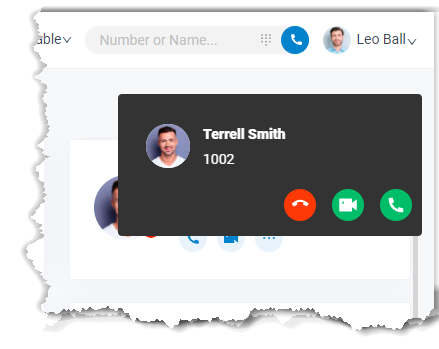
- Select the green phone button
 to take the call as audio.
 - Select the camera button
 to take the call as video. This button appears only when the incoming call is a video call.
When the Cloud Voice App is in the background
Section titled “When the Cloud Voice App is in the background”If you’re working in another tab or application, your browser shows a pop-up notification instead.
-
Select the notification to jump back to the Cloud Voice App.
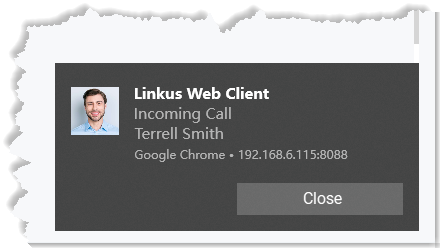
-
On the call screen, answer the call.
- Select the green phone button to take the call as audio.
- Select the camera button to take the call as video. This button appears only when the incoming call is a video call.
- Select the green phone button
Reject a call
Section titled “Reject a call”Declining a call sends the caller to whatever you’ve set as your No Answer destination.
When the Cloud Voice App is the active page
Select the red button  on the call screen.
When the Cloud Voice App is in the background
-
Select the browser notification to return to the Cloud Voice App.
-
Select the red button
to decline the call.
Question about this page?
Ask the AI assistant. It starts from this page, then searches the rest of the docs.
Ask Cloud Voice AI
Answers are AI-generated from the docs and may contain mistakes. Verify with the linked pages.