
Automatically Open Contact URL on Incoming Calls
Cloud Voice can hand off caller information to an outside web application through a custom popup URL, giving you a lightweight way to tie calls to a CRM (Customer Relationship Management), ERP (Enterprise Resource Planning), or similar system. Once configured, the Cloud Voice App opens the matching contact page in your browser as calls come in, or leaves it to you to open that page on demand while you are talking.
Before you begin
Section titled “Before you begin”Confirm the following before you set up the integration:
| Item | Requirement |
|---|---|
| PBX server | Firmware version 84.21.0.16 or later. |
| Third-party application | Must be web-based, and must expose a URL that identifies a caller from the Caller ID and Caller ID Name. |
Set up the integration
Section titled “Set up the integration”-
Sign in to the Cloud Voice App Web Client and open Preferences > Features > Call Popup.
-
Select Open Contact URL Using Custom Popup URL.
-
Define how the popup behaves using the settings below.
Popup URL
Enter the address of the third-party page and append the variables you want Cloud Voice to pass to it. The following variables are available:
{{.CallerNumber}}, the incoming Caller ID.{{.CallerDisplayName}}, the incoming Caller ID Name.{{.DIDNumber}}, the DID (Direct Inward Dialing) number, which is the external number the caller dialed to reach you (inbound calls only).{{.DIDName}}, the DID name (inbound calls only).{{.StartTime}}, the time the call started.
For example, a lookup URL might read
https://crm.example.com/contacts?number={{.CallerNumber}}&name={{.CallerDisplayName}}.Communication Type
Choose which calls trigger a popup:
- Inbound: calls arriving from external callers.
- Internal: calls from other extensions in your organization.
Popup Method
Decide whether Cloud Voice opens the page for you or waits for you to open it.
-
Automatically popup: to have the Web Client open the contact page on its own, select Automatically (Only for Incoming Calls), then use the Trigger Event drop-down to choose when it opens:
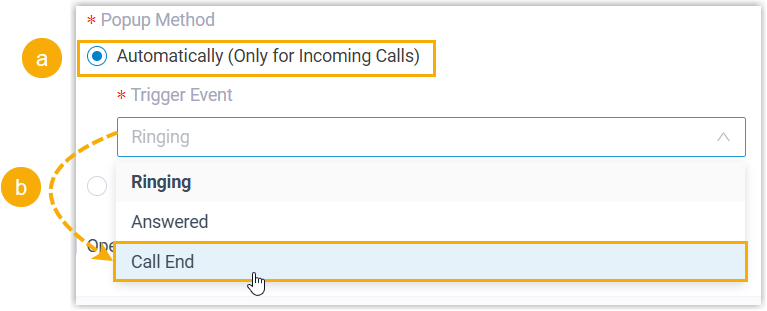
- Ringing: as soon as an incoming call arrives.
- Answered: once you answer the call.
- Call End: after the call finishes.
-
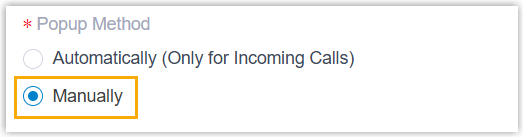
Manually popup: to open the contact page yourself during a call, select Manually.
-
Select Save.
What to expect
Section titled “What to expect”-
With automatic popup configured, a browser page opens on its own at the event you chose whenever your extension receives a matching call, showing the caller’s details from your application.
-
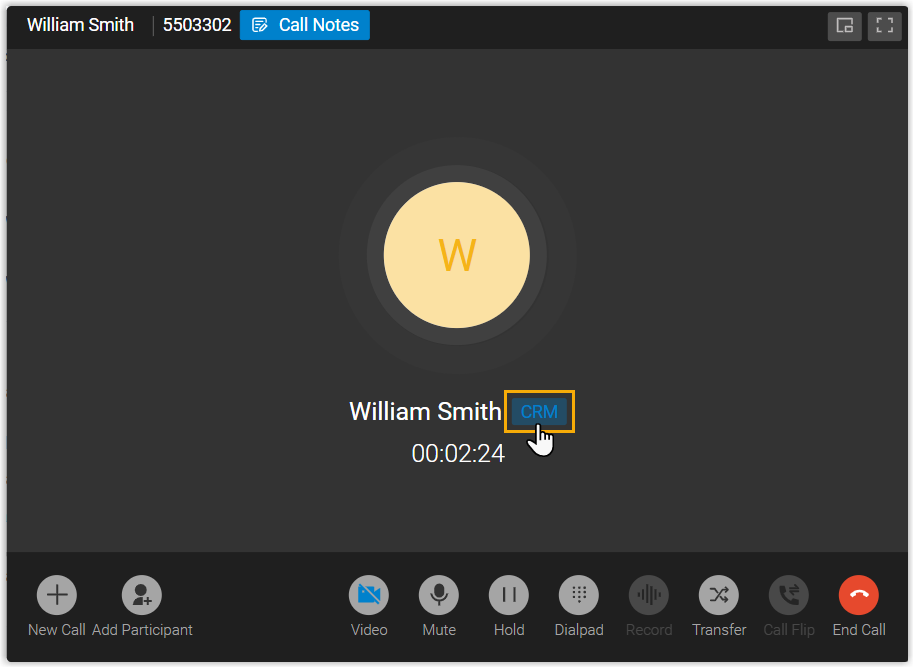
With manual popup configured, select the CRM label in the call window to open the contact’s page while the call is active.
Question about this page?
Ask the AI assistant. It starts from this page, then searches the rest of the docs.
Ask Cloud Voice AI
Answers are AI-generated from the docs and may contain mistakes. Verify with the linked pages.