
Configure Theme Setting
Out of the box, the Cloud Voice App mirrors whatever theme your web browser is using and flips between light and dark automatically. If you would rather the interface always look the same, you can pin it to light or dark mode and ignore the browser entirely. This is a personal display preference: it changes how the app looks for your account and does not affect calls, settings, or other users.
Set your theme
Section titled “Set your theme”- Sign in to the Cloud Voice App.
- Click your account name in the top-right corner of the interface.
- From the drop-down menu, click Theme, then select the mode you want.
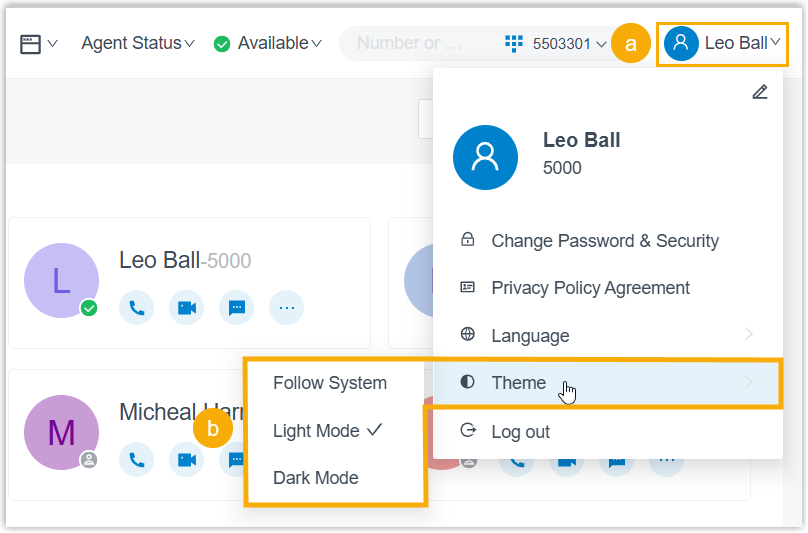
The available modes are:
| Mode | What it does |
|---|---|
| Follow System | Automatically matches whatever theme your web browser is currently set to. |
| Light Mode | Always uses the light theme, regardless of the browser. |
| Dark Mode | Always uses the dark theme, regardless of the browser. |
Your choice takes effect immediately: there is no need to save or reload, and the web interface repaints in the colors for the mode you selected.
Question about this page?
Ask the AI assistant. It starts from this page, then searches the rest of the docs.
Ask Cloud Voice AI
Answers are AI-generated from the docs and may contain mistakes. Verify with the linked pages.