
Set Up User Permissions for the Cloud Voice App
When you enable the Cloud Voice App for a user, they start with full run of the app: every menu is visible and every setting is editable. Permission rules let you narrow that down. You decide which menus appear and which settings each user can change, and whatever you set applies consistently across the Web, Desktop, and Mobile versions of the app.
There are two kinds of rules:
- Menu visibility controls which menus a user can open.
- Operation permission controls which settings a user can modify.
Both are managed from the PBX (Private Branch Exchange) web portal, which is the browser-based admin console for your phone system.
Requirements
Section titled “Requirements”Confirm that the platform and the client apps meet these minimum versions before you build permission rules.
| Component | Minimum version |
|---|---|
| PBX server | 84.12.0.57 |
| Cloud Voice App, Desktop (Windows) | 1.2.14 |
| Cloud Voice App, Desktop (Mac) | 1.2.10 |
| Cloud Voice App, Mobile (iOS) | 5.2.9 |
| Cloud Voice App, Mobile (Android) | 4.13.16 |
Control which menus users can see
Section titled “Control which menus users can see”Out of the box, every user can open every menu in the app. Add a menu-visibility rule when you want to keep certain menus out of certain people’s view.
-
Sign in to the PBX web portal and go to Extension and Trunk > Client Permission > Menu Visibility.
The list already holds the default rule, which grants all users access to all menus.
-
Click Add rule.
-
Define the rule, then click Save.
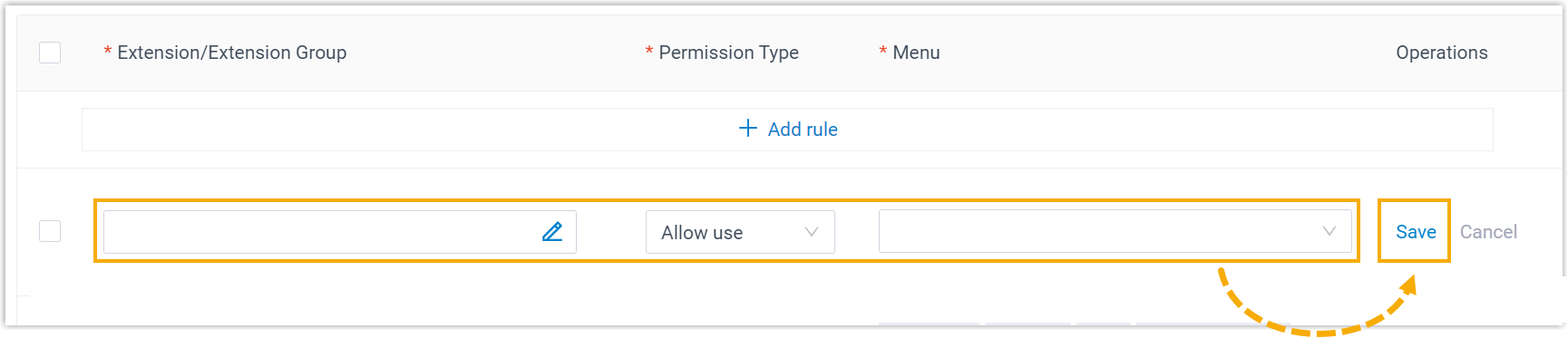
- Extension/Extension Group: select the edit icon
 and choose the extensions, extension groups, or departments the rule covers.
 - Permission Type: choose how the rule behaves.
- Allow use: the selected menus stay available in the app.
- Disallow use: the selected menus are hidden.
- Menu: pick the menus the rule allows or blocks.
- Extension/Extension Group: select the edit icon
The rule takes effect right away. From then on, each user sees only the menus you’ve left visible to them.
Control which settings users can change
Section titled “Control which settings users can change”By default, users can edit every setting in the app. An operation-permission rule lets you lock down the specific settings you don’t want them to touch.
-
In the PBX web portal, go to Extension and Trunk > Client Permission > Preference Settings.
The default rule, which lets all users configure all settings, appears in the list.
-
Click Add rule.
-
Fill in the rule, then click Save.
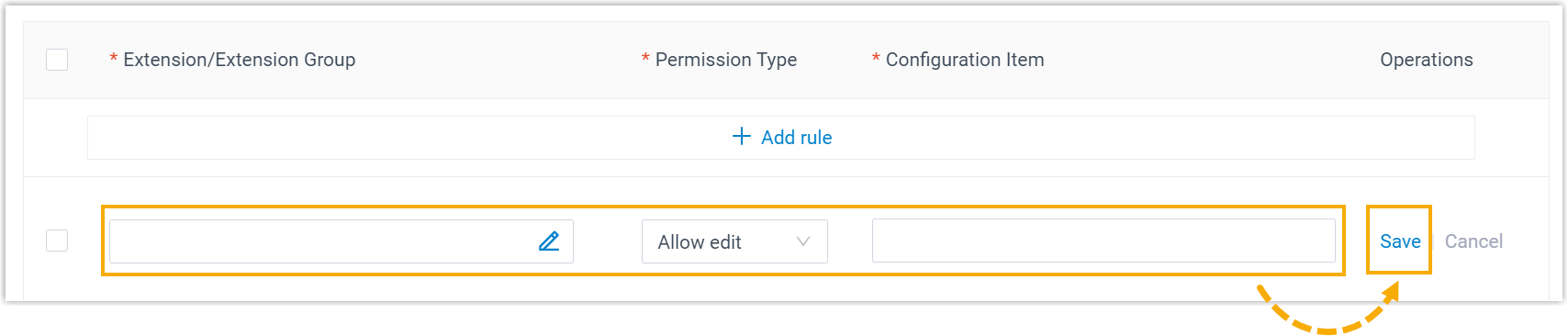
- Extension/Extension Group: select the edit icon and choose the extensions, extension groups, or departments the rule covers.
- Permission Type: choose how the rule behaves.
- Allow edit: users can change the selected settings.
- Disallow edit: users can’t change the selected settings.
- Configuration Item: pick the settings the rule governs. Each option maps to a different location depending on the app, as summarized below.
- Extension/Extension Group: select the edit icon
| Configuration item | Location in the Mobile app | Location in the Web and Desktop apps |
|---|---|---|
| User | Account > Personal Information (the User Information and Upload Avatar options) | The matching tab under Preferences |
| Presence | Account > Current Presence | The matching tab under Preferences |
| Voicemail | - | The matching tab under Preferences |
| Audio & Video | - | The matching tab under Preferences |
| Features | Account > Settings > Advanced: Call Waiting (the Call option) and Switch Business Hours Status (the Time-conditional Presence Auto Switch option) | The matching tab under Preferences |
| Function Keys | - | The matching tab under Preferences |
| Integration | - | The matching tab under Preferences |
| AI | Account > Settings > AI | The matching tab under Preferences |
| Change Password & Security | Password Management in Account > Settings (the Change Password option) | Account > Change Password & Security |
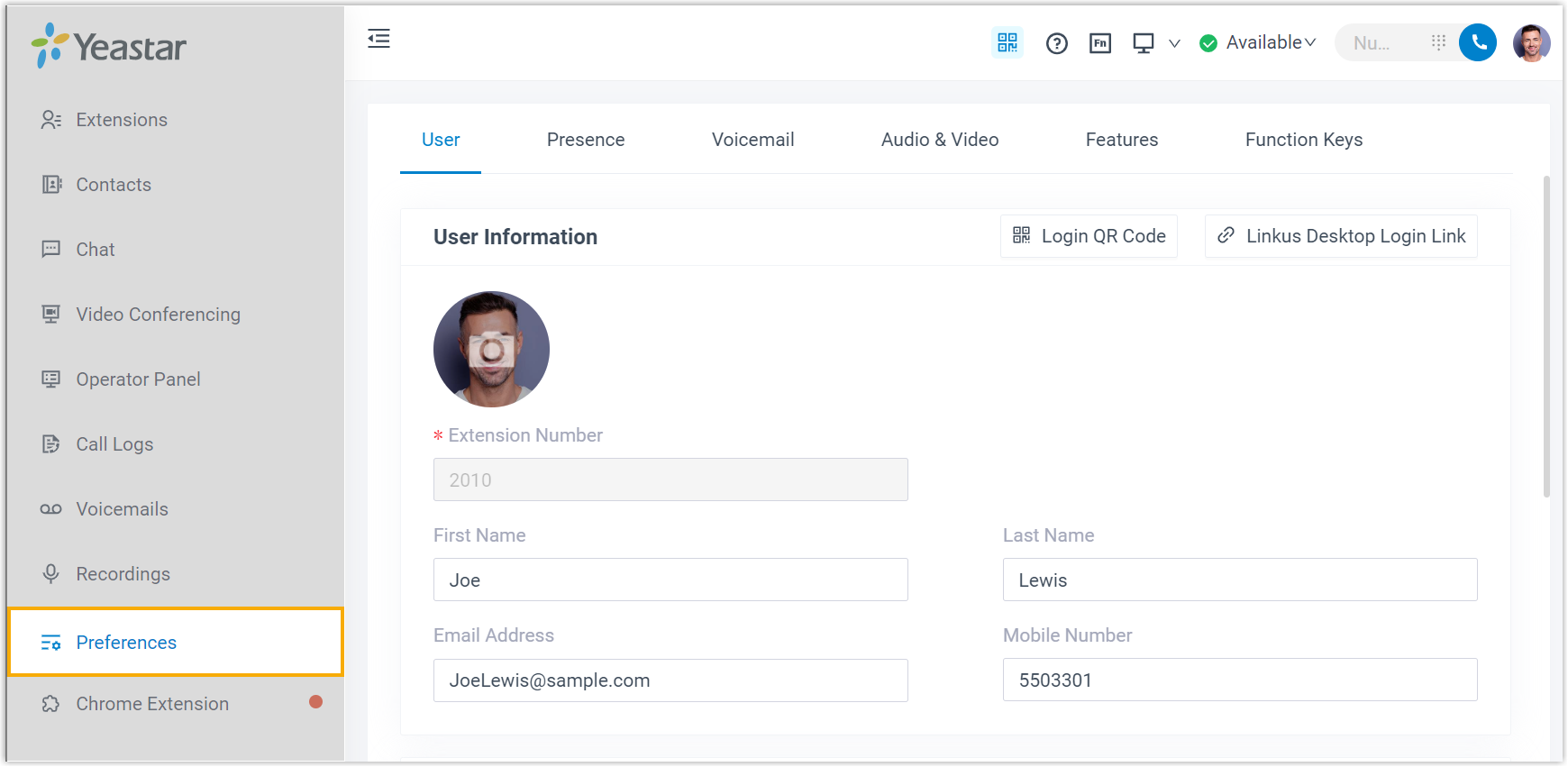
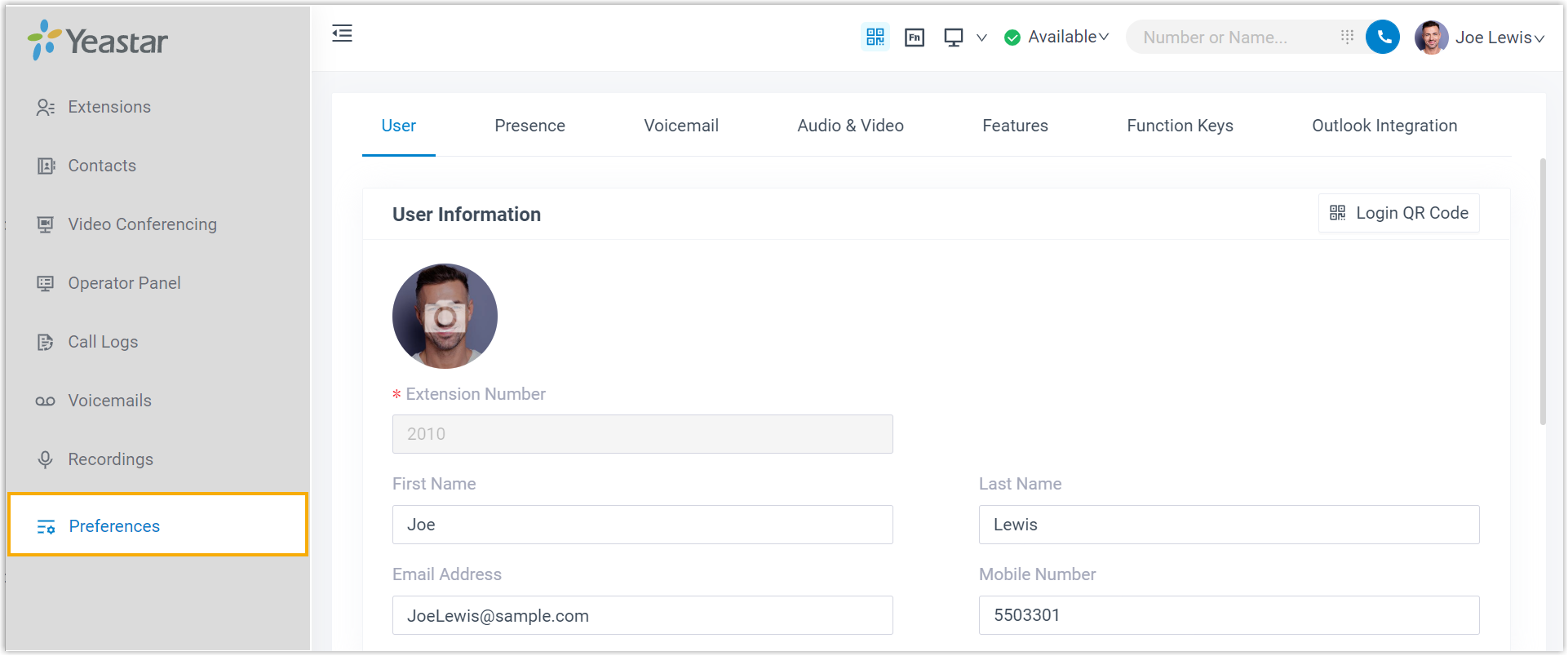
On the Web and Desktop apps, the settings above live under the Preferences menu:
The rule takes effect right away. From then on, users can only change the settings you’ve allowed them to configure.
Question about this page?
Ask the AI assistant. It starts from this page, then searches the rest of the docs.
Ask Cloud Voice AI
Answers are AI-generated from the docs and may contain mistakes. Verify with the linked pages.