
Transcribe a Call
AI (artificial intelligence) call transcription turns the audio of a live call into readable text as you speak, and can produce a written summary once the call ends. This page explains how to start transcribing from the Cloud Voice App on your phone, switch the transcription language, and review the results afterward.
Before you begin
Section titled “Before you begin”Transcription is available only when both the phone system and your app meet the following conditions.
Phone system
- The system is running firmware
84.20.0.74or later. - Your administrator has enabled Call Transcription for your extension.
- Your account has transcription time remaining for AI transcription to draw on.
Cloud Voice App (mobile)
- iOS: version 5.18.15 or later.
- Android: version 5.18.12 or later.
Start transcribing during a call
Section titled “Start transcribing during a call”-
While a call is connected, tap AI Transcription on the call screen to switch it on.
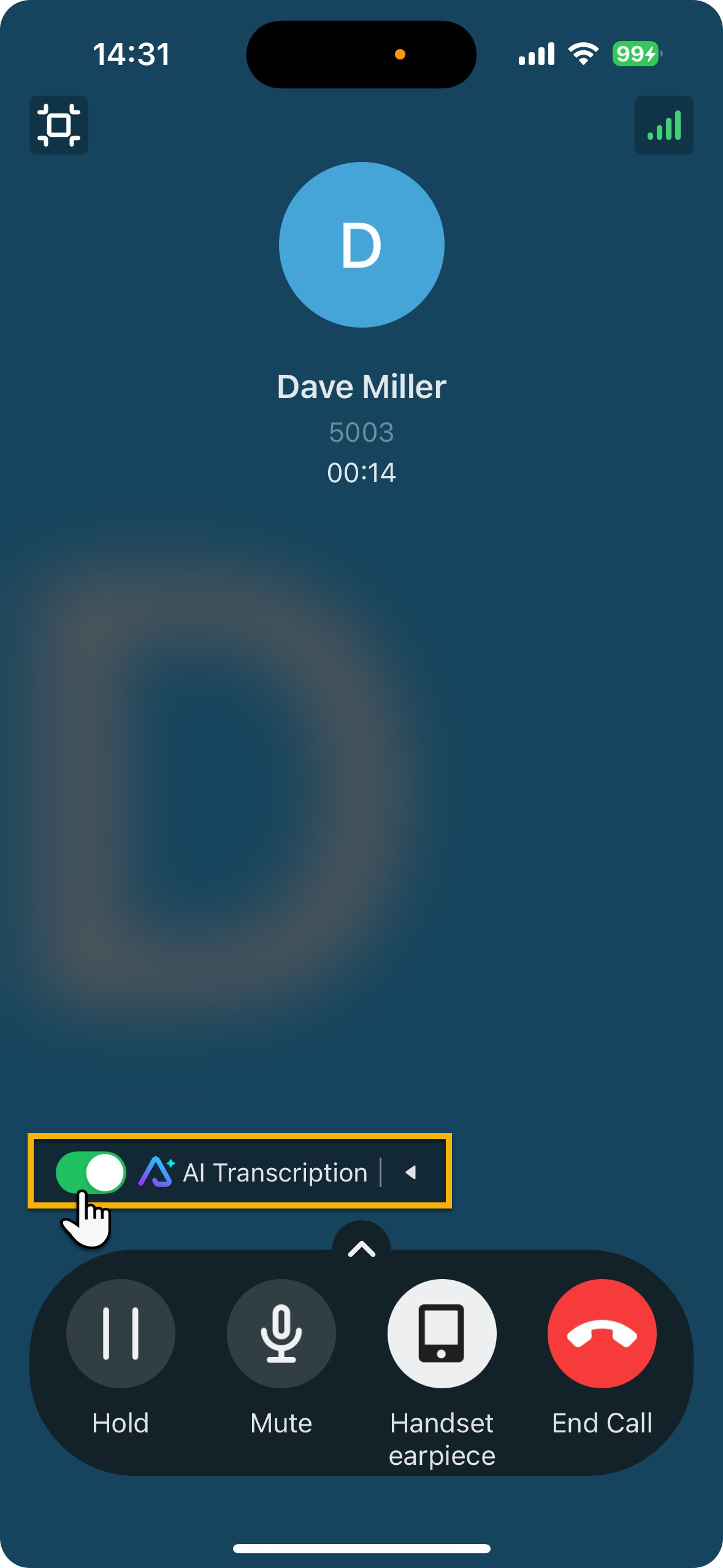
From that point, both sides of the conversation are converted to text in real time.
-
Work with the transcript as the call continues.
a. Tap AI Transcription to open the transcription panel, where the live transcript appears line by line.
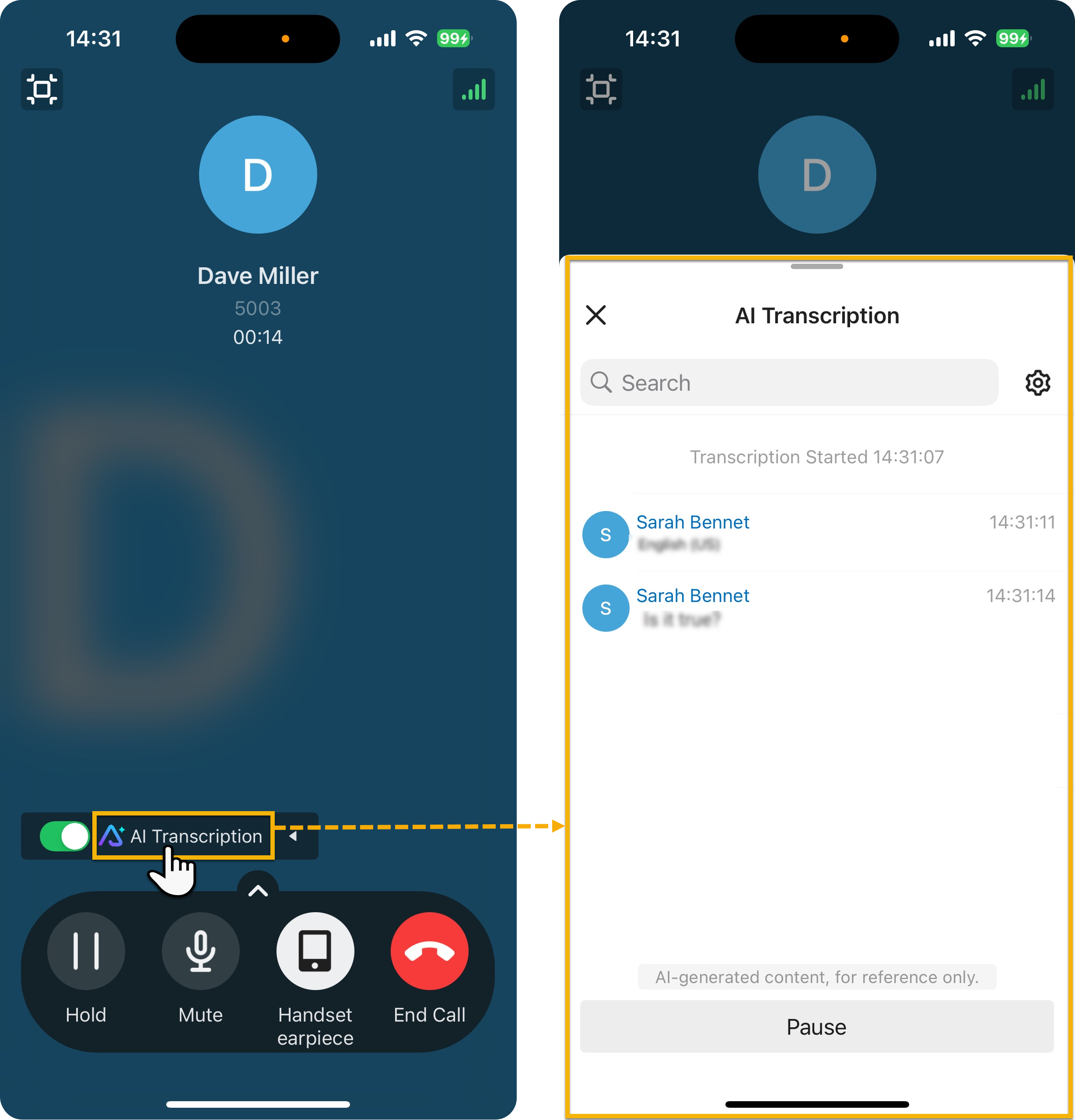
b. Optional: To change the language used for this call only, tap the settings icon
 next to the search bar, then pick the language you want from the Language panel.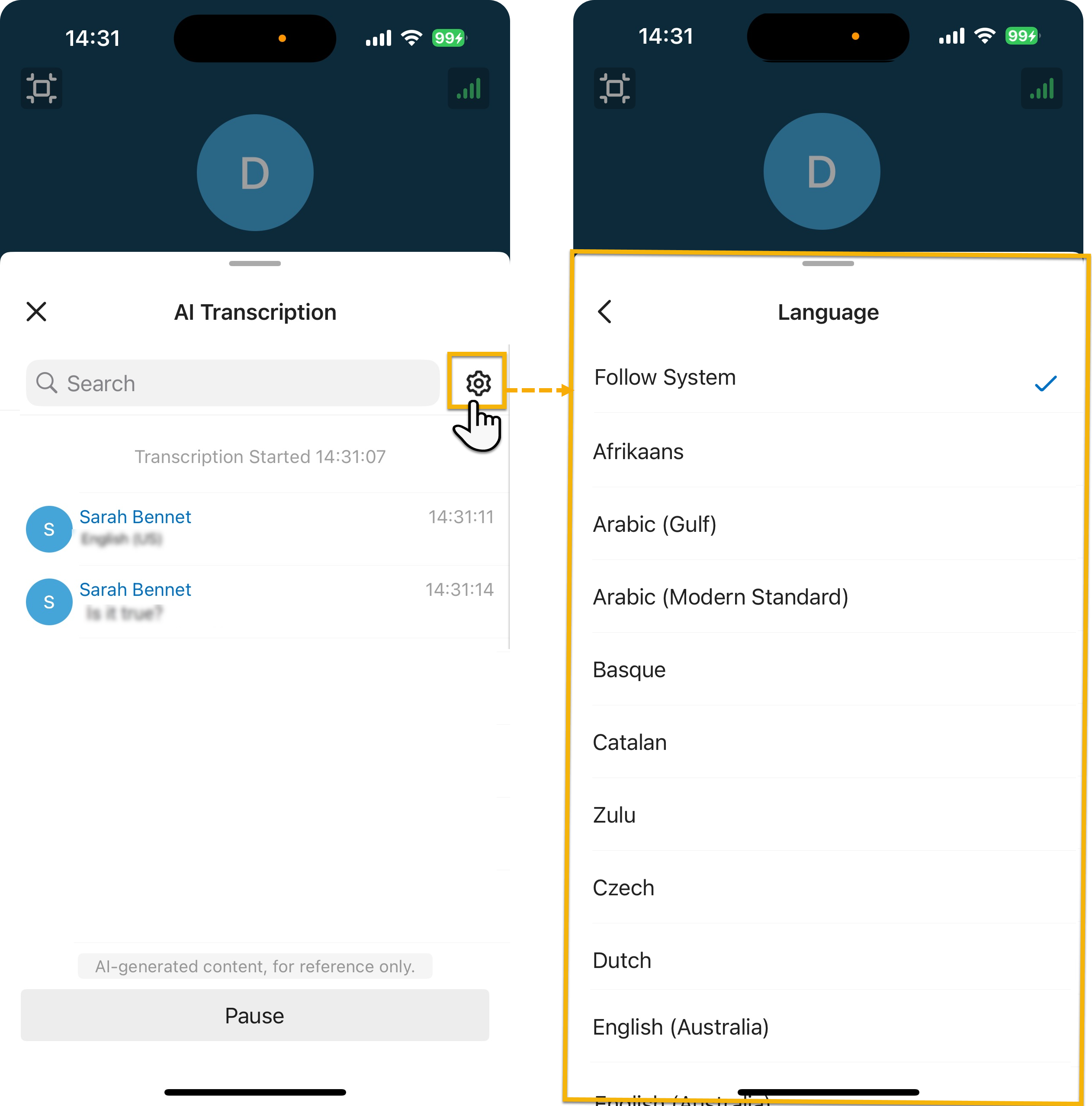
What you’ll see
Section titled “What you’ll see”-
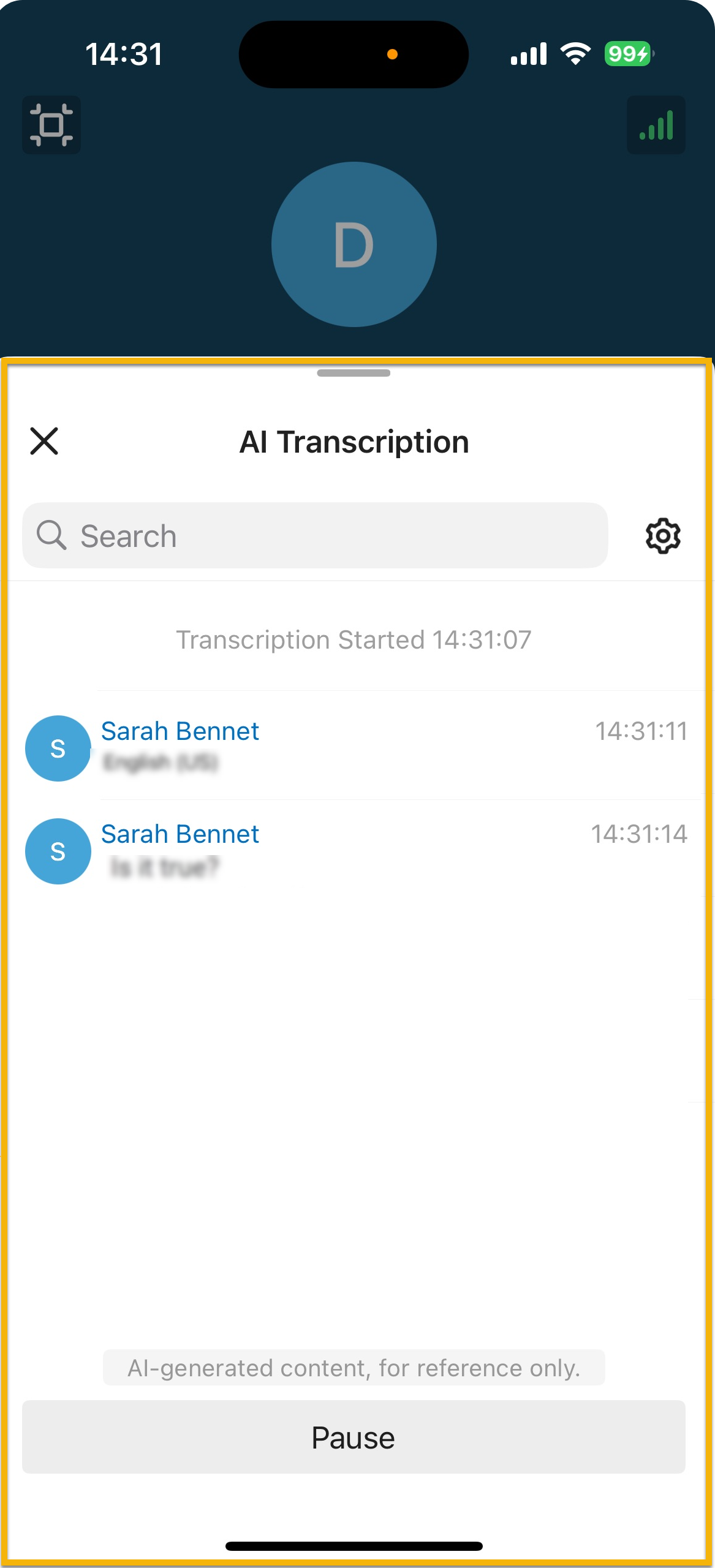
During the call, the running text is shown in the AI transcription panel and keeps updating as the conversation goes on.
-
After you hang up, open the entry in your call log to read the AI-generated summary and full transcript. Transcribed calls are flagged with an
 icon.
icon.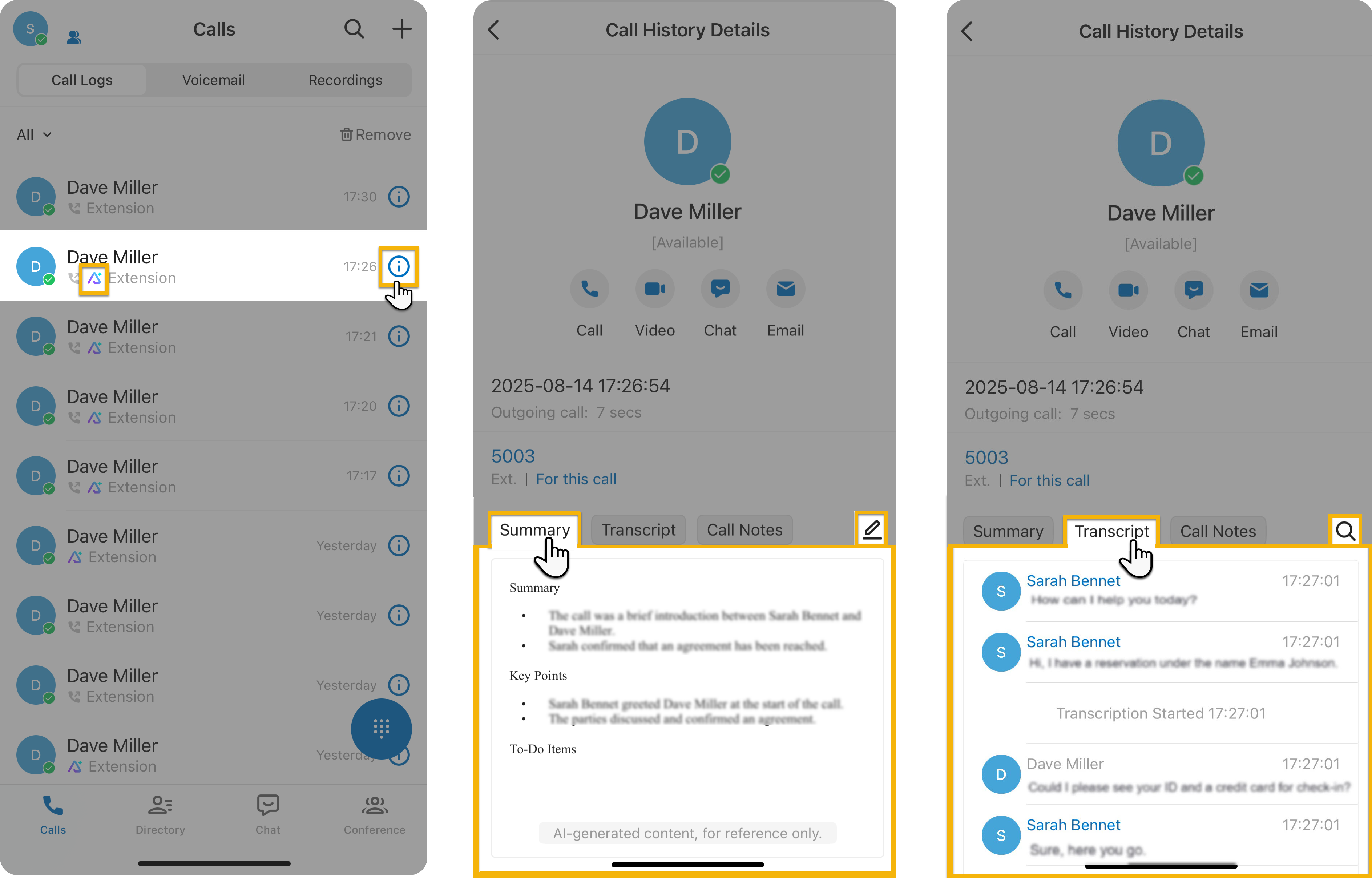
Question about this page?
Ask the AI assistant. It starts from this page, then searches the rest of the docs.
Ask Cloud Voice AI
Answers are AI-generated from the docs and may contain mistakes. Verify with the linked pages.