
Set Ringtones for Incoming Calls
Ringtones let you tell who is calling before you even glance at the screen. In the Cloud Voice App Web Client you can pick one default tone for every incoming call, and layer on distinctive tones that play only for certain contacts, internal extensions, or outside numbers.
How ringtone settings work
Section titled “How ringtone settings work”Ringtones are set on each Cloud Voice App client separately, so adjust each one to taste.
Your administrator can also push a distinctive ringtone from the phone system itself for specific call flows such as a ring group, a queue, or an IVR (Interactive Voice Response, the automated menu that greets callers and routes them by their keypad choices). These system-assigned tones take effect for you whenever you belong to that ring group or queue, or are set as an IVR destination.
When more than one rule could apply to the same call, the app resolves them in this order:
- Distinctive ringtones assigned to contacts or phonebooks
- Ringtones assigned by the phone system (ring group, queue, or IVR)
- Distinctive ringtones assigned to internal or external calls
- Your default ringtone
Before you begin
Section titled “Before you begin”Your phone system must be running version 84.20.0.21 or later.
Set your ringtones
Section titled “Set your ringtones”-
Sign in to the Cloud Voice App Web Client and open Preferences > Features > Ringtone.
-
Select Play Ringtone.

With this on, the app rings for incoming calls. Leave it off and incoming calls arrive silently.
-
Open the Default Ringtone drop-down and choose a tone, or upload your own. This tone plays for every incoming call that no distinctive rule covers.
-
Under Distinctive Ringtone Settings, add tones for specific call sources as needed.
Contacts or phonebooks
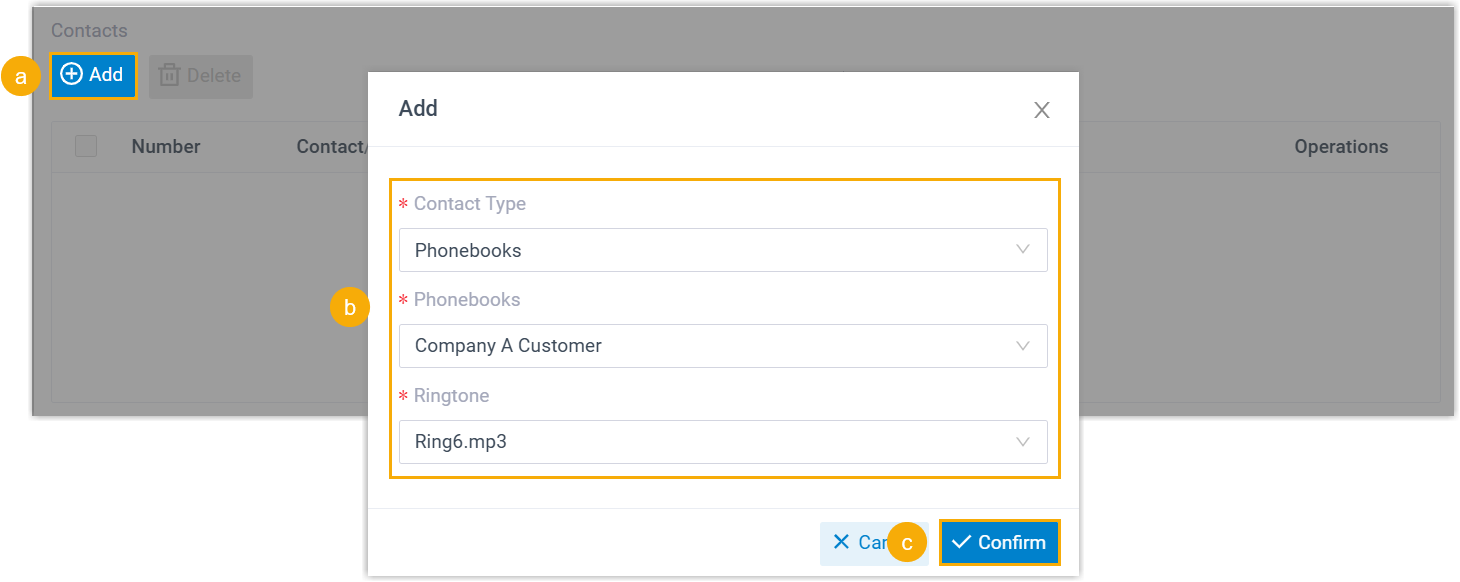
- Click Add.
- Fill in the rule:
- Contact Type: apply the tone to a single contact or to a group of contacts.
- Contacts / Phonebooks: pick the individual contact (company or personal) or the phonebook that holds the contacts you want.
- Ringtone: choose or upload the tone to assign.
- Click Save.
- Repeat these steps to create more rules. Calls from the contacts or phonebooks you named will ring with the tone you chose.
Internal calls
In the Internal Calls drop-down, choose or upload a tone. Calls from internal extensions will use it.
External calls
In the External Calls drop-down, choose a tone. Calls from outside numbers will use it.
-
Click Save.
Question about this page?
Ask the AI assistant. It starts from this page, then searches the rest of the docs.
Ask Cloud Voice AI
Answers are AI-generated from the docs and may contain mistakes. Verify with the linked pages.