
Forward Fax to Email or Another Fax Number
Once a fax lands in your inbox, you can pass it along without leaving the desktop app. Forwarding is handy when you need to share a document with coworkers right away or keep a copy somewhere for later. A received fax can go to an email address or to another fax machine.
Forward a fax to an email address
Section titled “Forward a fax to an email address”-
Open the fax you want to forward.
-
In the Cloud Voice App, go to Fax Management > Fax.
-
Find the fax in the list, click the
 menu on its right, and choose Forward.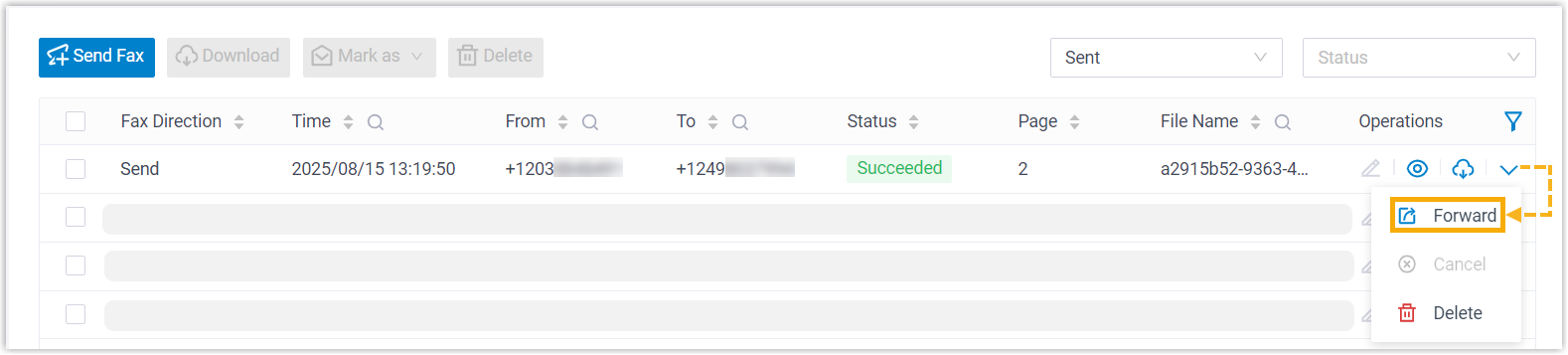
-
-
In the dialog that appears, fill in the delivery details.
-
Set Forward To to Email.
-
Click Add, pick an email type, and enter where the fax should go. You can create up to 5 email entries.
Email type What it does Extension’s Email Delivers the fax as an email attachment to the mailboxes of the extension users you pick. Choose the extensions from the Extension/Email drop-down list. Specified Email Delivers the fax as an email attachment to an address you type. Enter the address in the Extension/Email field. -
Click Save. The fax is sent to each recipient as an email attachment.
-
Forward a fax to another fax number
Section titled “Forward a fax to another fax number”If your administrator has given you permission to send faxes, you can relay a received fax to a different fax number.
-
Open the fax you want to forward.
- In the Cloud Voice App, go to Fax Management > Fax.
- Find the fax in the list, click the menu on its right, and choose Forward.
-
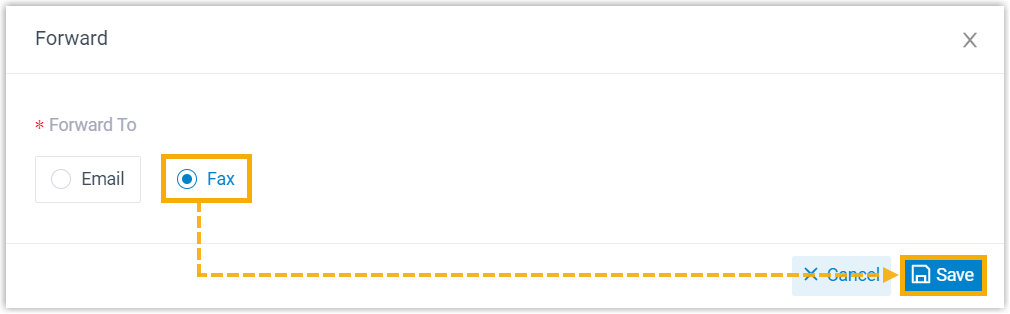
In the dialog, set Forward To to Fax, then click Save. The fax sending page opens.
-
Finish the remaining fields on the sending page to complete the forward.
Question about this page?
Ask the AI assistant. It starts from this page, then searches the rest of the docs.
Ask Cloud Voice AI
Answers are AI-generated from the docs and may contain mistakes. Verify with the linked pages.