
Start an Internal Chat
Chat lets you message coworkers directly from the Cloud Voice App, either one-to-one or in a group, and drop in emoji, images, and files to keep the conversation moving. Use it for quick internal questions and handoffs that do not need a phone call.
Every message and shared file is kept in sync across the Cloud Voice App wherever you sign in, so a thread you start on your phone is also there when you open the app on the web or desktop.
Start a chat from your phone
Section titled “Start a chat from your phone”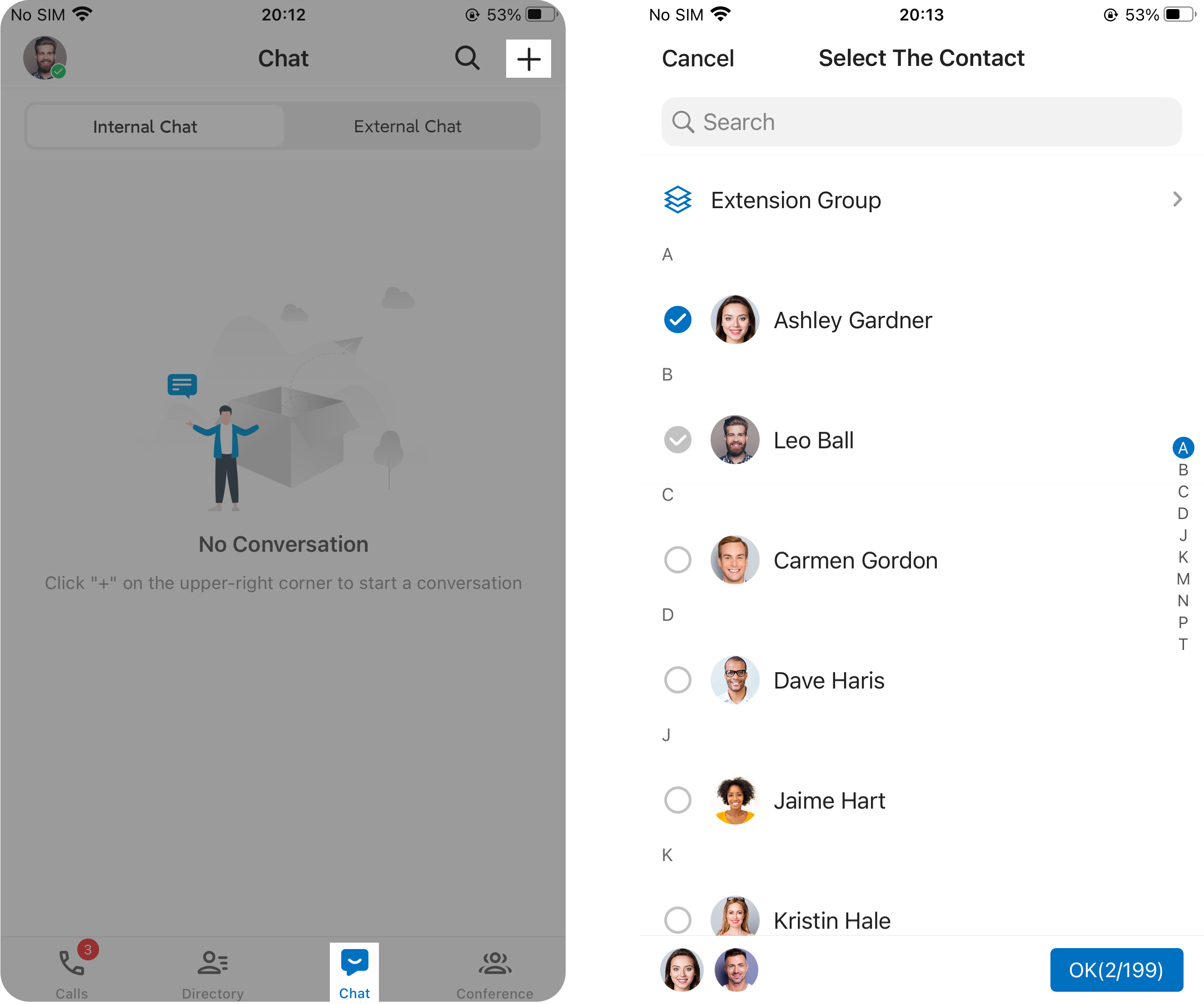
- In the mobile Cloud Voice App, open Chat and select Internal Chat.
- Tap the add icon
 in the top-right corner, then choose Create Group.
 - Search for the coworker or coworkers you want to include, select them, and tap OK.
What happens next
Section titled “What happens next”- For a one-to-one chat, the conversation shows up for the other person once you send your first message.
- For a group chat, the conversation appears automatically in the chat list of everyone you added, even before the first message is sent.
Question about this page?
Ask the AI assistant. It starts from this page, then searches the rest of the docs.
Ask Cloud Voice AI
About
Answers are AI-generated from the docs and may contain mistakes. Verify with the linked pages.