
Control the Desktop Client from the Web Client
When you switch the Cloud Voice App Web Client into CTI (Computer Telephony Integration) mode, it pairs with a Desktop Client that is signed in under the same extension. From that point the Web Client behaves as an on-screen control panel: you manage each call from the browser, while the audio itself is carried by the Desktop Client.
When this is useful
Section titled “When this is useful”Suppose you run a CRM (Customer Relationship Management) system on your office computer and place calls straight from it using click-to-dial in the Web Client, but the CRM can only be reached from inside the office network. If you connect to that office computer remotely from home and dial from the Web Client there, the call audio still travels over the office network rather than your home connection. On an unreliable remote session, that path can lead to choppy or degraded audio.
CTI mode solves this. Install the Desktop Client on your home computer and sign in with your extension, then use the remote session to put the office computer’s Web Client into CTI mode so it controls that local Desktop Client. Call audio now flows directly through the Desktop Client on your home machine, so an unstable remote link no longer affects call quality.
Before you begin
Section titled “Before you begin”Confirm that the phone system and your apps meet these requirements.
| Component | Requirement |
|---|---|
| Phone system | Firmware 84.15.0.74 or later, with the uaCSTA feature turned on. An administrator enables it under PBX Settings > SIP Settings > Advanced > Other Options > Enable uaCSTA Connection. |
| Desktop Client | Version 1.5.4 or later, signed in with the same extension you use on the Web Client. |
Connect the Web Client to the Desktop Client
Section titled “Connect the Web Client to the Desktop Client”-
Sign in to the Cloud Voice App Web Client.
-
In the top-right corner, click the client menu icon
 , then choose Desktop Client from the list.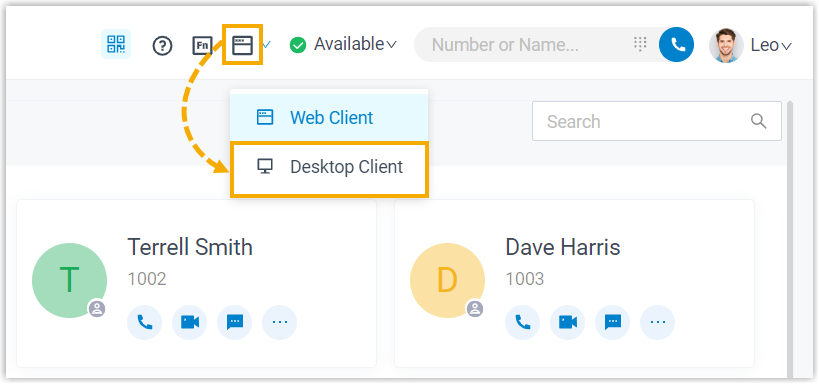
What you can control
Section titled “What you can control”With CTI mode active, you can run these call operations from the Web Client and have them carried out on the Desktop Client:
- Start or end a call
- Place a second call
- Answer or reject an incoming call
- Transfer a call, both attended and blind
- Record a call
- Hold or resume a call
- Swap between held calls
- Add a participant
- Merge calls
- Flip a call
- Transcribe a call
Question about this page?
Ask the AI assistant. It starts from this page, then searches the rest of the docs.
Ask Cloud Voice AI
Answers are AI-generated from the docs and may contain mistakes. Verify with the linked pages.