
Agent Activity Analysis Report
The Agent Activity Analysis report breaks queue call handling down to the individual agent, so you can see how each person performs on the calls routed to them. In this context a queue holds inbound callers in line until someone is free, and an agent is a user who is assigned to answer those queued calls. This page walks you through opening the report, tailoring it with filters, and reading the metrics it returns.
Open the report
Section titled “Open the report”-
Sign in to the PBX web portal, then go to Reports and Recordings > Call Reports.
-
Open the Agent Activity Analysis report.
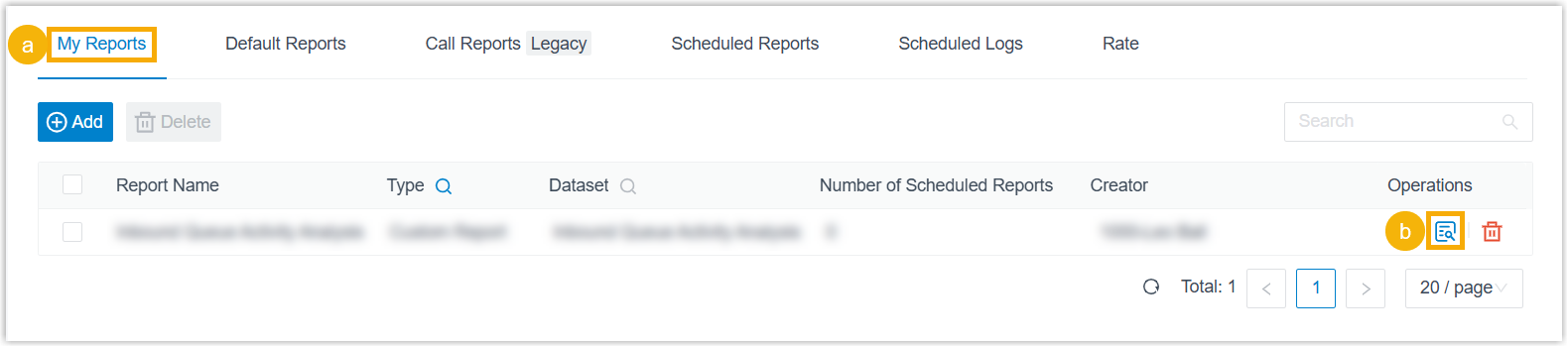
- Select the My Reports tab.
- Select
 next to the report.
-
Choose the filters that define what the report covers.

Filter What it does Queue Pick one or more queues to include. Agent Pick one or more agents to include. Time Range & Select Date Set the date range the report should span. Time Set the time-of-day window the report should span. Exclude Calls Abandoned within Xs Set a ring duration below which abandoned calls are dropped. Any call abandoned within this window is left out of the report. Exclude Calls within Xs Set a talk duration below which answered calls are dropped. Any call that ends within this window is left out of the report. The results that match your filters appear on the page.

-
Optional: Adjust the columns so the report highlights the indicators you care about most.
Action How Choose which columns show Select  and pick the columns to display.
Reorder columns Select  next to a field and drag it to the position you want.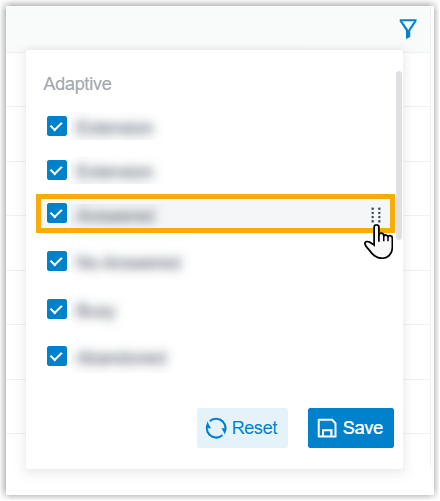
-
Optional: Keep the report handy or have it delivered on a schedule.
Save it to My Reports
- At the bottom of the page, select Add to My Reports.
- Give the report a name you will recognize, and fine-tune its dimensions, filters, or metrics if you like.
- Select Save.
Send it on a schedule
- At the bottom of the page, select Add to Scheduled Reports.
- Fill in the remaining scheduling details so the report is emailed automatically. For the full walkthrough of those settings, see Schedule call reports.
Download it
Export the report to your computer for offline review or deeper analysis.
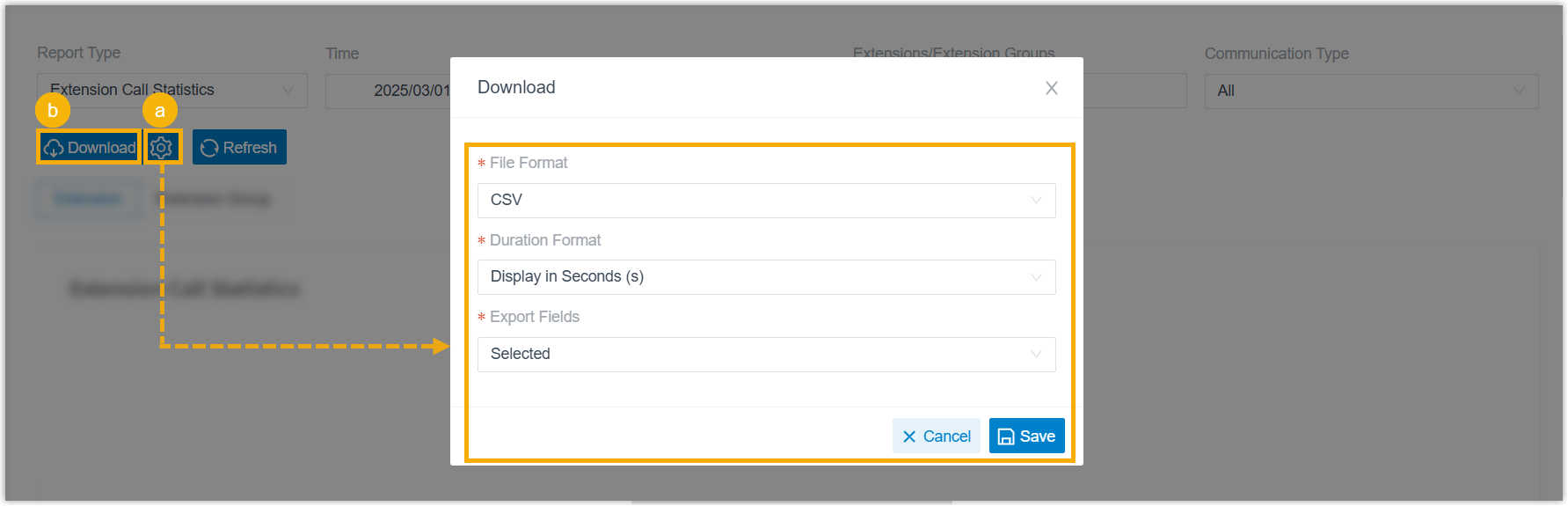
- Optional: Select
 to adjust the download options, then save your changes:
- File Format: the file type of the export: CSV, XLS, PDF, or HTML.
- Duration Format: how every duration field is shown: Display in Second (s) or Display as HH:MM:SS.
- Export Fields: which fields to include: All or Selected.
- Select Download.
Understanding the metrics
Section titled “Understanding the metrics”The report can display a wide set of columns. They are grouped below by what they measure.
Identity and period
Section titled “Identity and period”| Metric | Description |
|---|---|
| Agent | The agent’s number and name. |
| Queue | The queue’s number and name. |
| Month/Date/Hour | The period in which the agent handled the queue calls. |
Call counts
Section titled “Call counts”| Metric | Description |
|---|---|
| Total Calls | All queue calls delivered to the agent. |
| Answered | Queue calls the agent answered. |
| No Answer Calls | Queue calls the agent did not answer. |
| Busy | Queue calls the agent rejected. |
| Abandoned | Queue calls the caller gave up on before an agent answered. |
| Missed | Queue calls the agent either rejected or did not answer. |
Call rates
Section titled “Call rates”| Metric | Description |
|---|---|
| Answered Rate | Answered calls as a share of all calls delivered. |
| No Answer Rate | Unanswered calls as a share of all calls delivered. |
| Busy Rejection Rate | Rejected calls as a share of all calls delivered. |
| Abandon Rate | Abandoned calls as a share of all calls delivered. |
| Missed Rejection Rate | Missed calls as a share of all calls delivered. |
Ring activity
Section titled “Ring activity”| Metric | Description |
|---|---|
| Total Rings | How many times queue calls rang the agent in total. |
| Unanswered Rings | How many of those rings went unanswered. |
| Unanswered Ring Rate | Unanswered rings as a share of all rings. |
Wait time
Section titled “Wait time”Waiting time is measured for answered queue calls, from when the call enters the queue until it connects to an agent.
| Metric | Description |
|---|---|
| Total Wait Time | Combined wait time across the answered calls. |
| Max Wait Time | The longest single wait. |
| AVG Wait Time | The average wait per answered call. |
Talk time
Section titled “Talk time”Talk time covers the time the agent spent on calls, hold time included.
| Metric | Description |
|---|---|
| Total Talk Time | Combined talk time across the calls. |
| Max Talk Time | The longest single conversation. |
| AVG Talk Time | The average talk time per call. |
Pure talk time
Section titled “Pure talk time”Pure talk time is the same measure with hold time removed.
| Metric | Description |
|---|---|
| Total Pure Talk Time | Combined conversation time, hold time excluded. |
| Max Pure Talk Time | The longest single conversation, hold time excluded. |
| AVG Pure Talk Time | The average conversation time per call, hold time excluded. |
Hold time
Section titled “Hold time”| Metric | Description |
|---|---|
| Total Hold Time | Combined time the agent kept queue calls on hold. |
| Max Hold Time | The longest single hold. |
| AVG Hold Time | The average hold time per call. |
Handle time
Section titled “Handle time”Handle time spans the full life of a queue call for the agent, from the moment it starts ringing until it ends.
| Metric | Description |
|---|---|
| Total Handle Time | Combined handle time across the calls. |
| Max Handle Time | The longest single call handled. |
| AVG Handle Time | The average handle time per call. |
Question about this page?
Ask the AI assistant. It starts from this page, then searches the rest of the docs.
Ask Cloud Voice AI
Answers are AI-generated from the docs and may contain mistakes. Verify with the linked pages.