
Forward Hikvision Door Station Calls to the Cloud Voice App
When a visitor rings your Hikvision door station, the call normally lands on the indoor station. If no one is nearby to pick it up, you can have Cloud Voice pass the call on to your Cloud Voice App instead, letting you answer from your desk, browser, or phone. This page shows how to set up that hand-off using the call forwarding rules on the extension.
Once configured, an unanswered door call reaches you on any Cloud Voice App you are signed in to: Mobile, Web, or Desktop.
The setup has two halves. First you tell the PBX (Private Branch Exchange, the phone system that routes your calls) where to send an unanswered door call. Then you set how long the indoor station rings before the PBX treats the call as unanswered and forwards it.
Before you begin
Section titled “Before you begin”Make sure you have already set up communication between the Hikvision door station and indoor station. The forwarding described here builds on that working intercom setup.
Step 1. Set the forwarding destination on the PBX
Section titled “Step 1. Set the forwarding destination on the PBX”Tell the extension used by your Hikvision indoor station where to send calls it does not answer.
-
Sign in to the PBX web portal and go to Extension and Trunk > Extension.
-
Double-click the extension you created for the Hikvision indoor station to open it.
-
Open the Presence tab.
-
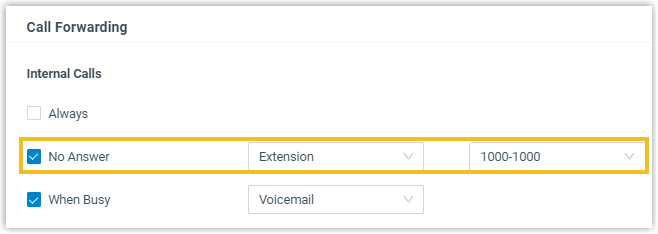
In the Call Forwarding section, set up the destination for unanswered internal calls:
- Select the No Answer checkbox.
- Set the destination to Extension, then choose an extension that is signed in to the Cloud Voice App.
-
Click Save, then Apply.
Step 2. Set the calling duration on the Hikvision indoor station
Section titled “Step 2. Set the calling duration on the Hikvision indoor station”The calling duration is how long the indoor station rings before the call moves on to the forwarding destination you set in Step 1. When this timer runs out with no answer, the PBX forwards the call to your Cloud Voice App.
-
Sign in to the iVMS-4200 client (Hikvision’s device management software) and go to Device Management > Device.
-
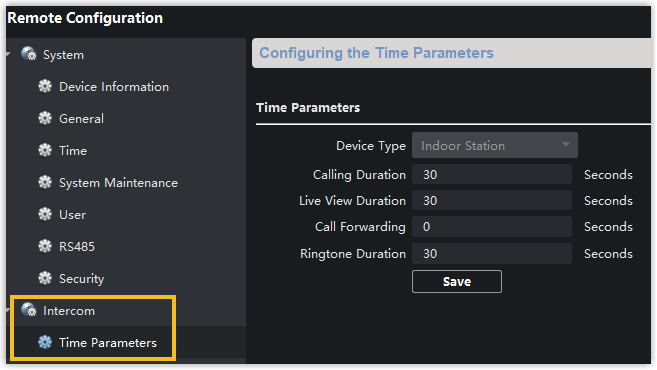
Next to the DS-KH6320 indoor station, click the remote configuration icon to open the Remote Configuration page.

-
Go to Intercom > Time Parameters and enter the length you want in the Calling Duration field.
-
Click Save.
Result
Section titled “Result”- If the indoor station does not answer within the calling duration, the door station call is forwarded to your Cloud Voice App.
- While on the call, you can unlock the door by dialing a feature code. A feature code is a short digit sequence (sent as DTMF, the keypad tones your phone produces) that triggers an action on the system. In this example the default unlock code is 1#.
Question about this page?
Ask the AI assistant. It starts from this page, then searches the rest of the docs.
Ask Cloud Voice AI
Answers are AI-generated from the docs and may contain mistakes. Verify with the linked pages.