
Register a Hikvision Indoor Station to Cloud Voice
Hikvision indoor stations that support SIP can register to Cloud Voice as ordinary extensions, letting them dial and answer calls alongside the rest of your phone system. The steps below use the Hikvision DS-KH6320 as the working example; other SIP-capable models follow the same pattern.
Before you begin
Section titled “Before you begin”Make sure the following are true:
- The indoor station supports the SIP protocol. If it does not, it cannot register to Cloud Voice.
- The indoor station has already been activated and added to the iVMS-4200 Client (Hikvision’s desktop management application). For guidance, see Activate intercom video devices and Add devices to iVMS-4200 Client.
Step 1. Create an extension for the indoor station
Section titled “Step 1. Create an extension for the indoor station”Give the indoor station its own extension on Cloud Voice. This extension is the identity (number and credentials) the station will use to register.
-
Sign in to the Cloud Voice web portal and go to Extension and Trunk > Extension, then click Add > Add.
-
Fill in the user and extension details, or accept the defaults. This example creates SIP extension 1667 for the DS-KH6320 indoor station.

-
Click Save, then Apply.
Step 2. Register the indoor station to Cloud Voice
Section titled “Step 2. Register the indoor station to Cloud Voice”Point the station at your Cloud Voice server and register it with the extension you just created.
-
Sign in to the iVMS-4200 Client and go to Device Management > Device.
-
Click the remote configuration icon
 next to the DS-KH6320 indoor station to open its Remote Configuration page.
-
Configure the DNS server:
-
Go to Network > Advanced Settings.
-
In the DNS Server section, enter the IP address of your DNS server, then click Save.
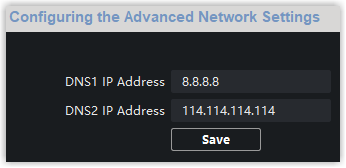
-
-
Register the station against extension 1667:
-
Go to Network > SIP Server Configuration.
-
Select the Enable checkbox.
-
Enter the extension’s credentials:
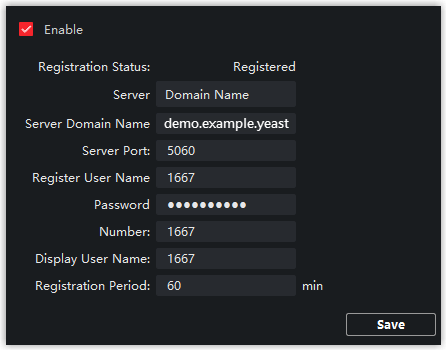
- Server: Select Domain Name.
- Server Domain Name: Enter your Cloud Voice domain name, for example
demo.example.izt.cloud. - Server Port: Enter the Cloud Voice SIP registration port, for example
5060. - Register User Name: Enter the extension’s registration name, for example
1667. - Password: Enter the extension’s registration password.
- Number: Enter the extension number, for example
1667. - Display User Name: Enter the name shown on outgoing calls, for example
1667.
-
Click Save. When Register Status shows Registered, the indoor station is connected to Cloud Voice.
-
Question about this page?
Ask the AI assistant. It starts from this page, then searches the rest of the docs.
Ask Cloud Voice AI
Answers are AI-generated from the docs and may contain mistakes. Verify with the linked pages.