
Set up Chat Journal to Odoo CRM
Chat Journal keeps your Odoo CRM (Customer Relationship Management) records complete by copying the full text of a messaging conversation onto the contact it belongs to. Once a chat session ends, the entire exchange is written to the contact’s page in Odoo, giving your team a searchable record for follow-up and reporting.
Requirements
Section titled “Requirements”Your Cloud Voice system must be running firmware 84.23.0.83 or later.
Before you begin
Section titled “Before you begin”Make sure the following are in place:
- Cloud Voice is integrated with Odoo CRM.
- At least one messaging channel is set up on the phone system.
- Using the Cloud Voice App, a CRM user (whose account is tied to a phone system extension) has already started an external chat with a CRM contact over that messaging channel.
Turn on Chat Journal
Section titled “Turn on Chat Journal”-
Sign in to the phone system web portal and open Integrations > CRM.
-
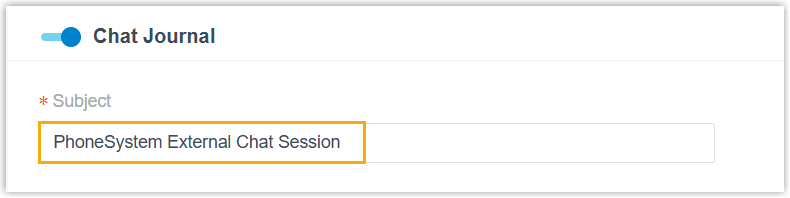
On the CRM integration page, enable Chat Journal.
-
In the Subject field, enter the title you want each synchronized record to use.
-
Select Save.
What happens next
Section titled “What happens next”When an external chat with a CRM contact closes, whether a user ends it or the system does, Cloud Voice writes the whole conversation to that contact’s details page in Odoo. Messages appear in the order they were sent and carry the channel type, timestamp, sender, and message content.
Question about this page?
Ask the AI assistant. It starts from this page, then searches the rest of the docs.
Ask Cloud Voice AI
Answers are AI-generated from the docs and may contain mistakes. Verify with the linked pages.