
Microsoft Teams Integration Preparation
Two tasks on the Cloud Voice side get your system ready to link with Microsoft Teams: you provision a SIP (Session Initiation Protocol, the signaling used to set up calls) extension for the Teams user to register against, and you switch off the video codecs so incoming calls reach Teams reliably. Complete both before you move on to the configuration portal.
Create a SIP extension
Section titled “Create a SIP extension”Each Teams user connects through a dedicated SIP extension. Create one as follows.
-
Sign in to the Cloud Voice management portal and open Extension and Trunk > Extension.
-
Click Add, then choose Add to start a new SIP extension.
-
Fill in the User Information section:
- First Name: The user’s first name.
- Last Name: The user’s last name.
- Email Address: Optional, leave empty or enter an address.
- Mobile Number: Optional, leave empty or enter a number.
- User Password: Keep the default or set your own.
- User Role: Keep the default or pick another role.
-
Fill in the Extension Information section:
- Extension Number: The number you want to assign.
- Caller ID: Keep the default or change it.
- Registration Name: Keep the default or change it.
- Registration Password: Keep the default or change it.
- Concurrent Registrations: Pick a value from the drop-down. It sets how many SIP phones can register to this extension at once.
-
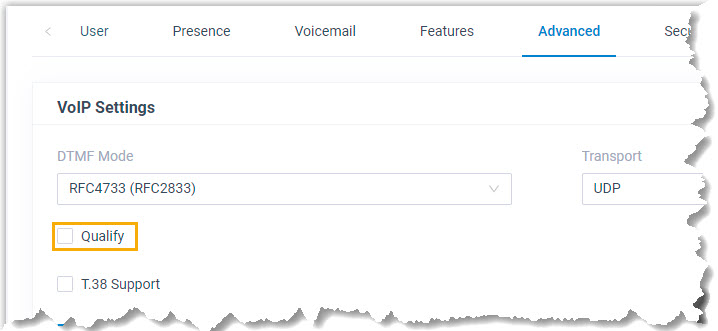
When the extension uses the UDP (User Datagram Protocol) or TCP (Transmission Control Protocol) transport protocol, clear the Qualify checkbox.
-
Click Save, then Apply.
Disable video codecs
Section titled “Disable video codecs”Video codecs left active can stop Teams users from receiving incoming calls. Turn them off across the whole system before you finish.
-
Sign in to the Cloud Voice management portal and open PBX Settings > SIP Settings > Codec.
-
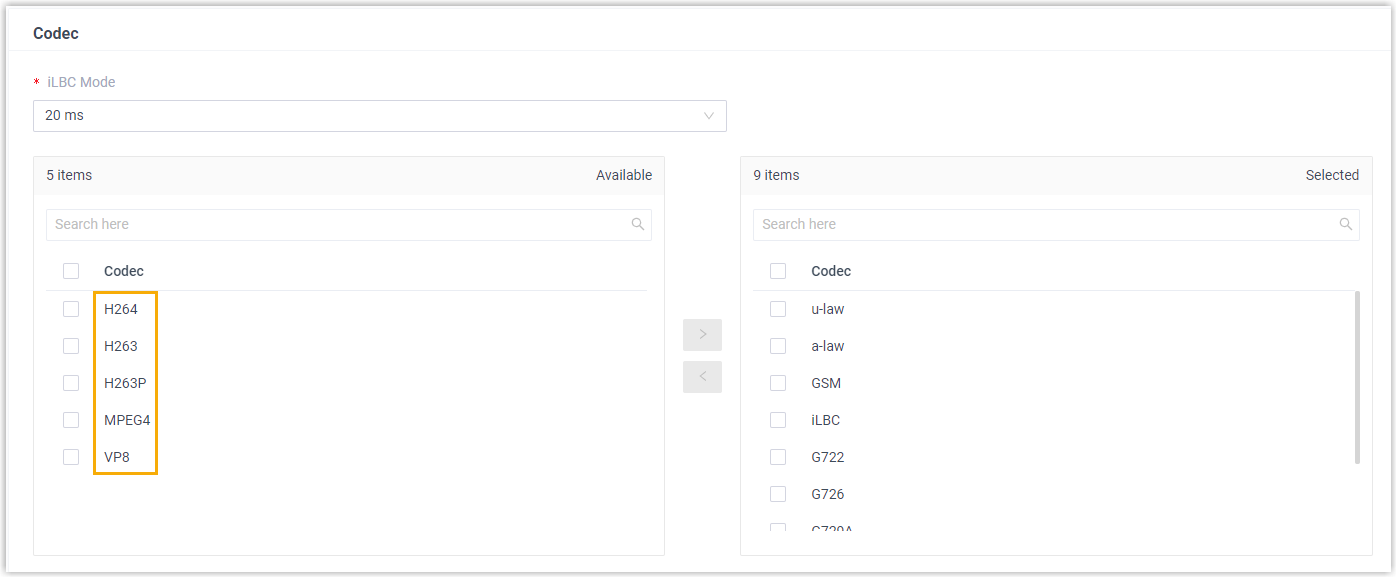
In the Codec section, disable each of these codecs:
- H263
- H263P
- H264
- MPEG4
- VP8
-
Click Save, then Apply.
Question about this page?
Ask the AI assistant. It starts from this page, then searches the rest of the docs.
Ask Cloud Voice AI
Answers are AI-generated from the docs and may contain mistakes. Verify with the linked pages.