
Allow Users to Log in to the Cloud Voice App with SSO
With Single Sign-on (SSO) enabled, users you’ve synchronized from Microsoft Entra ID can sign in to the Cloud Voice App using their existing Microsoft credentials, instead of managing a separate extension login. This page walks you through turning on SSO and choosing how synced users authenticate.
Before you begin
Section titled “Before you begin”- Connect Cloud Voice to Microsoft Entra ID. The procedure depends on your system’s firmware version:
- Running 84.22.0.138 or later: Integrate Cloud Voice with Microsoft Entra ID.
- Running a build earlier than 84.22.0.138: Integrate Cloud Voice with Microsoft Entra ID (Legacy).
- Synchronize your Microsoft Entra ID users to Cloud Voice, so the matching extensions already exist.
Turn on Single Sign-on
Section titled “Turn on Single Sign-on”-
Sign in to the PBX web portal and go to Integrations > Collaboration.
-
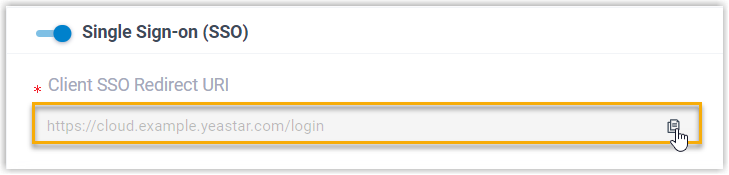
In the Single Sign-on (SSO) section, switch the feature on.

-
Optional: From the Login Method drop-down list, choose how synced users are allowed to authenticate.
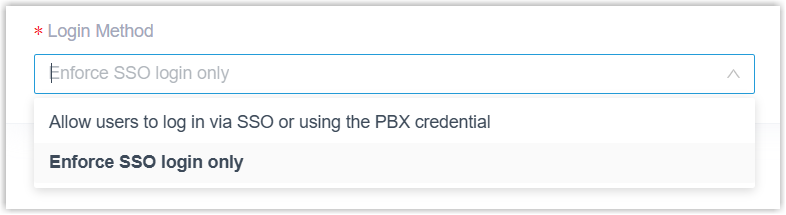
- Allow users to log in via SSO or using the PBX credential: Users can sign in either through SSO or with the account credentials of their associated extension.
- Enforce SSO login only: Users can sign in only through SSO.
-
Click Save.
Result
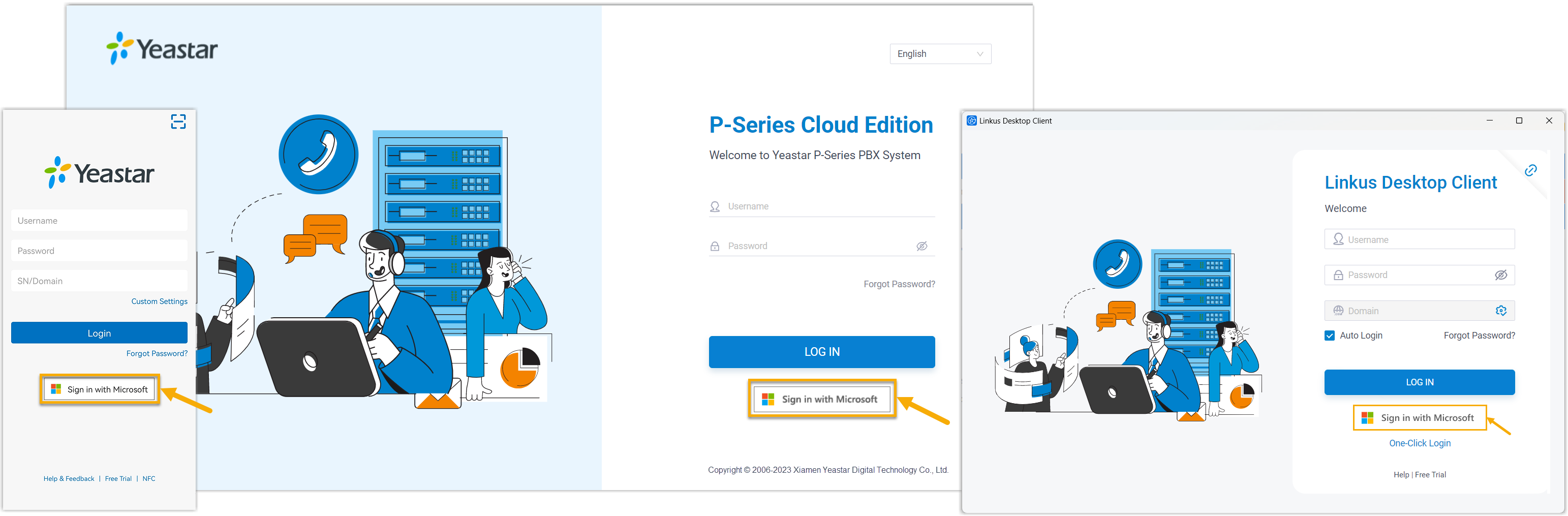
Section titled “Result”Synced users can now sign in to the Cloud Voice App directly with their Microsoft accounts.
Question about this page?
Ask the AI assistant. It starts from this page, then searches the rest of the docs.
Ask Cloud Voice AI
Answers are AI-generated from the docs and may contain mistakes. Verify with the linked pages.