
Learn about the Cloud Voice App for Dynamics 365 Plugin
The Cloud Voice App for Dynamics 365 plugin embeds a streamlined version of the Cloud Voice App inside Dynamics 365, so you can place and manage calls without switching windows. This page walks through the plugin’s interface and explains what each part does.
Plugin layout
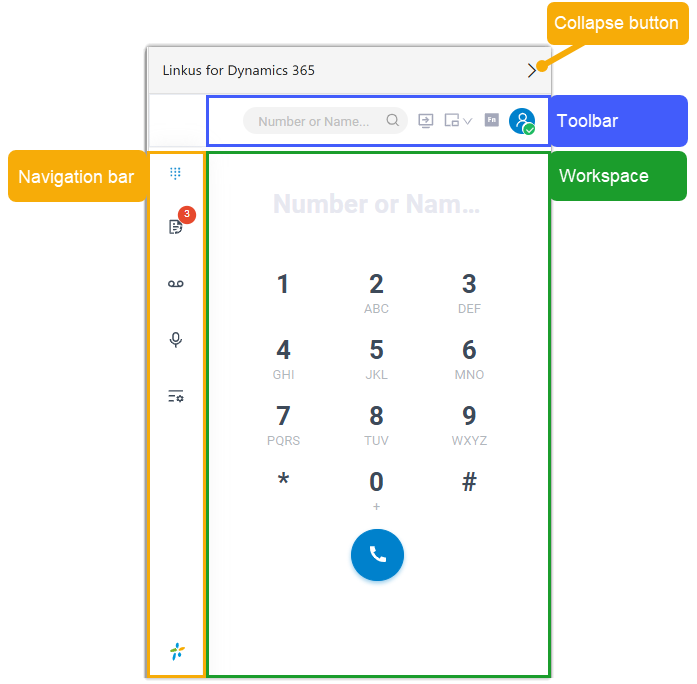
Section titled “Plugin layout”Once you sign in to your extension in the plugin, a compact Cloud Voice App client appears alongside your Dynamics 365 workspace. Its main areas are the navigation bar, the toolbar, the workspace, and the collapse button, all shown below.
Navigation bar
Section titled “Navigation bar”The navigation bar gives you one-tap access to your core calling features.
| Feature | What it does |
|---|---|
| Dial Pad | Enter a number to start an audio call. |
| Call Logs | View and manage your call history. |
| Voicemails | View and manage your voicemail messages. |
| Recordings | View and manage your call recording files. |
| Settings | Adjust your audio devices and your Dynamics 365 CRM integration settings. |
Toolbar
Section titled “Toolbar”The toolbar keeps frequently used actions within reach.
Search contacts
Section titled “Search contacts” Look up a phone system contact by name or number.
One-click sign-in
Section titled “One-click sign-in”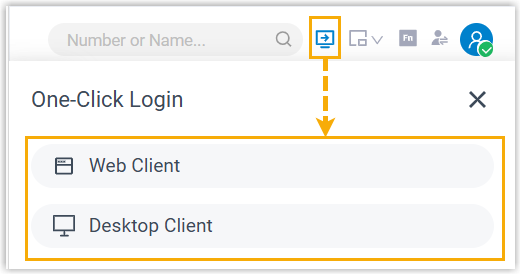 Open the Cloud Voice App for web or the Cloud Voice App desktop app signed in as your extension, with no need to enter your credentials again.
Choose your calling endpoint
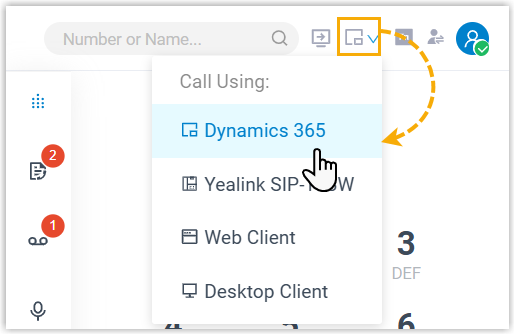
Section titled “Choose your calling endpoint” Pick the device that actually handles your calls. You can use Dynamics 365 itself as the endpoint, or turn on CTI control for the Cloud Voice App (web), the Cloud Voice App (desktop), or an IP phone (a physical desk phone). With CTI control enabled, you drive each call from Dynamics 365 while the audio is placed and answered on the endpoint you selected.
Function keys
Section titled “Function keys” Monitor the status of specific objects, such as colleagues’ extensions, or trigger a preset operation with a single tap.
Agent status
Section titled “Agent status” Change your agent status in a single queue or across every queue you belong to. An agent is a member of a call queue, and your status tells the queue whether to send you calls.
Account
Section titled “Account” Update your extension presence or sign out.
Workspace
Section titled “Workspace”The workspace is the central area where you view and manage whichever feature you’ve opened.
Collapse button
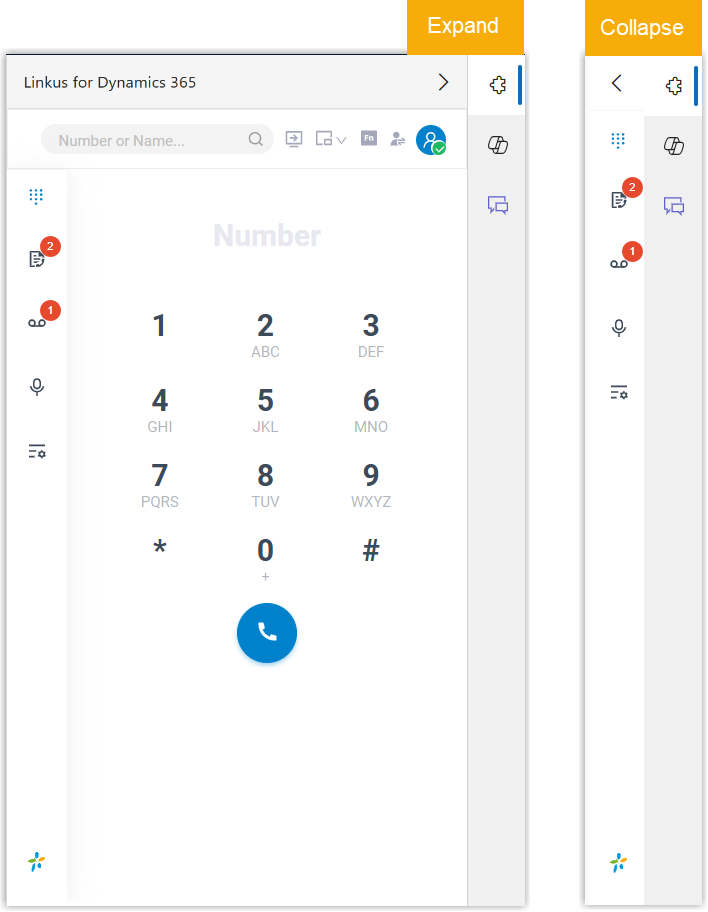
Section titled “Collapse button”Use the collapse toggle to expand or minimize the plugin pane within Dynamics 365, freeing up room when you need it.
Question about this page?
Ask the AI assistant. It starts from this page, then searches the rest of the docs.
Ask Cloud Voice AI
Answers are AI-generated from the docs and may contain mistakes. Verify with the linked pages.