
Set Distinctive Ringtones for IVR Calls
Assigning a distinctive ringtone to an IVR (Interactive Voice Response, the auto attendant menu that greets callers and routes them) lets users recognize, by ear alone, which menu is handing them a call. You can deliver that ringtone two ways, and you can use either or both:
- On the user’s desk phone (IP phone).
- In the user’s Cloud Voice App.
Set a distinctive ringtone on an IP phone
Section titled “Set a distinctive ringtone on an IP phone”To play a chosen tone for IVR calls on a physical phone, you tag the IVR with an alert info value and then map that value to a ringtone on the user’s extension. The phone picks up the setting the next time it reprovisions.
Before you start: the user’s extension must already be bound to an IP phone through auto provisioning. If that isn’t done yet, see Auto Provisioning for background, along with:
Tag the IVR with an alert info value
Section titled “Tag the IVR with an alert info value”The alert info is a label the PBX (Private Branch Exchange, the phone system) attaches to calls leaving this IVR. It tells the IP phone which ringtone to ring.
-
Sign in to the PBX web portal and go to Call Features > IVR, then open the IVR you want to configure.
-
In the IVR Alert Info field, enter a label that identifies the IVR. This example uses
CustomerService.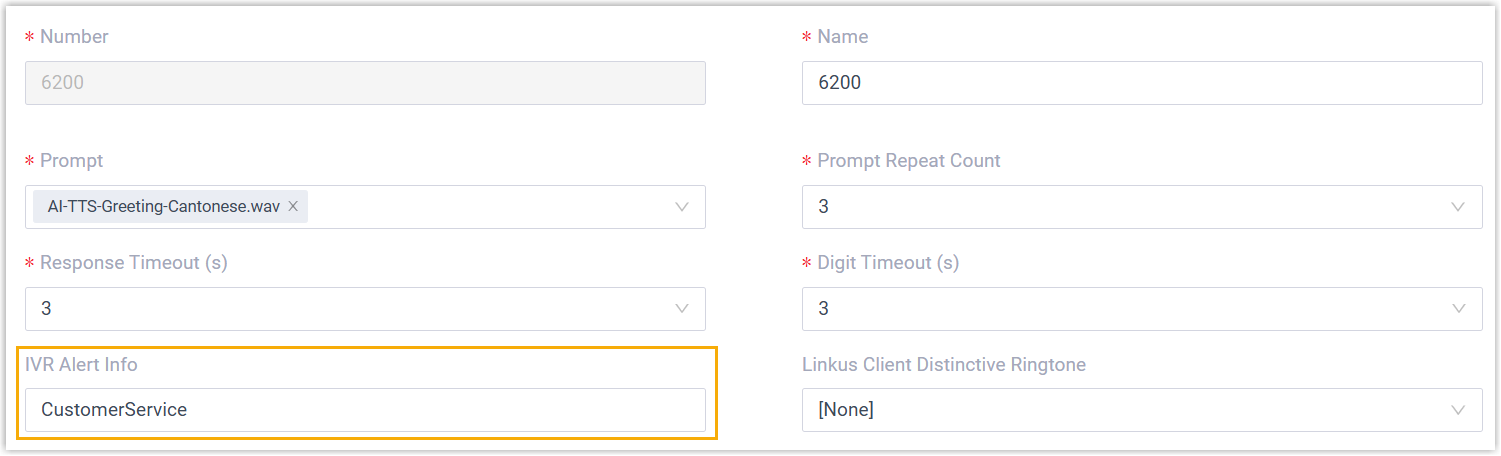
-
Click Save.
Map the alert info to a ringtone
Section titled “Map the alert info to a ringtone”-
In the PBX web portal, go to Extension and Trunk > Extension and open the user’s extension.
-
Select the Phone tab.
-
In the Distinctive Ringtone section, click Add.
-
For Alert Info, choose the value you set on the IVR,
CustomerServicein this example. -
For Ringtone, pick the tone to play for these calls. This example uses
Ring5.wav.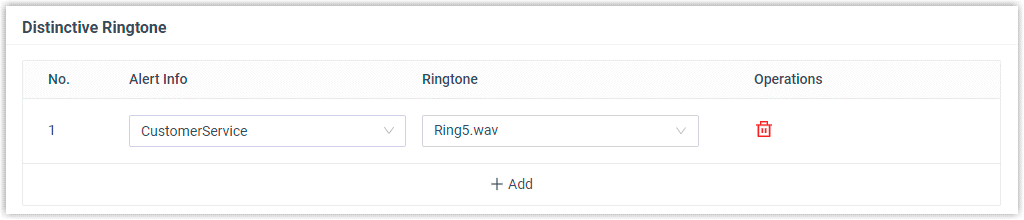
-
Click Save.
Reprovision the phone
Section titled “Reprovision the phone”The change takes effect once the phone reprovisions.
- Go to Auto Provisioning > Phones.
- Click
 next to the phone tied to the user’s extension.
When a call arrives through the CustomerService IVR, the user’s phone now rings with Ring5.wav, so the source of the call is clear before they answer.
Set a distinctive ringtone in the Cloud Voice App
Section titled “Set a distinctive ringtone in the Cloud Voice App”You can also assign a ringtone that plays in a user’s Cloud Voice App whenever a call reaches them through the IVR.
-
Sign in to the PBX web portal and go to Call Features > IVR, then open the IVR you want to configure.
-
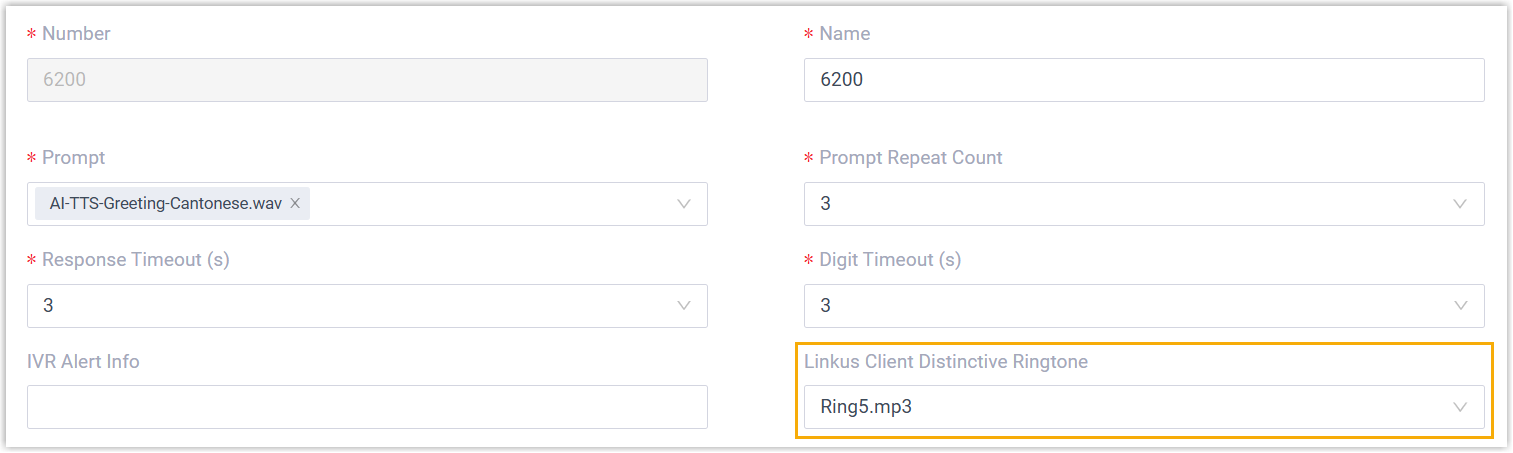
From the Cloud Voice App Distinctive Ringtone drop-down list, select the ringtone you want.
-
Click Save.
Question about this page?
Ask the AI assistant. It starts from this page, then searches the rest of the docs.
Ask Cloud Voice AI
Answers are AI-generated from the docs and may contain mistakes. Verify with the linked pages.