
Enforce Two-Factor Authentication for All Extension Users
A username and password alone can be guessed, shared, or stolen. To close that gap across your whole organization, you can require two-factor authentication (2FA) for every extension. Two-factor authentication adds a second verification step on top of the password, so a login only succeeds when the person also proves they hold the extension’s second factor. Once enforced, anyone signing in with an extension username and password must clear that second step before they gain access, which blocks logins that rely on stolen credentials.
Before you begin
Section titled “Before you begin”Confirm the following minimum versions are in place:
- Cloud Voice, version 84.14.0.24 or later.
- Cloud Voice App (desktop), version 1.4.9 or later.
Enforce 2FA for all extensions
Section titled “Enforce 2FA for all extensions”PBX (Private Branch Exchange) is the phone system that manages your extensions and calls. You configure this policy from its web portal.
-
Sign in to the PBX web portal and open Security > Security Settings > Security Options.
-
Under Two-Factor Authentication, tick Make Two-Factor Authentication Mandatory for All Extensions.

-
Click Save.
What users experience
Section titled “What users experience”What happens next depends on whether a user had already turned on 2FA in the Cloud Voice App:
- Users who already had 2FA enabled. Nothing changes for them. They keep working in the app without interruption.
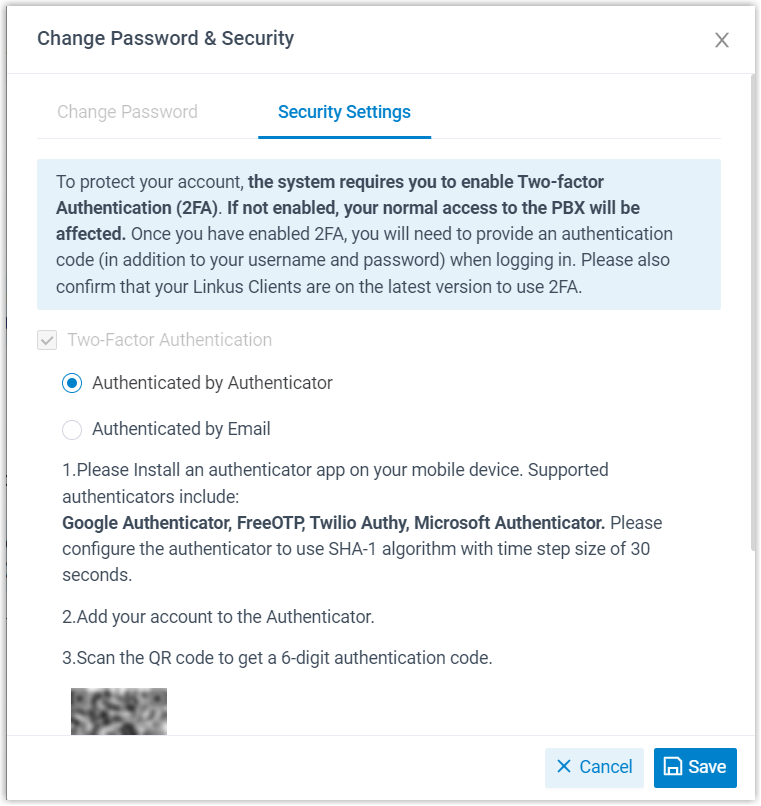
- Users who did not have 2FA enabled. The next time they open, or are already signed in to, the Cloud Voice App (web or desktop) with their extension username and password, a setup window appears and prompts them to configure 2FA. If they do not finish the setup, the app signs them out automatically.
Question about this page?
Ask the AI assistant. It starts from this page, then searches the rest of the docs.
Ask Cloud Voice AI
Answers are AI-generated from the docs and may contain mistakes. Verify with the linked pages.