
Assign a Role to a User
Roles control which parts of the management portal an extension user can reach and what they are allowed to do there. Assigning a role is how you give one user (identified by their extension) access to those admin features without handing over full control of the system. To grant that access, attach a role to the user’s extension.
Before you begin
Section titled “Before you begin”The role you want to assign must already exist. If none of the built-in roles fit your needs, create a user role with the exact permissions you want first, then come back to this page.
Assign the role
Section titled “Assign the role”-
Sign in to the PBX web portal and open Extension and Trunk > Extension.
-
Find the extension in the list and click the edit icon.

-
On the User tab, open the User Role drop-down list and choose the role you want to assign.
-
Click Save, then Apply to put the change into effect.
What the user sees
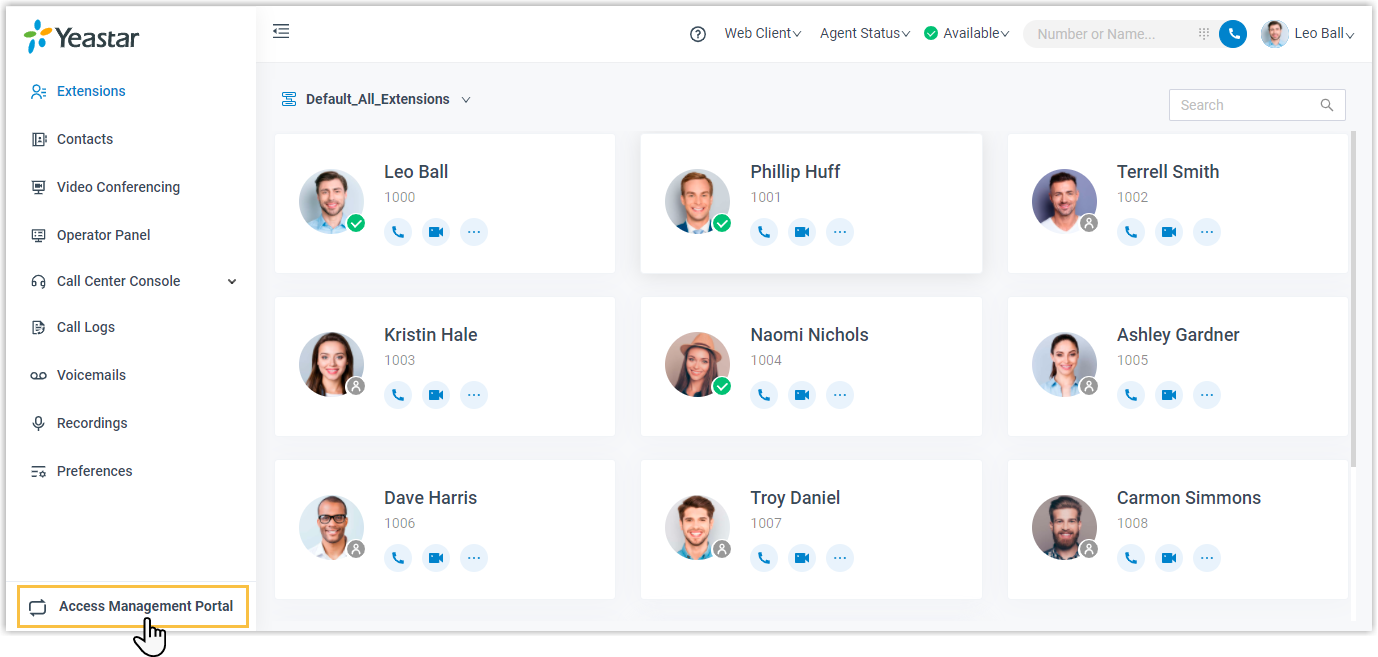
Section titled “What the user sees”If the role carries permissions, the user gains a way into the management portal the next time they sign in to the Cloud Voice App. From there they can open the portal and use only the system features their role allows.
Question about this page?
Ask the AI assistant. It starts from this page, then searches the rest of the docs.
Ask Cloud Voice AI
Answers are AI-generated from the docs and may contain mistakes. Verify with the linked pages.