
Set Up Call Popup for Cloud Voice App UC Clients
Call popup is a lightweight way to tie the Cloud Voice App to a web-based business tool such as a CRM (Customer Relationship Management) or ERP (Enterprise Resource Planning) system. You supply a custom URL, and when a call comes in the app opens that URL in the browser so the user sees the matching contact record. As an administrator you can turn this on for an extension user’s desktop or web app, and the configuration is pushed to their app automatically.
Requirements and limitations
Section titled “Requirements and limitations”Call popup only works while the user is signed in to the Cloud Voice App on desktop or web. It is not available when no such client is logged in.
Before you configure it, confirm the following.
| Requirement | Detail |
|---|---|
| PBX server | Version 84.21.0.16 or later. |
| Third-party application | Must be web-based and able to serve a URL that identifies a caller by Caller ID and Caller ID Name. |
Set up call popup
Section titled “Set up call popup”You can apply these settings to several extensions at once, or configure a single extension on its own.
-
Sign in to the PBX web portal and open Extension and Trunk > Extension.
-
Select the checkbox next to each extension you want to change, then select Edit.
-
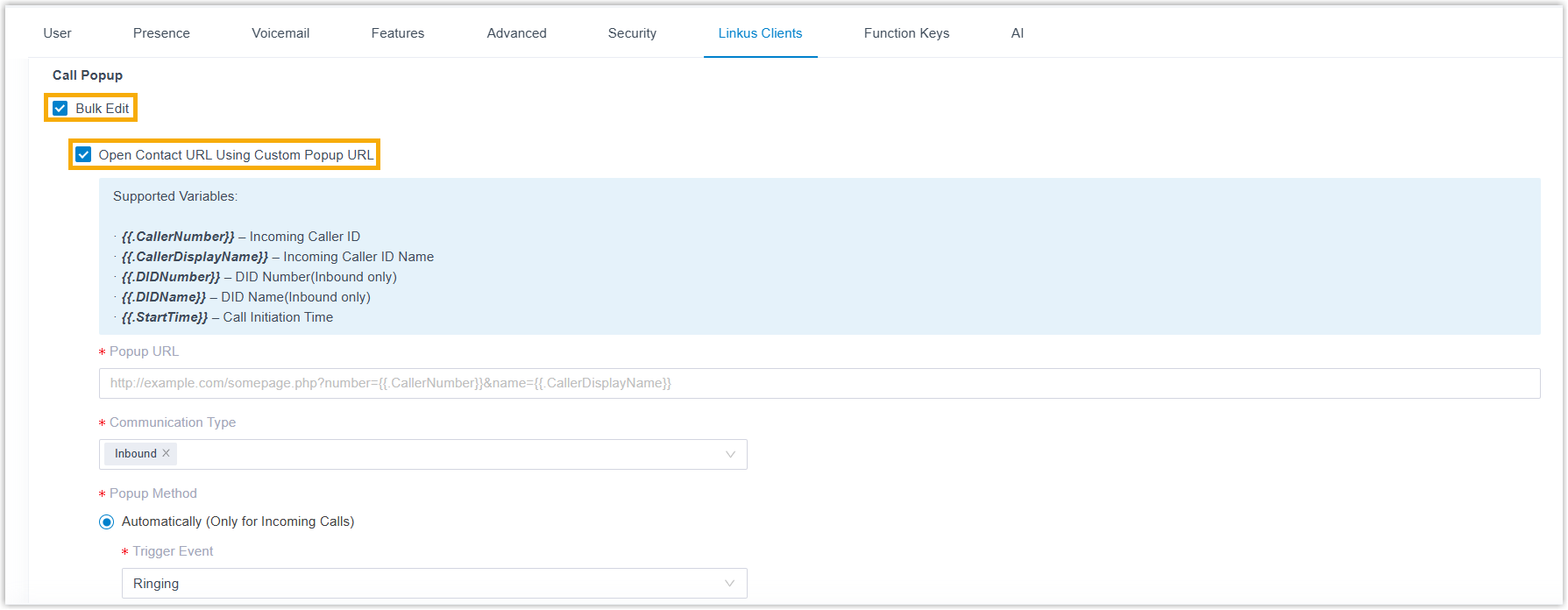
Open the Cloud Voice App tab. For the client you want to configure, select Bulk Edit and Open Contact URL Using Custom Popup URL.
-
Configure the popup using the fields below.
Setting Description Popup URL Enter the third-party URL, followed by any variables you want to pass to it (see the variable list below this table). Communication Type Choose which calls trigger the popup: Inbound for calls from external callers, Internal for calls from colleagues. Popup Method Choose how the contact page opens, automatically or manually (see below). Append any of these variables to the URL to pass call details through to the target page. Type each variable exactly as shown, including the double braces and the leading dot: the PBX swaps them for the real call values when the call arrives.
Variable Value {{.CallerNumber}}Incoming Caller ID (the caller’s number). {{.CallerDisplayName}}Incoming Caller ID Name (the caller’s display name). {{.DIDNumber}}DID number, inbound calls only. {{.DIDName}}DID name, inbound calls only. {{.StartTime}}Time the call started. For example, a Solve360 CRM URL might look like
https://web/solve.360.com/{{.CallerNumber}}&{{.CallerDisplayName}}.Popup Method has two options:
-
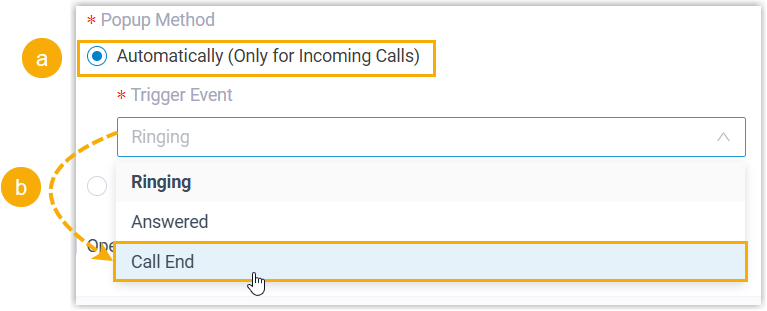
Automatically: The app opens the contact page on its own for incoming calls. Select Automatically (Only for Incoming Calls), then use the Trigger Event drop-down to choose when it fires: Ringing (the call arrives), Answered (the call is picked up), or Call End (the call finishes).
-
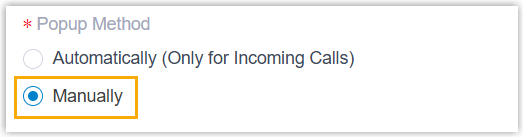
Manually: The user opens the contact page themselves during a call. Select Manually.
-
-
Select Save.
Result
Section titled “Result”-
With automatic popup configured, an incoming call opens the contact page in the browser at the trigger event you chose, showing the matching customer details.
-
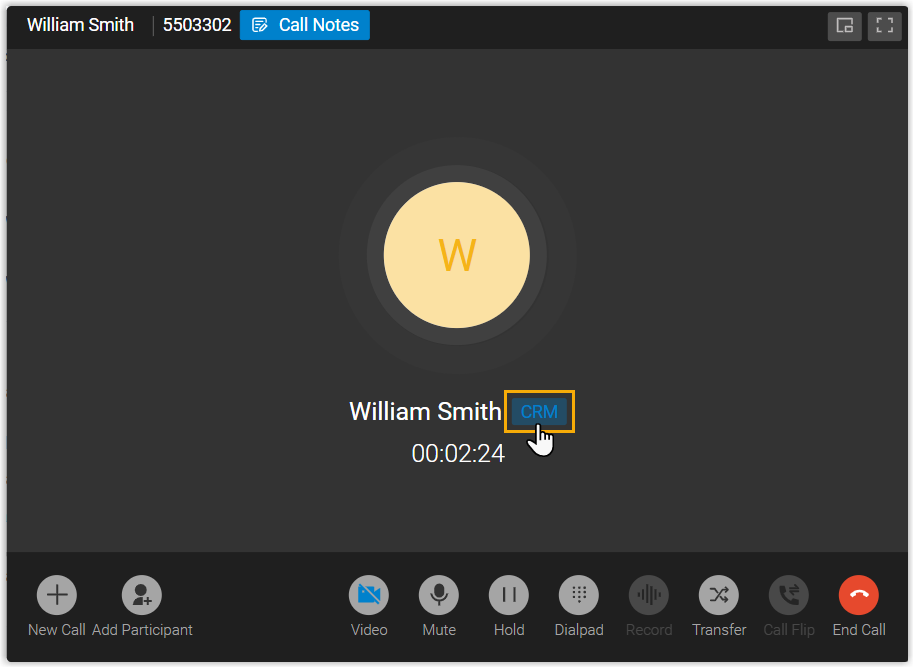
With manual popup configured, the user selects the CRM label in the call window to open the contact page during the call.
Question about this page?
Ask the AI assistant. It starts from this page, then searches the rest of the docs.
Ask Cloud Voice AI
Answers are AI-generated from the docs and may contain mistakes. Verify with the linked pages.