
Add Users to Organizations
Once your organization tree is in place, the next step is to populate its departments with users. You can either move extensions you have already created into a department or create fresh extensions inside one. Both approaches start from the same place in the management portal.
Sign in to the management portal and go to Extension and Trunk > Extension > User.
Assign existing extensions to a department
Section titled “Assign existing extensions to a department”Use this method when the extensions already exist and you simply need to slot them into departments. Bulk Edit lets you update several extensions at once.
-
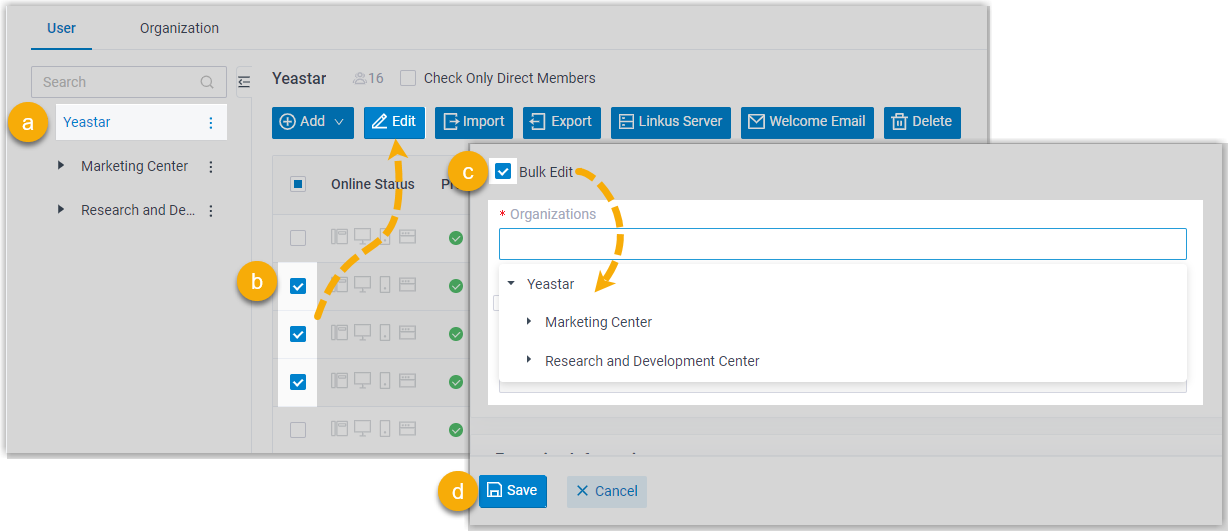
In the organization tree on the left, select the root organization so that every extension appears in the user list.
-
In the user list, tick the checkbox beside each extension you want to move, then click Edit.
-
Under User Information, enable the Bulk Edit checkbox for organizations and choose the department (or departments) the selected extensions should belong to.
-
Click Save, then Apply.
Create a new extension inside a department
Section titled “Create a new extension inside a department”When you are onboarding someone who does not yet have an extension, you can create it directly within the target department so the assignment is handled for you.
-
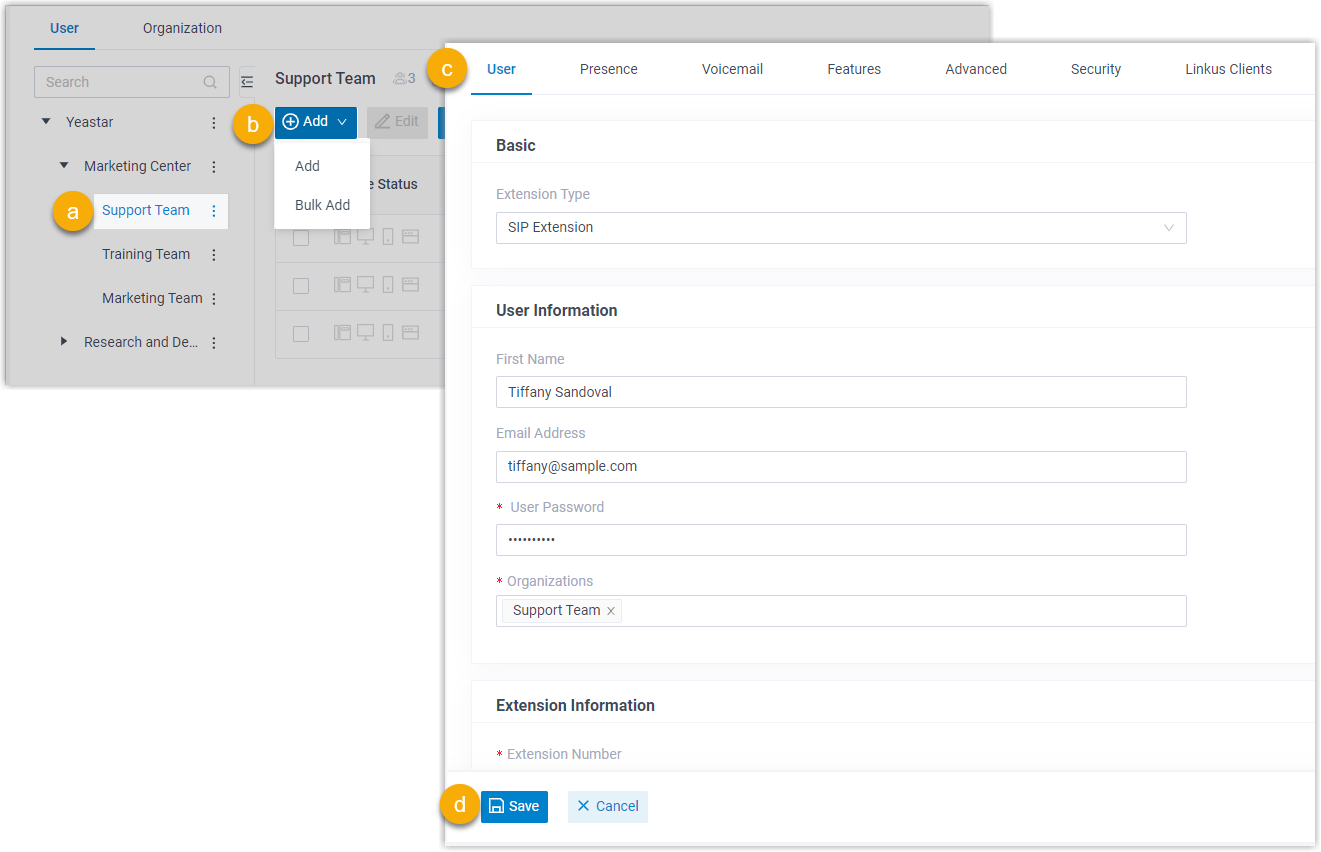
In the organization tree, click the department the new user should join.
-
Click Add, then choose Add to create a single extension.
-
Fill in the extension settings as needed.
-
Click Save, then Apply.
Confirm the assignment
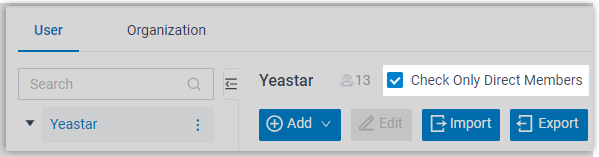
Section titled “Confirm the assignment”Your users now belong to the departments you specified. Click any department in the organization tree to review its members.
Question about this page?
Ask the AI assistant. It starts from this page, then searches the rest of the docs.
Ask Cloud Voice AI
Answers are AI-generated from the docs and may contain mistakes. Verify with the linked pages.