
Enable WebSocket Audio Streaming
WebSocket Audio Streaming lets Cloud Voice push the audio of active calls to an external service in real time. WebSocket is a protocol that opens a single, persistent two-way connection and keeps it open for the length of the call, so audio can flow continuously without repeated requests. Use it to feed live conversations into transcription engines, analytics tools, AI assistants, or any platform that accepts an audio stream over WebSocket.
Before you begin
Section titled “Before you begin”Confirm the following before turning the feature on:
- Firmware version 84.20.0.74 or later.
- An Ultimate Plan subscription.
- The WebSocket server address of the third-party platform that will receive the stream.
- Any credentials the third-party platform requires for authentication.
Set up audio streaming
Section titled “Set up audio streaming”-
Sign in to the management portal and go to Integrations > WebSocket Audio Streaming.
-
Switch WebSocket Audio Streaming on.
-
Fill in the streaming settings.
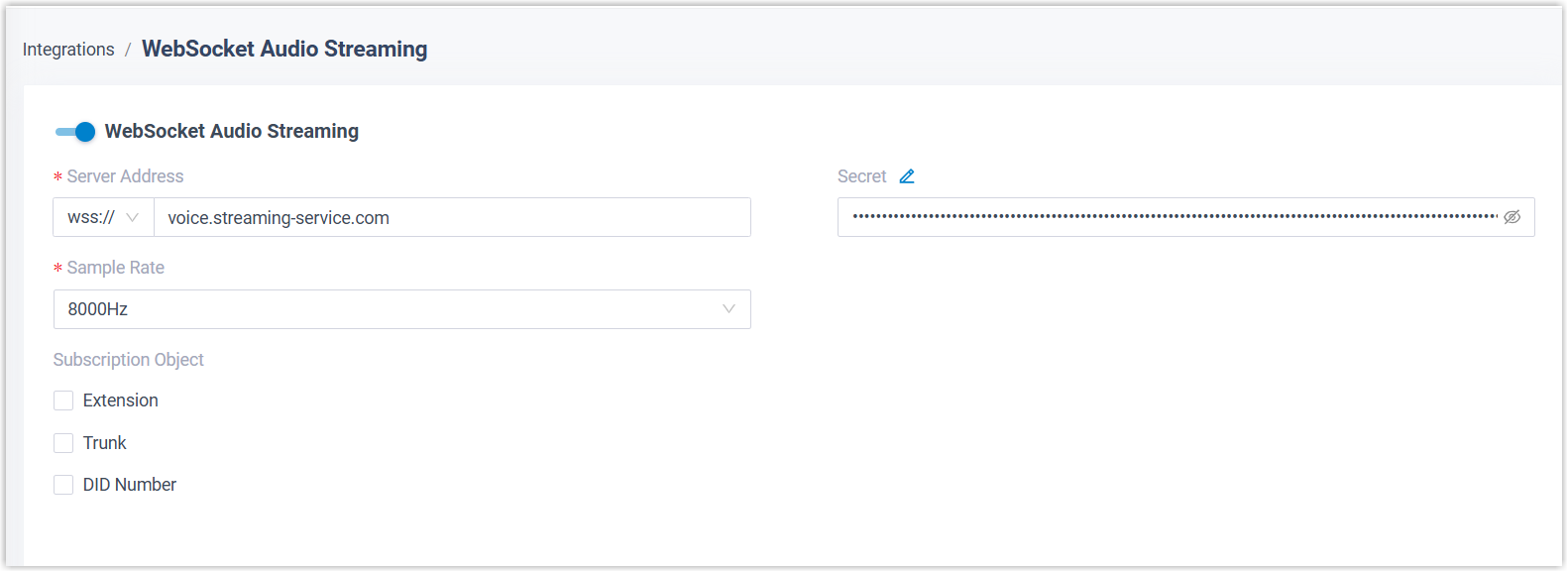
a. Server Address: Choose the protocol the receiving platform expects (
ws://orwss://), then enter the address where the audio stream should be delivered.b. Secret (optional): Enter the authentication value supplied by the third-party platform. To match a platform that expects a specific credential field name, click the edit icon
 and rename the option accordingly.
c. Sample Rate: Select the rate for the transmitted audio. The rate determines how audio is chopped into fixed-length fragments:
- 8000 Hz: 80 ms per fragment.
- 16000 Hz: 40 ms per fragment.
d. Subscription Object: Choose which calls are streamed to the third-party platform. You can subscribe by extension, trunk, or DID (Direct Inward Dialing, an external phone number that routes callers straight to a destination) number:
Object What gets streamed Extension Audio from any call involving the selected extensions. Trunk Audio from inbound and outbound calls routed over the selected trunks. DID Number Audio from inbound calls placed to the selected DID numbers. -
Click Save.
Result
Section titled “Result”Whenever a subscribed extension, trunk, or DID number is on a call, the audio of every participant is delivered to the third-party platform over WebSocket in real time.
Question about this page?
Ask the AI assistant. It starts from this page, then searches the rest of the docs.
Ask Cloud Voice AI
Answers are AI-generated from the docs and may contain mistakes. Verify with the linked pages.