
DID/Outbound Caller ID Activity Report
The DID/Outbound Caller ID Activity report shows how your inbound and outbound numbers are used, broken down by hour, day, and month. DID (Direct Inward Dialing) is the phone number a caller dials to reach your system. DOD (Direct Outward Dialing) is the number shown as your outbound caller ID when your users place calls. Use this report to see which numbers are carrying traffic and how that traffic shifts over time. This page walks through opening the report, filtering it, and reading each metric.
Open the report
Section titled “Open the report”-
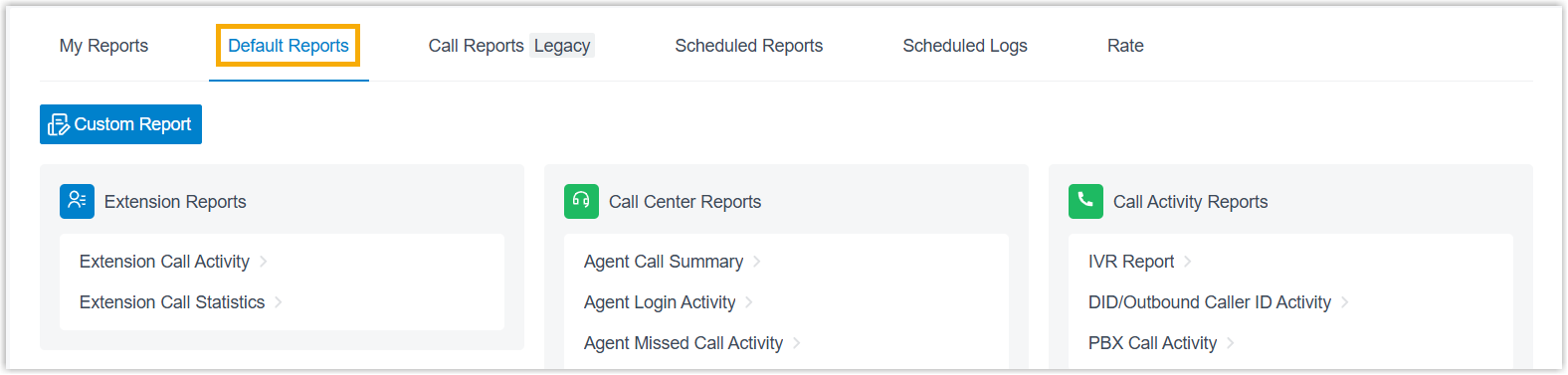
Sign in to the PBX (Private Branch Exchange, your phone system) web portal and go to Reports and Recordings > Call Reports.
-
Open the Default Reports tab.
-
In the Call Activity Reports pane, select DID/Outbound Caller ID Activity.
-
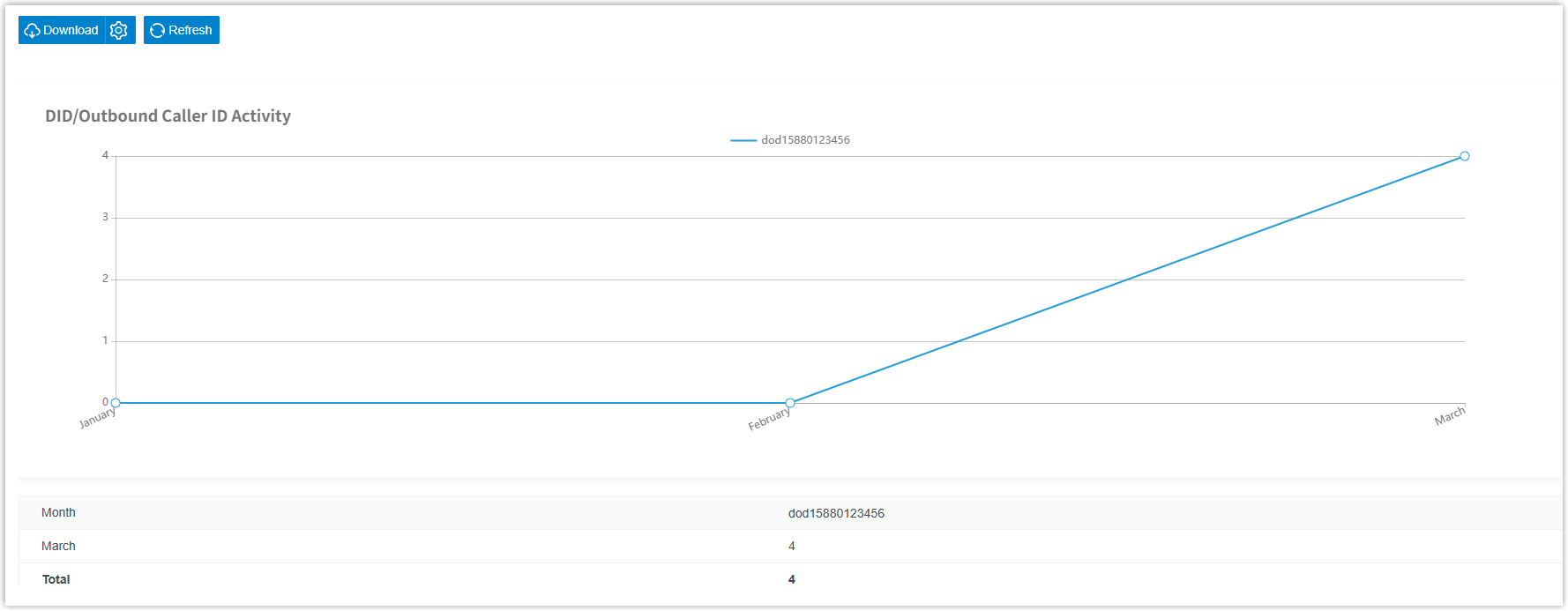
Choose what the report should cover.

- Use the Time Range and Select Date fields to set the period the report covers.
- Narrow the results by trunk, DID, DOD, or communication type.
The report refreshes to match your filters.
Save, schedule, or download
Section titled “Save, schedule, or download”Once the report looks the way you want, you can save it for quick access later, have it emailed on a recurring schedule, or export a copy to your computer.
Schedule automatic delivery
Section titled “Schedule automatic delivery”Set up a task that emails the report on a recurring basis.
- At the bottom of the page, select Add to Scheduled Reports.
- Complete the remaining settings as described in Schedule call reports.
Download a copy
Section titled “Download a copy”Export the report to your computer for offline review or deeper analysis.
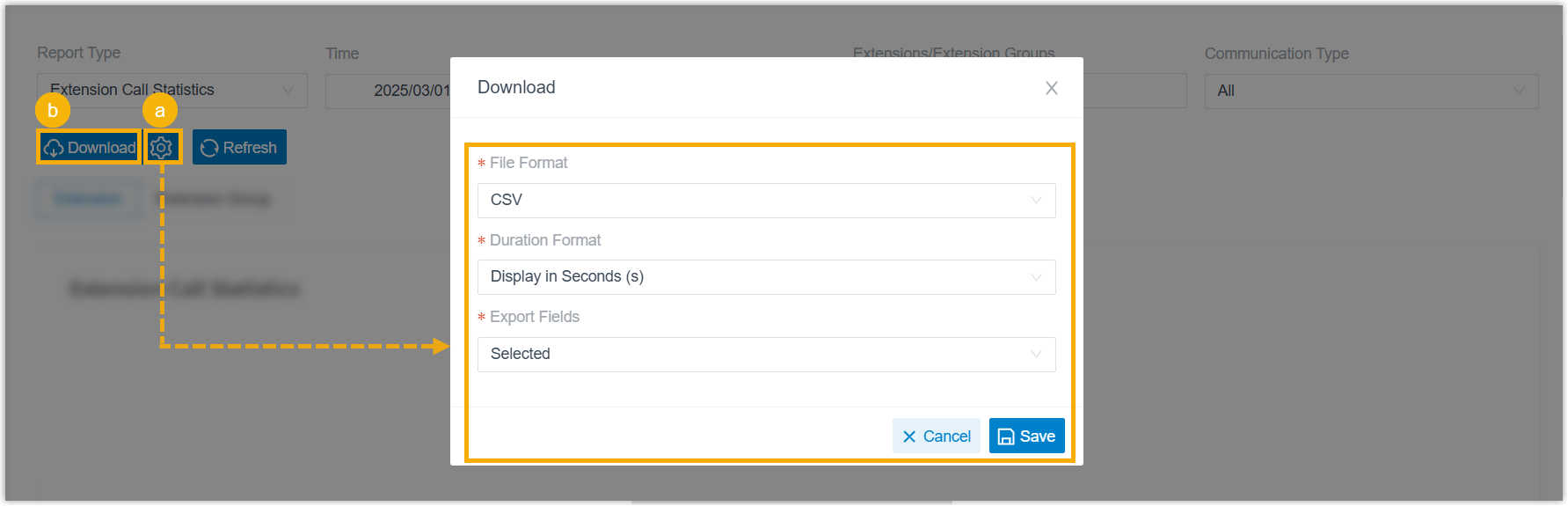
- Optional: Select the settings icon
 to adjust how the file is exported, then save your changes:
- File Format: Choose CSV, XLS, HTML, or PDF.
- Duration Format: Show every duration field either Display in Second (s) or Display as HH:MM:SS.
- Export Fields: Export All fields or only the Selected ones.
- Select Download.
Report metrics
Section titled “Report metrics”Each DID and DOD number appears as its own entry in the report. In the field names below, {did_number} and {dod_number} are placeholders that the system replaces with the actual number.
| Metric | What it measures |
|---|---|
did{did_number} | The DID number a caller dialed to reach your system. |
dod{dod_number} | The DOD number presented as the outbound caller ID on the call. |
Question about this page?
Ask the AI assistant. It starts from this page, then searches the rest of the docs.
Ask Cloud Voice AI
Answers are AI-generated from the docs and may contain mistakes. Verify with the linked pages.