
Email Sent Logs
Every email your phone system sends, from voicemail-to-email notifications to alerts and reports, is recorded in the email sent logs. Use these logs to confirm that messages are reaching their recipients and to pinpoint the cause when one does not.
What the logs track
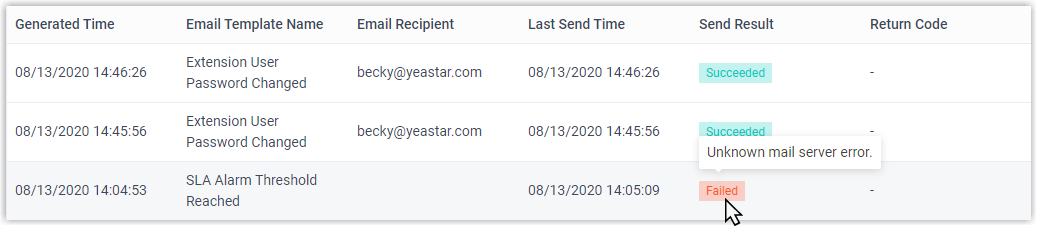
Section titled “What the logs track”Each entry records the outcome of an outgoing email along with the details needed to investigate a problem: which template produced it, who it was addressed to, when it was generated, and whether it succeeded or failed. When a message fails to arrive, the log captures the delivery error so you can resolve the issue without guesswork.
To keep the log from growing without limit, Cloud Voice retains up to 50,000 entries by default. Once that ceiling is reached, each new log overwrites the oldest one. You can raise or lower this limit, or set a maximum age for retained logs, from the Auto Cleanup Settings.
Search the logs
Section titled “Search the logs”The logs live in the PBX (Private Branch Exchange, your hosted phone system) web portal.
- Sign in to the PBX web portal and open System > Email > Email Sent Logs.
- Narrow the results using any combination of the following filters:
- Send Result: Show every log, or limit the list to a specific delivery outcome (for example, only failed messages).
- Email Template Name: Show only logs generated from a particular email template.
- Generated Time: Restrict the list to a date and time range.
- Email Recipient: Find logs by the address a message was sent to.
Once the list is filtered, point to the Failed label next to any unsuccessful entry to read the error message that explains why delivery did not complete.
Question about this page?
Ask the AI assistant. It starts from this page, then searches the rest of the docs.
Ask Cloud Voice AI
Answers are AI-generated from the docs and may contain mistakes. Verify with the linked pages.