
Enable Call Recording Playback in Zendesk
Once Cloud Voice is connected to Zendesk, each call an agent makes to or receives from a Helpdesk contact is logged as a journal entry on the ticket. You can go a step further and let agents replay the recording for that call without leaving Zendesk, so the audio sits right alongside the ticket it belongs to.
Before you begin
Section titled “Before you begin”Make sure both of the following are already in place:
Turn on recording playback
Section titled “Turn on recording playback”-
Sign in to the Cloud Voice management portal and open Integration > Helpdesk.
-
On the Zendesk integration page, scroll to the Call Journal section.
-
Select Play Call Recording.
With this option on, Zendesk users who are linked to a Cloud Voice extension can open and play the recordings that Cloud Voice stores, all from inside Zendesk.
-
Select Save.
Result
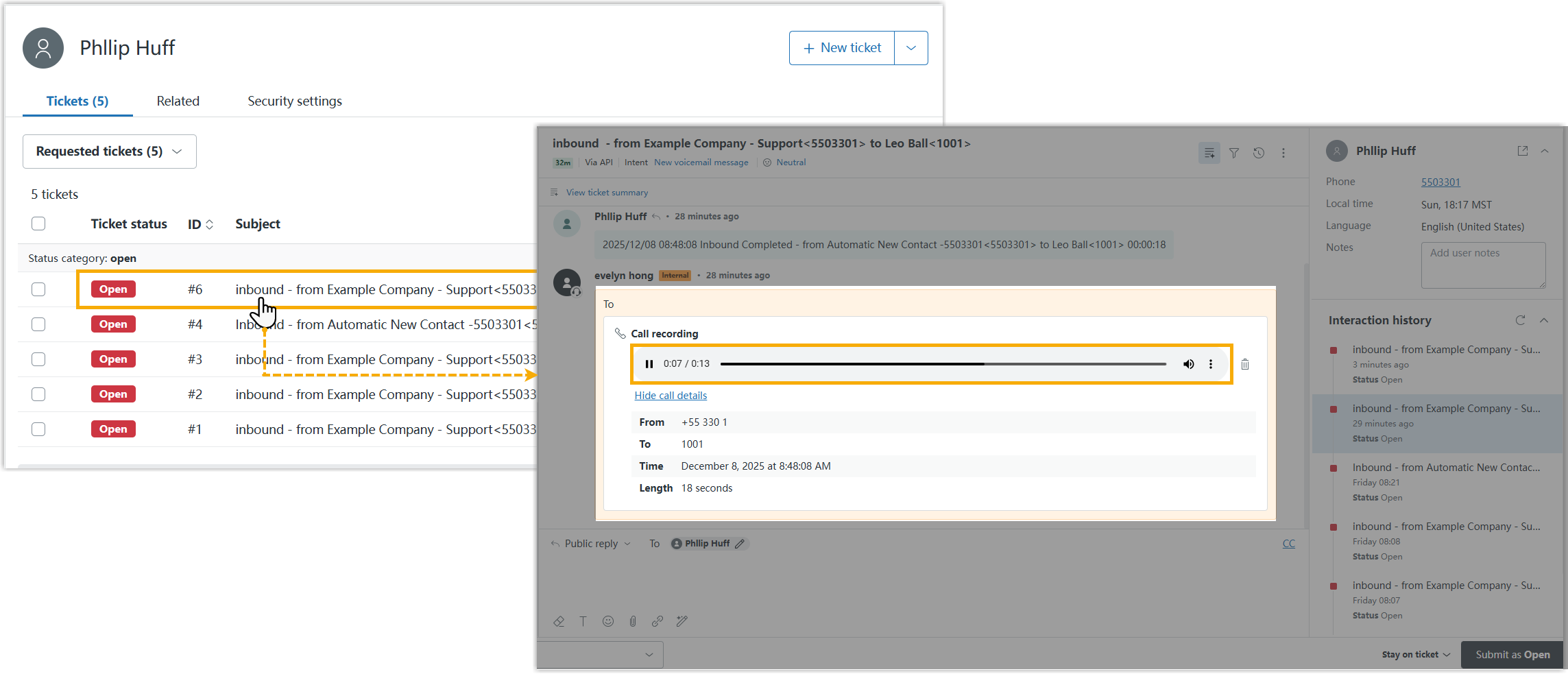
Section titled “Result”Agents whose Zendesk accounts are tied to a Cloud Voice extension can now open a ticket and play the associated call recording directly from the Zendesk interface.
Question about this page?
Ask the AI assistant. It starts from this page, then searches the rest of the docs.
Ask Cloud Voice AI
Answers are AI-generated from the docs and may contain mistakes. Verify with the linked pages.