
Send Faxes from the Web App
The Cloud Voice App lets you fax business contacts without leaving your browser. Send to a contact already in your directory, key in a one-off number, or blast the same document to an entire phonebook, all from a single outbound task.
Before you start
Section titled “Before you start”Faxing must be enabled for your extension. If you don’t see the fax options described below, ask your system administrator to grant you fax permission.
What you can send
Section titled “What you can send”Keep the following limits in mind when preparing an outbound fax.
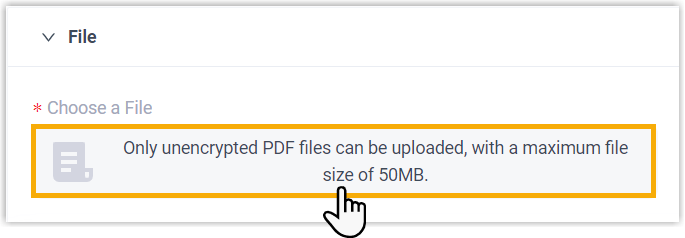
- File format: PDF only.
- File size: under 50 MB.
- Recipients: up to 1,000 per fax.
Send a fax
Section titled “Send a fax”-
Sign in to the Cloud Voice App and open Fax Management > Fax.
-
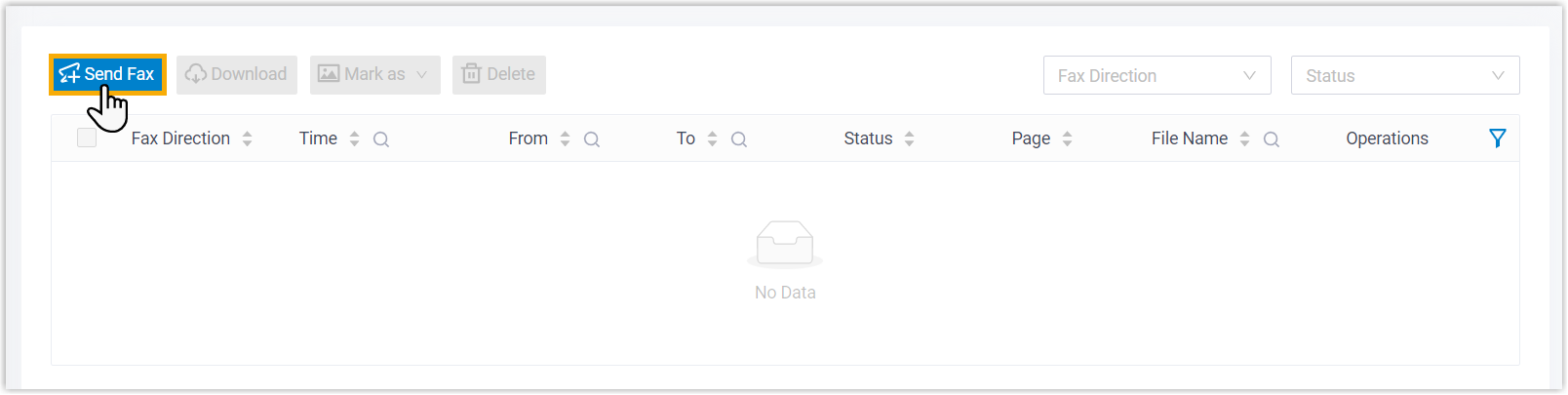
Click Send Fax at the top of the list.
-
Fill in the outbound fax details.
a. Under File, click the upload area and choose the PDF you want to fax.
b. Under To, add recipients using one of the methods below.
Method What it does Input Add a single recipient by hand, or pick one from your external contacts. Click Add, enter the recipient details, and save. The Fax Number field is the number the fax is delivered to. Phonebooks Pull recipients in bulk from a phonebook by number type. Select the phonebook and the number type you want to use. The number type tells the system which stored number to read from each contact (for example their fax or business number). 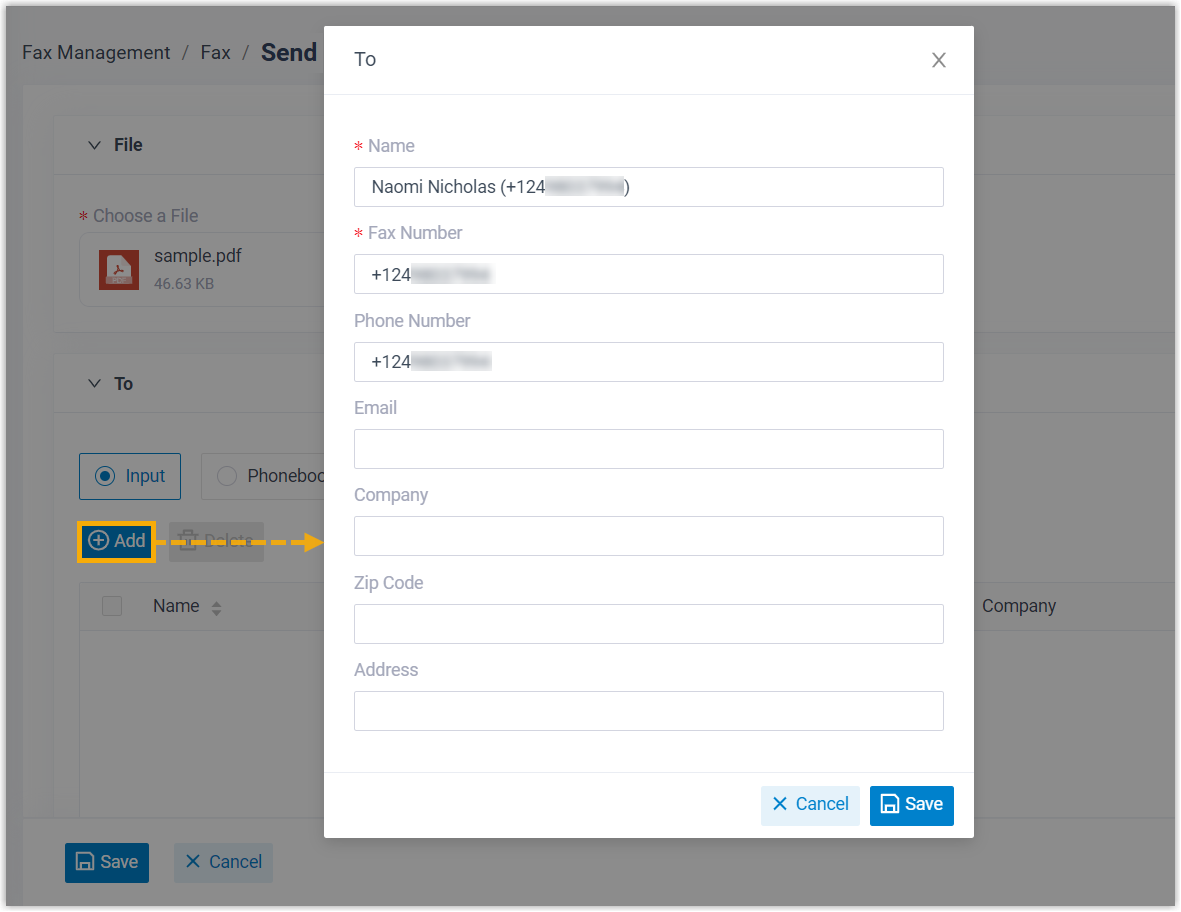

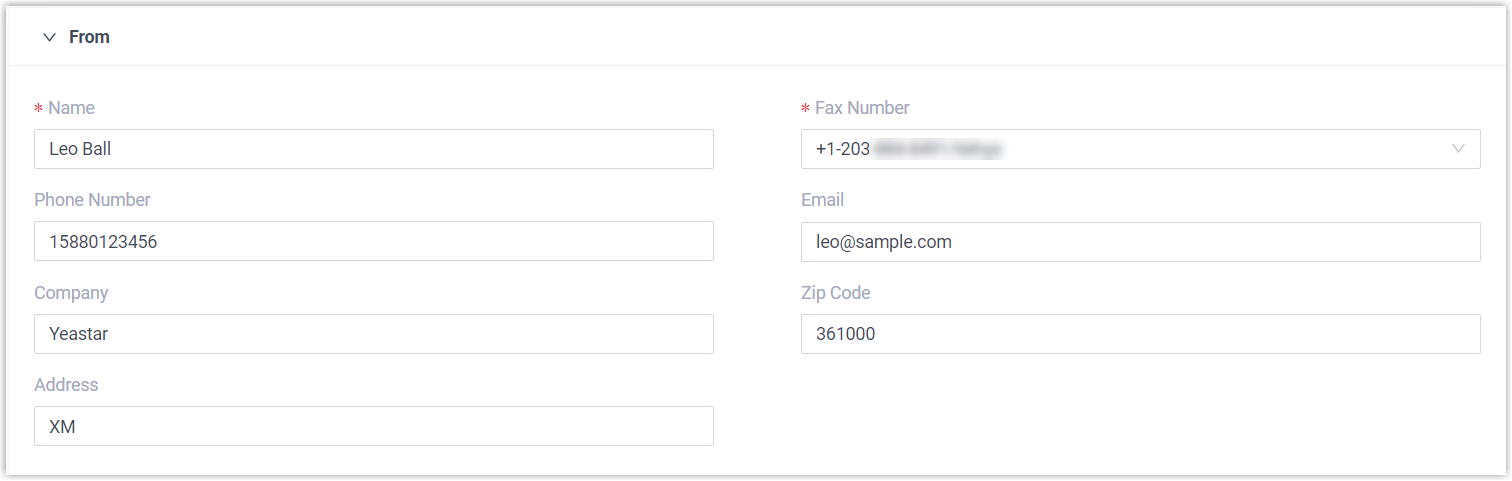
c. Under From, enter the sender details and choose the fax number the fax is sent from.
d. Under Settings, finish the following options.
Setting Description Cover Pages Optional. Pick a cover page to attach to the fax. Click the preview icon (  ) to check it first.
Send Time Choose Send Now to fax as soon as you save, or Schedule Sending to pick a later time from the drop-down list. Remark Add a short note describing the fax. 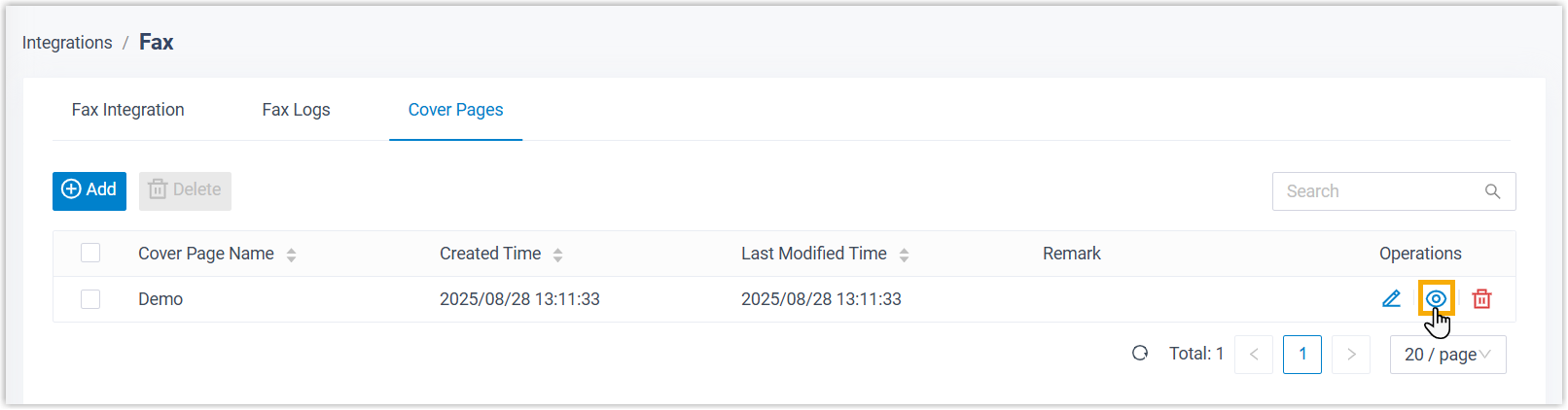
-
Click Save.
Result
Section titled “Result”Your fax appears as a task in the list and goes out to the recipients at the time you set.

Question about this page?
Ask the AI assistant. It starts from this page, then searches the rest of the docs.
Ask Cloud Voice AI
Answers are AI-generated from the docs and may contain mistakes. Verify with the linked pages.