
Change Your Password
This page shows you how to change the login password for the Cloud Voice App from your mobile device. Do this when you want to rotate your credentials on a schedule, or when you suspect your current password has been exposed and needs to be replaced.
Change your login password
Section titled “Change your login password”-
On the Calls page, tap your account name in the top-left corner.
-
Choose Settings > Password Management.
-
On the Password Management page, fill in the fields:
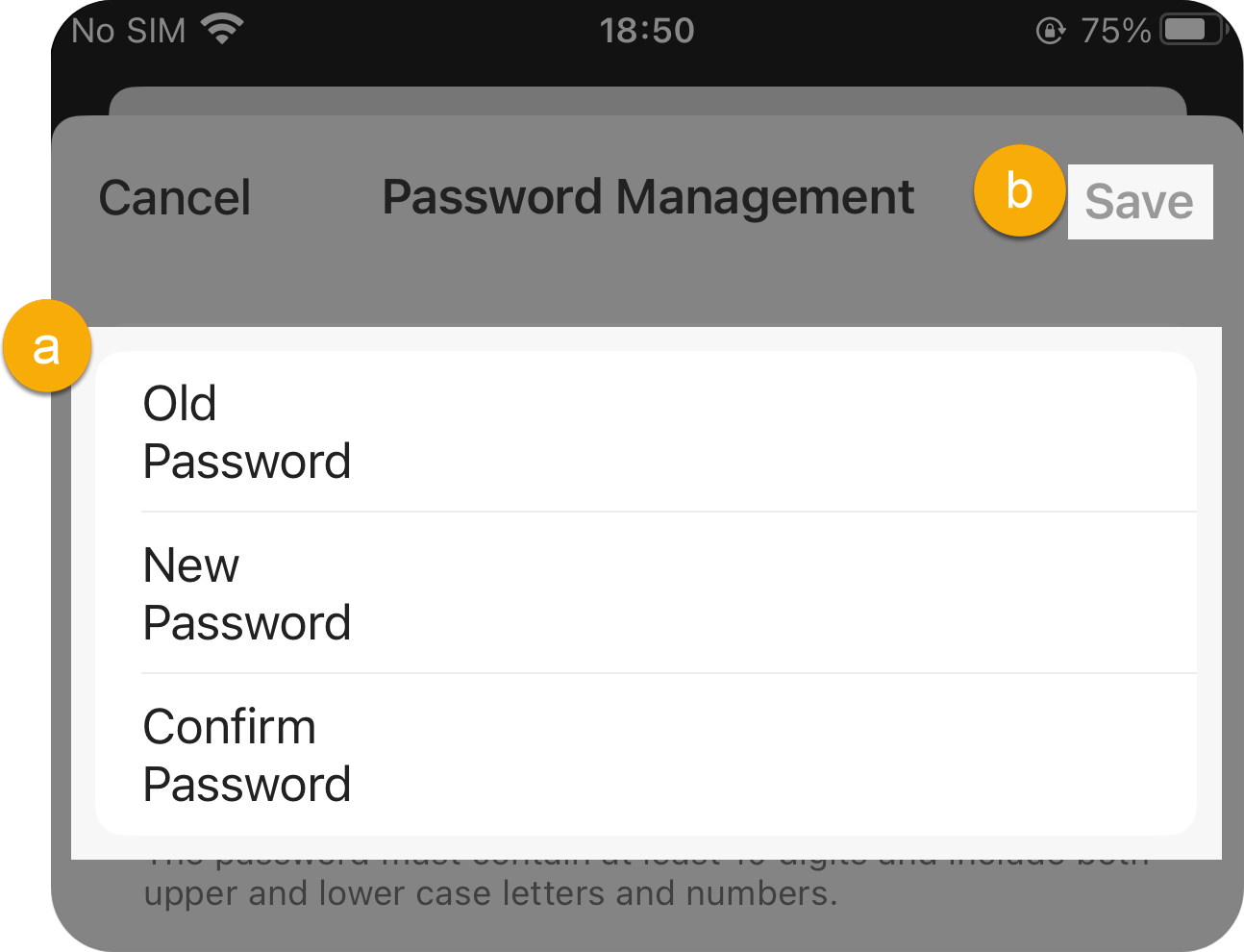
- Old Password: Type your current password.
- New Password: Type the password you want to use from now on.
- Confirm Password: Type the new password again so the app can confirm the two entries match.
-
Tap Save in the top-right corner.
What happens next
Section titled “What happens next”Your login password is updated at once, and the app automatically signs you out of your account.
Sign back in to the Cloud Voice App using your new password.
Question about this page?
Ask the AI assistant. It starts from this page, then searches the rest of the docs.
Ask Cloud Voice AI
Answers are AI-generated from the docs and may contain mistakes. Verify with the linked pages.