
Customize Your Voicemail Settings
Your voicemail preferences determine how the mailbox is secured, when you are alerted about new messages, what the system announces while a message plays, and which greeting callers hear. You manage all of this from one screen in the Cloud Voice App Desktop Client.
Open your voicemail preferences
Section titled “Open your voicemail preferences”- Sign in to the Cloud Voice App Desktop Client and open Preferences > Voicemail.
- Switch on Enable Voicemail.
Require a PIN to listen to messages
Section titled “Require a PIN to listen to messages”Use the Voicemail PIN Authentication drop-down to decide whether the mailbox is protected. A PIN (Personal Identification Number) is a short numeric code the caller enters before any message can be played.
- Enabled: You must enter a PIN before you can play your messages. Set the code in the Voicemail Access PIN field.
- Disabled: You reach your messages without entering a code.
Set up new voicemail notifications
Section titled “Set up new voicemail notifications”Use the New Voicemail Notification drop-down to choose whether an email is sent when a message arrives:
- Do Not Send Email Notifications: Turn email alerts off entirely.
- Send Email Notifications with Attachment: Email you about each new message and include the recording as a
.wavfile attachment. - Send Email Notifications without Attachment: Email you about each new message, with no recording attached.
If you turned notifications on, set the two options below to control what happens to messages and where the email goes:
| Setting | What it controls |
|---|---|
| After Notification | What the system does with a message once its notification email has gone out. Mark as Read flags the message in your mailbox as read; Delete Voicemail removes it from your mailbox; Do Nothing leaves it in place as unread. |
| Send to | The destination for notification emails. User Email sends them to the address on your account; Custom Email sends them to an address you specify in the Custom Email Address field. |
Choose what plays before each message
Section titled “Choose what plays before each message”This step is optional. Turn on any of the following to have the system announce details about a message before it plays the recording:
- Play Date and Time: Announces when the message was received. When this is on, use Time Display Format to pick a 12-hour or 24-hour clock for the announcement.
- Play Caller ID: Announces the caller’s ID (the number or name the call came from).
- Play Message Duration: Announces how long the message is.
Choose the greeting callers hear
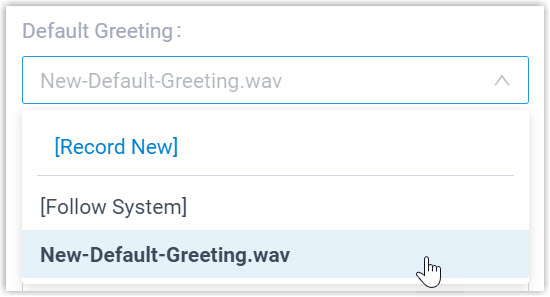
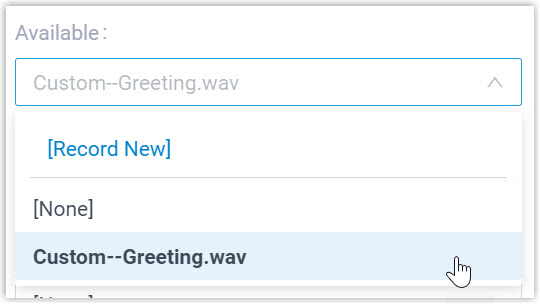
Section titled “Choose the greeting callers hear”In the Voicemail Greeting section, pick the greeting that plays when a caller reaches your mailbox. The system greeting is used by default. You can upload or record your own greetings and set one as your new default.
Save your changes
Section titled “Save your changes”Click Save to apply your voicemail settings.
Question about this page?
Ask the AI assistant. It starts from this page, then searches the rest of the docs.
Ask Cloud Voice AI
Answers are AI-generated from the docs and may contain mistakes. Verify with the linked pages.