
Automatically Switch Presence Status by Business Hours and Holidays
Instead of updating your presence by hand every time the day shifts from work to break to closed, you can tie each presence status to a block of time. Once configured, your extension changes status on its own as the schedule moves through business hours, break hours, and holidays.
Before you begin
Section titled “Before you begin”Your presence rules map onto the time blocks your organization already has in place, so those schedules have to exist first.
Set up automatic switching
Section titled “Set up automatic switching”-
Open the Cloud Voice App desktop client and go to Preferences > Features.
-
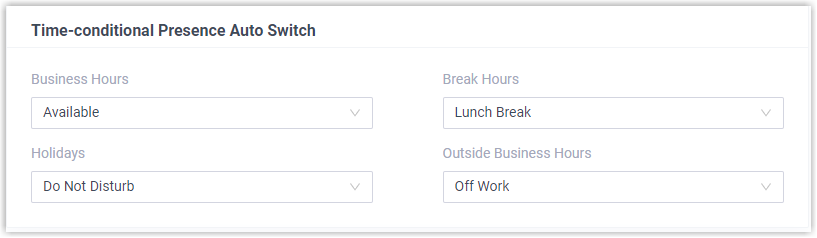
Find the Time-conditional Presence Auto Switch section. For each time period, choose the presence status you want shown during that period.
-
Click Save.
What happens next
Section titled “What happens next”From this point on, your presence follows the clock. As each defined time period begins, your extension is set to the status you paired with it, with no action needed on your part.
For instance, if your administrator has set break hours to 12:00-14:00 and you assign Lunch Break to that period, the Cloud Voice App switches your presence to Lunch Break automatically between 12:00 and 14:00.
Question about this page?
Ask the AI assistant. It starts from this page, then searches the rest of the docs.
Ask Cloud Voice AI
Answers are AI-generated from the docs and may contain mistakes. Verify with the linked pages.