
Transfer a call
When a call reaches the wrong person or team, you can hand it off to the right party without asking the caller to hang up and dial again. The Cloud Voice App lets you redirect any active call to another extension user or contact directly from the call screen.
Choose a transfer type
Section titled “Choose a transfer type”The desktop app supports two ways to pass a call along:
- Blind transfer sends the call to a third party right away, with no heads-up. Use it when no context needs to change hands.
- Attended transfer places the caller on hold while you reach the third party first, so you can share details and confirm they can take the call before you connect them.
Perform a blind transfer
Section titled “Perform a blind transfer”-
While the call is active, click
 (Transfer) on the call screen, then choose Blind Transfer. The call is placed on hold.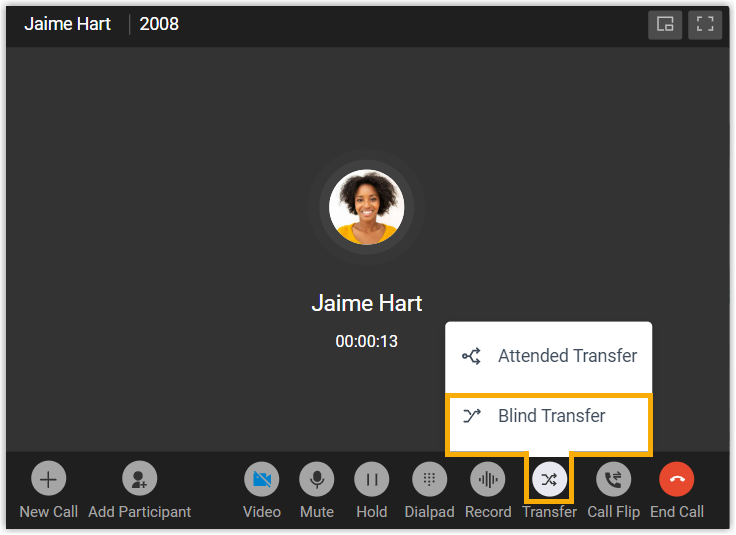
-
Pick who should receive the call using either method below:
-
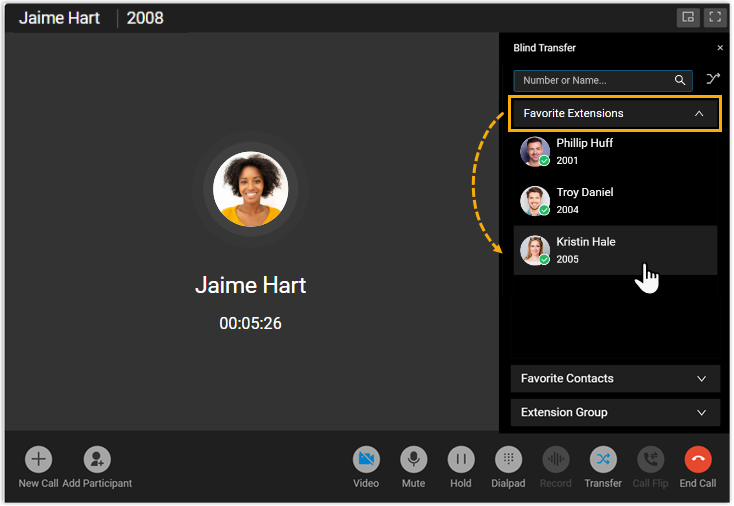
In the right panel, open a list and click the extension user or contact you want to send the call to.
-
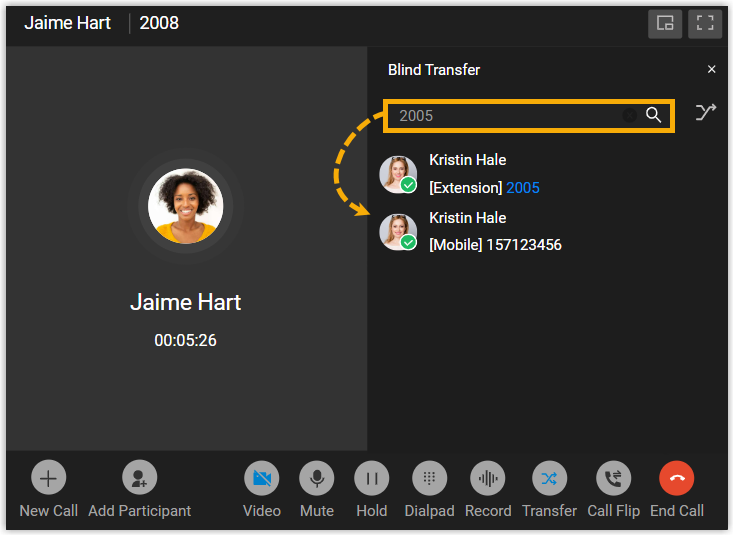
In the search bar, type the number or name of the extension user or contact, then select the match from the results.
-
Your call drops immediately and the chosen party’s phone rings. Once they answer, the caller and the new party are connected.
Perform an attended transfer
Section titled “Perform an attended transfer”-
While the call is active, click
(Transfer) on the call screen, then choose Attended Transfer. The call is placed on hold.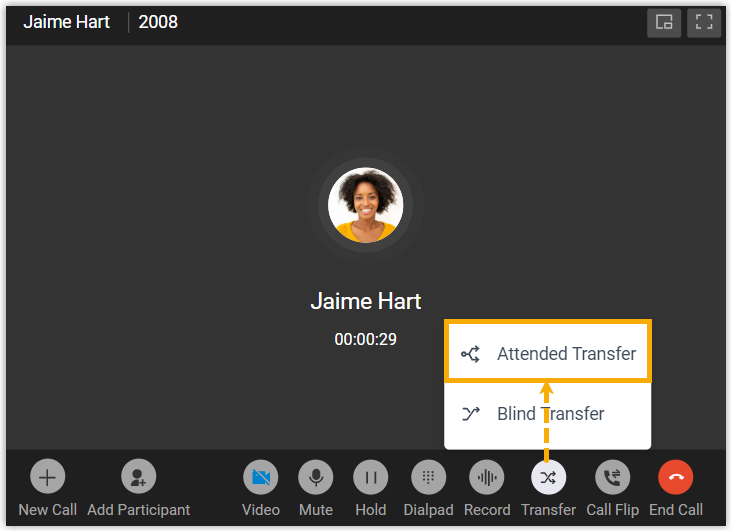
-
Pick who should receive the call using either method below:
-
In the right panel, open a list and click the extension user or contact you want to send the call to.
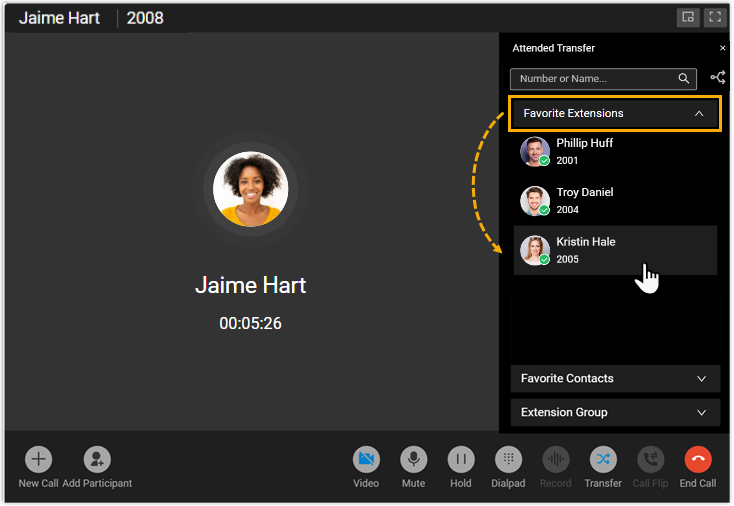
-
In the search bar, type the number or name of the extension user or contact, then select the match from the results.
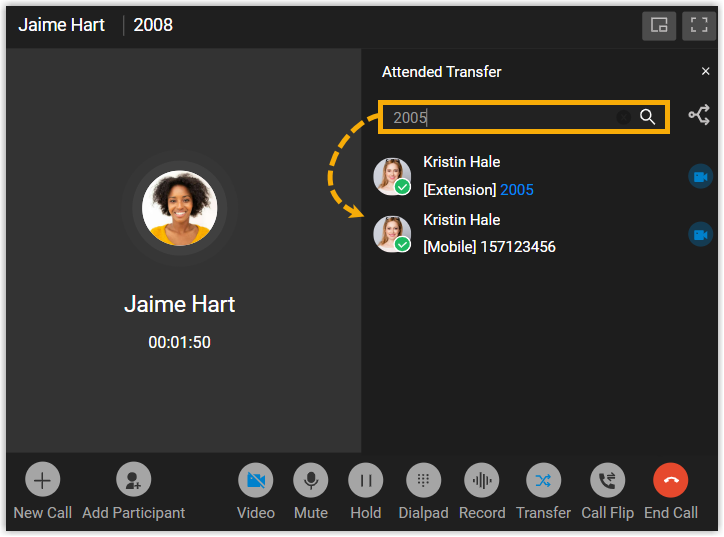
The chosen extension user or contact’s phone rings.
-
-
When they pick up, brief them on the call, then click Transfer to complete the handoff.
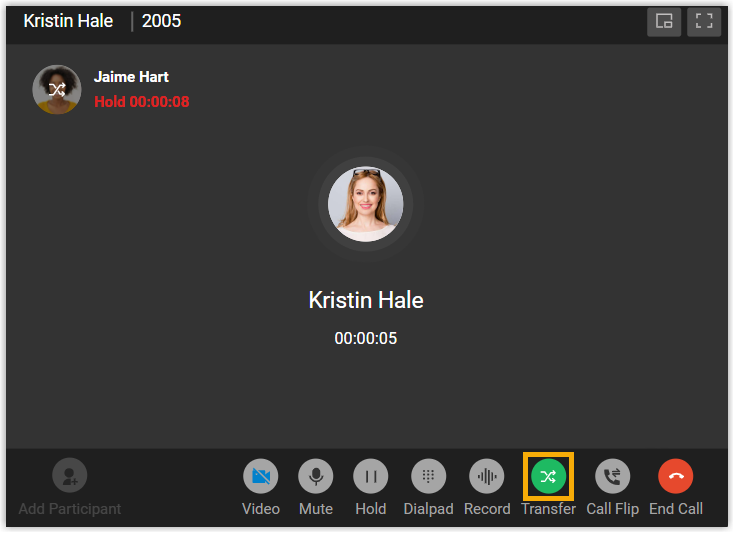
Your call drops and the original caller is connected with the party you spoke to.
Question about this page?
Ask the AI assistant. It starts from this page, then searches the rest of the docs.
Ask Cloud Voice AI
Answers are AI-generated from the docs and may contain mistakes. Verify with the linked pages.