
Control the Mobile Client from the Desktop Client
CTI (Computer Telephony Integration) mode lets the Cloud Voice App Desktop Client act as an on-screen control panel for a mobile client signed in under the same extension. You run the call from your computer (dialing, recording, hanging up, and more), while the audio stream stays on the Cloud Voice App Mobile Client on your phone.
When to use CTI mode
Section titled “When to use CTI mode”Suppose you run a CRM (customer relationship management) system on your office computer and place click-to-dial calls through the Desktop Client, but that CRM is locked to the office network. If you connect to the office computer remotely and dial from there, the audio still travels over the office network rather than yours. On an unstable remote link, that can degrade call quality.
CTI mode solves this. Install the Cloud Voice App Mobile Client on your phone, sign in with the same extension, then connect to your office computer and point the Desktop Client at the mobile client over CTI. Audio now routes straight through your phone, so a shaky remote connection no longer affects how your calls sound.
Requirements
Section titled “Requirements”Confirm that your Cloud Voice platform and your clients meet the following:
| Component | Requirement |
|---|---|
| Cloud Voice platform | Running version 84.22.0.134 or later. |
| Cloud Voice App Desktop Client | Version 1.21.2 or later. |
| Cloud Voice App Mobile Client | iOS: version 5.24.13 or later. Android: version 5.24.7 or later. Signed in with the same extension used on the Desktop Client. |
Turn on CTI mode
Section titled “Turn on CTI mode”-
Sign in to the Cloud Voice App Desktop Client.
-
In the top-right corner, click the CTI icon
 , then choose Mobile Client from the drop-down list.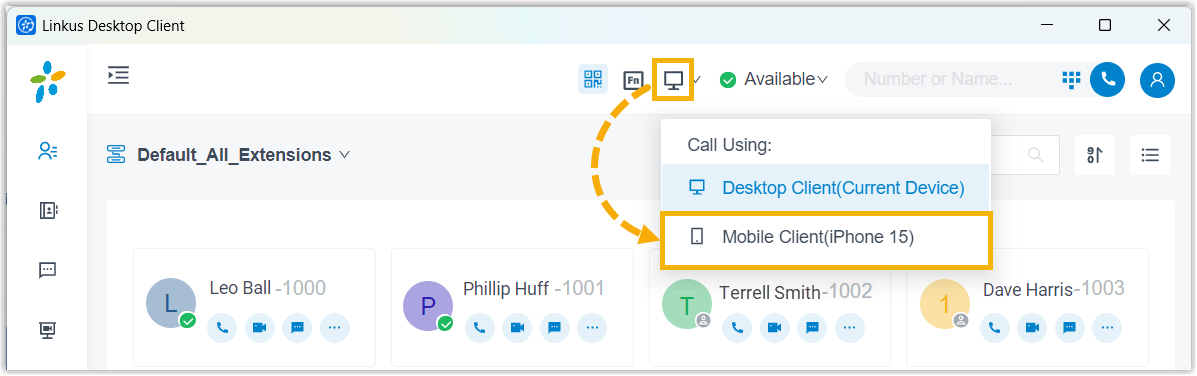
What you can do
Section titled “What you can do”Once the mobile client is connected, use the Desktop Client to run these call operations on it:
- Make and end a call
- Reject a call
- Blind transfer a call (send the call to another number without speaking to that person first)
- Record a call
- Hold and resume a call
- Flip a call (move an in-progress call to another device without dropping it)
- Transcribe a call (turn the call audio into text)
Question about this page?
Ask the AI assistant. It starts from this page, then searches the rest of the docs.
Ask Cloud Voice AI
Answers are AI-generated from the docs and may contain mistakes. Verify with the linked pages.