
Disable Call Timeline for CDR
A CDR (Call Detail Record) is the log entry the phone system saves for every call. The call timeline adds a step-by-step breakdown of what happened during that call (for example, when it rang, when it was answered, whether it was transferred, and when it hung up) and attaches that breakdown to the matching CDR. If your account has no use for that level of detail, you can switch the feature off to reduce how much storage each record uses. This page walks you through disabling it.
Disable the call timeline
Section titled “Disable the call timeline”-
Sign in to the PBX (Private Branch Exchange, your hosted phone system) web portal and open Reports and Recordings > CDR.
-
Select the CDR (Advanced) tab, then switch Timeline off.
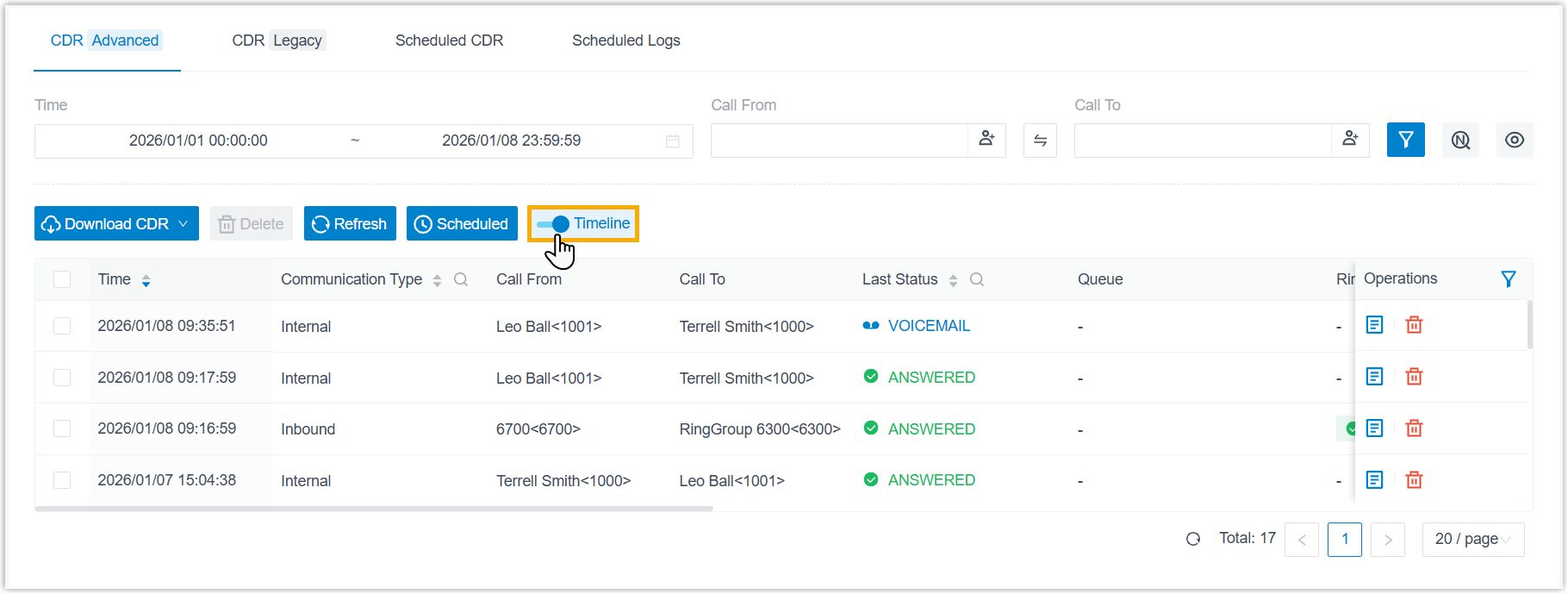
-
Confirm the change in the dialog that appears.
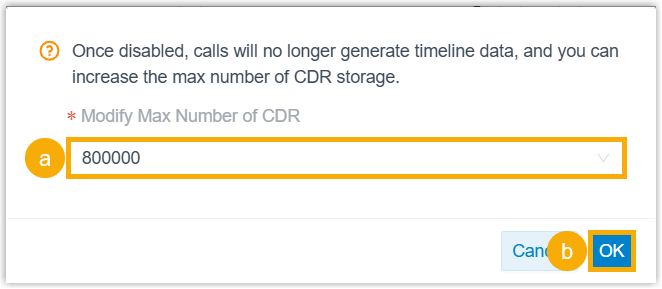
a. To store more CDRs now that timeline data no longer takes up space, leave the suggested value in place or pick another value from the Modify Max Number of CDR list.
b. Click OK.
What happens next
Section titled “What happens next”- All current timeline records are deleted, and CDRs generated from future calls will no longer carry timeline data.
- If you changed the CDR storage limit in the confirmation dialog, that new value is applied automatically to the auto-cleanup rule at System > Storage > Auto Cleanup > CDR Auto Cleanup > Max Number of CDR. You do not need to update it there by hand.
Question about this page?
Ask the AI assistant. It starts from this page, then searches the rest of the docs.
Ask Cloud Voice AI
Answers are AI-generated from the docs and may contain mistakes. Verify with the linked pages.