
Set Distinctive Ringtones for Ring Group Calls
Giving each ring group its own ringtone lets members tell at a glance which group a call is coming from. This is particularly handy for anyone who belongs to several ring groups at once, since the sound alone signals who is trying to reach them.
There are two ways to apply a distinctive ringtone, depending on where members answer their calls:
On a member’s IP phone
Section titled “On a member’s IP phone”To make a member’s desk phone play a particular tone for ring group calls, you push the setting to the extension through auto provisioning (the feature that configures and deploys IP phones centrally from the PBX).
Prerequisite: the member’s extension must already be linked to an IP phone through auto provisioning. See:
The setup has two parts: define an alert info on the ring group, then map that alert info to a ringtone on the member’s extension.
Step 1: Add an alert info to the ring group
Section titled “Step 1: Add an alert info to the ring group”The alert info is the signal a phone reads to decide which tone to play for calls that arrive through this ring group.
-
Sign in to the PBX (Private Branch Exchange, your hosted phone system) web portal and go to Call Features > Ring Group, then open the ring group you want to change.
-
Under Ring Group Alert Info, type an alert info value. This example uses
Sales.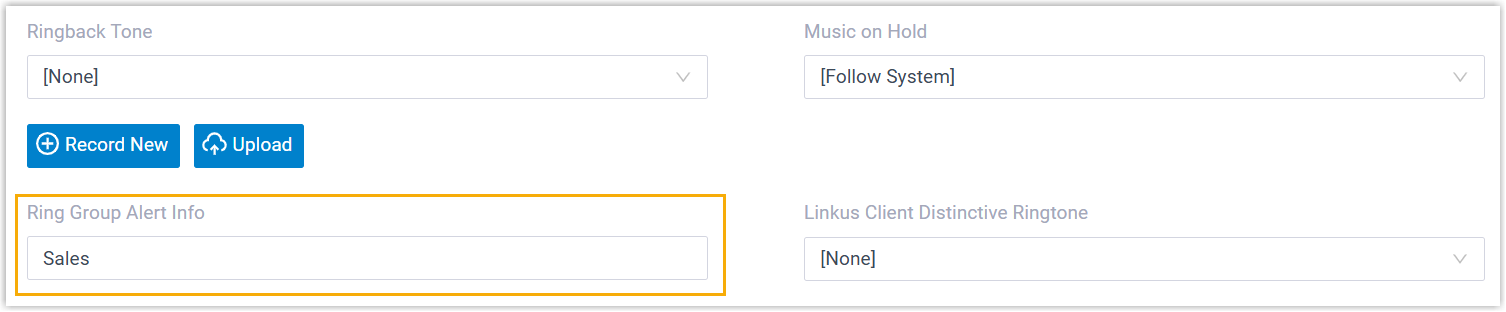
-
Click Save.
Step 2: Match the alert info to a ringtone on the extension
Section titled “Step 2: Match the alert info to a ringtone on the extension”-
Assign a ringtone to the member’s extension:
-
In the PBX web portal, go to Extension and Trunk > Extension and open the member’s extension.
-
Open the Phone tab.
-
In the Distinctive Ringtone section, click Add.
-
For Alert Info, choose the value you defined for the ring group,
Salesin this example. -
For Ringtone, pick the tone to play for these calls. This example uses
Ring4.wav.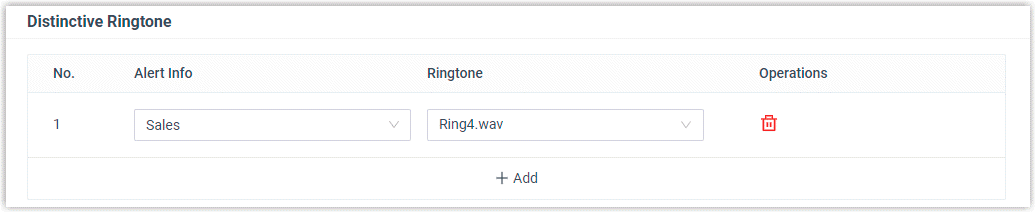
-
Click Save.
-
-
Reprovision the phone so the change takes effect:
- Go to Auto Provisioning > Phones.
- Click the reprovision icon
 next to the phone assigned to the member’s extension.
Result: the member’s phone now plays Ring4.wav whenever a call comes in through the Sales ring group.
In the Cloud Voice App
Section titled “In the Cloud Voice App”You can attach a ringtone to a ring group so that it plays on members’ Cloud Voice App when they receive a call from that group.
-
Sign in to the PBX web portal and go to Call Features > Ring Group, then open the ring group you want to change.
-
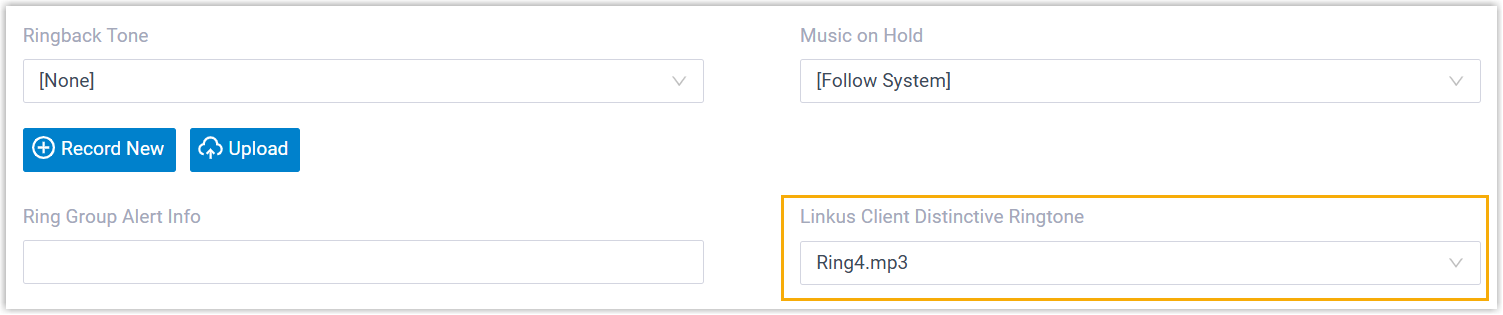
From the Cloud Voice App Distinctive Ringtone drop-down list, select an existing ringtone or upload a new one.
-
Click Save.
Question about this page?
Ask the AI assistant. It starts from this page, then searches the rest of the docs.
Ask Cloud Voice AI
Answers are AI-generated from the docs and may contain mistakes. Verify with the linked pages.